
Neodynamic ThermalLabel SDK 8.0+
Microsoft .NET Framework 4.6.1+
Microsoft Visual Studio 2017+
Any Zebra Thermal Printer supporting ZPL (Zebra Programming Language) or EPL (Eltron Programming Language)
ThermalLabel SDK supports .NET Data Binding scenarios allowing you to print thermal labels bound to a data source such as custom .NET objects, XML files, Databases, ADO.NET, etc.
In this guide you will learn how to perform data binding with .NET Custom Objects to print barcode labels with Zebra ZPL or EPL printers by using ThermalLabel SDK for .NET
The following sample features a class called Product with two basic properties: Id and Name. A list of Product and a ThermalLabel objects will be used to perform data binding scenario printing a set of thermal labels for each product as shown in the following figure.
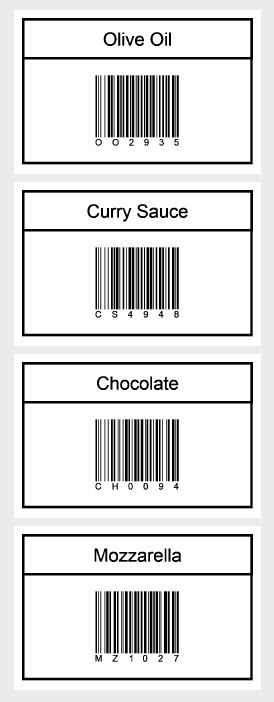
IMPORTANT: To test the sample code you must have installed a Zebra ZPL-based or EPL-based thermal printer.
Public Class Product

    Dim _id As String
    Dim _name As String

    Public Sub New(ByVal id As String, ByVal name As String)
        Me.Id = id
        Me.Name = name
    End Sub

    Public Property Id() As String
        Get
            Return _id
        End Get
        Set(ByVal value As String)
            _id = value
        End Set
    End Property

    Public Property Name() As String
        Get
            Return _name
        End Get
        Set(ByVal value As String)
            _name = value
        End Set
    End Property

End Class
public class Product
{
    string _id;
    string _name;

    public Product(string id, string name)
    {
        this.Id = id;
        this.Name = name;
    }

    public string Id
    {
        get { return _id; }
        set { _id = value; }
    }

    public string Name
    {
        get { return _name; }
        set { _name = value; }
    }
}
'Define a ThermalLabel object and set unit to inch and label size
Dim tLabel As New ThermalLabel(UnitType.Inch, 3, 2)
tLabel.GapLength = 0.2

'Define a TextItem object for product name
Dim txt As New TextItem(0.1, 0.1, 2.8, 0.5, "")
'set data field
txt.DataField = "Name"
'set font
txt.Font.Name = "Arial"
txt.Font.Unit = FontUnit.Point
txt.Font.Size = 16
'set border
txt.BorderThickness = new FrameThickness(0.03)
'set alignment
txt.TextAlignment = TextAlignment.Center
txt.TextPadding = new FrameThickness(0, 0.1, 0, 0)

'Define a BarcodeItem object for encoding product id with a Code 128 symbology
Dim bc As New BarcodeItem(0.1, 0.57, 2.8, 1.3, BarcodeSymbology.Code128, "")
'set data field
bc.DataField = "Id"
'set barcode size
bc.BarWidth = 0.01
bc.BarHeight = 0.75
'set barcode alignment
bc.BarcodeAlignment = BarcodeAlignment.MiddleCenter
'set text alignment
bc.CodeAlignment = BarcodeTextAlignment.BelowJustify
'set border
bc.BorderThickness = new FrameThickness(0.03)

'Add items to ThermalLabel object...
tLabel.Items.Add(txt)
tLabel.Items.Add(bc)

'Create data source...
Dim products As New List(Of Product)
products.Add(New Product("OO2935", "Olive Oil"))
products.Add(New Product("CS4948", "Curry Sauce"))
products.Add(New Product("CH0094", "Chocolate"))
products.Add(New Product("MZ1027", "Mozzarella"))

'set data source...
tLabel.DataSource = products

'Create a WindowsPrintJob object
Using pj As New WindowsPrintJob()
	'Create PrinterSettings object
	Dim myPrinter As New PrinterSettings()
	myPrinter.Communication.CommunicationType = CommunicationType.USB
	myPrinter.Dpi = 203
	myPrinter.ProgrammingLanguage = ProgrammingLanguage.ZPL
	myPrinter.PrinterName = "Zebra  TLP2844-Z"

	'Set PrinterSettings to PrintJob
	pj.PrinterSettings = myPrinter
	'Print ThermalLabel object...
	pj.Print(tLabel)
End Using
//Define a ThermalLabel object and set unit to inch and label size
ThermalLabel tLabel = new ThermalLabel(UnitType.Inch, 3, 2);
tLabel.GapLength = 0.2;

//Define a TextItem object for product name
TextItem txt = new TextItem(0.1, 0.1, 2.8, 0.5, "");
//set data field
txt.DataField = "Name";
//set font
txt.Font.Name = "Arial";
txt.Font.Unit = FontUnit.Point;
txt.Font.Size = 16;
//set border
txt.BorderThickness = new FrameThickness(0.03);
//set alignment
txt.TextAlignment = TextAlignment.Center;
txt.TextPadding = new FrameThickness(0, 0.1, 0, 0);

//Define a BarcodeItem object for encoding product id with a Code 128 symbology
BarcodeItem bc = new BarcodeItem(0.1, 0.57, 2.8, 1.3, BarcodeSymbology.Code128, "");
//set data field
bc.DataField = "Id";
//set barcode size
bc.BarWidth = 0.01;
bc.BarHeight = 0.75;
//set barcode alignment
bc.BarcodeAlignment = BarcodeAlignment.MiddleCenter;
//set text alignment
bc.CodeAlignment = BarcodeTextAlignment.BelowJustify;
//set border
bc.BorderThickness = new FrameThickness(0.03);

//Add items to ThermalLabel object...
tLabel.Items.Add(txt);
tLabel.Items.Add(bc);

//Create data source...
List<Product> products = new List<Product>();
products.Add(new Product("OO2935", "Olive Oil"));
products.Add(new Product("CS4948", "Curry Sauce"));
products.Add(new Product("CH0094", "Chocolate"));
products.Add(new Product("MZ1027", "Mozzarella"));

//set data source...
tLabel.DataSource = products;

//Create a WindowsPrintJob object
using (WindowsPrintJob pj = new WindowsPrintJob())
{
	//Create PrinterSettings object
	PrinterSettings myPrinter = new PrinterSettings();
	myPrinter.Communication.CommunicationType = CommunicationType.USB;
	myPrinter.Dpi = 203;
	myPrinter.ProgrammingLanguage = ProgrammingLanguage.ZPL;
	myPrinter.PrinterName = "Zebra  TLP2844-Z";

	//Set PrinterSettings to PrintJob
	pj.PrinterSettings = myPrinter;
	//Print ThermalLabel object...
	pj.Print(tLabel);
} We provide best-in-class customer service and support directly from members of our dev team! If we are available when you contact us, you will get a response in few minutes; otherwise the maximum turnaround is 24hs in most cases.