
How to insert barcode images into a Microsoft Excel worksheet using C# or VB.NET and Barcode Professional for .NET
Product Barcode Professional for Windows Forms Published 10/14/2006 Updated 10/14/2006
Requirements
Neodynamic Barcode Professional 2.5 for .NET Windows Forms or greater
Microsoft .NET Framework 1.x or greater
Microsoft Visual Studio .NET or greater
Microsoft Office Primary Interop Assemblies (PIA)
Due to its flexible design, Barcode Professional allows you to easily insert barcode images into a Microsoft Excel Worksheet using .NET technology.
In the following sample we're going to generate a simple .NET Windows Forms application that will allow you to insert a barcode image into a predefined Excel worksheet.
Follow these steps:
- Open Visual Studio and create a new Windows Forms Application.
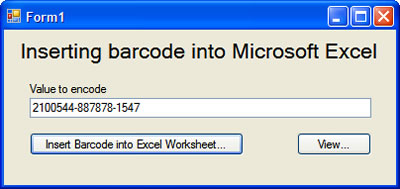
- Open the default Form at design time and design it as is shown in the following figure
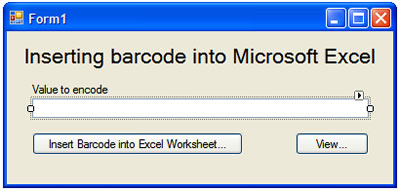
- In order to manipulate Excel documents from .NET, we're going to use the Microsoft Office Primary Interop Assemblies (PIA) provided by Microsoft. PIA is available for Microsoft Office XP and Office 2003. You can get them from the following locations:
Office XP PIA
http://www.microsoft.com/downloads/details.aspx?FamilyID=c41bd61e-3060-4f71-a6b4-01feba508e52&DisplayLang=en
Office 2003 PIA
http://www.microsoft.com/downloads/details.aspx?FamilyID=3c9a983a-ac14-4125-8ba0-d36d67e0f4ad&DisplayLang=en
Please, download the correct PIA and install it on your box.
NOTE:
For older versions of Office, please read the following papers at Microsoft website about interoperation between Microsoft .NET managed code and Microsoft Office applications.
http://msdn.microsoft.com/office/archive/default.aspx?pull=/library/en-us/odc_of2003_bk/html/officeinteroperabilitych2_part1.asp - With your Windows Forms project opened, add a reference to Microsoft Excel [Version] Object Library as is shown in the following figure:
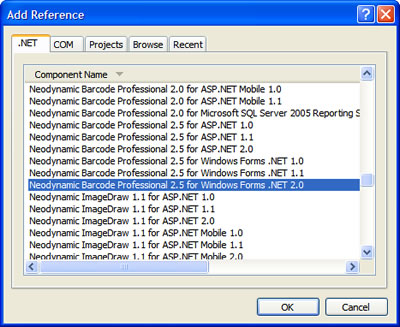
And add a reference to Barcode Professional as is shown in the following figure. IMPORTANT: Please, select the correct version of Barcode Professional depending on what version of the .NET Framework you're using.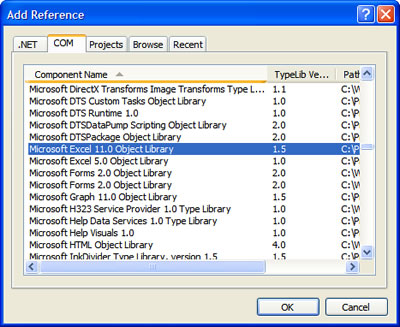
- In this case we're going to use a fictitious Invoice worksheet that you'll find at the end of this guide available for download.
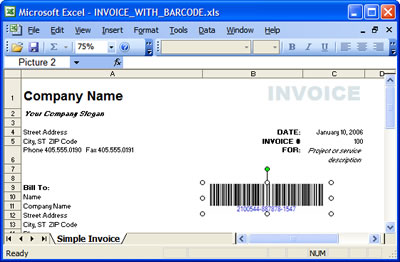
The barcode image will be inserted at B9 cell as you can see in the following figure:
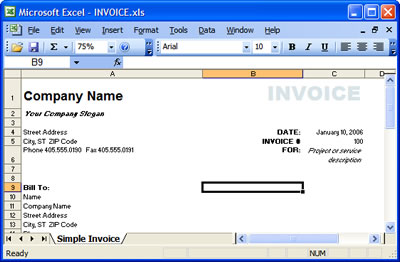
IMPORTANT: The cell location is very important because we'll reference it in code. - In the Windows Forms project, add the following method in the form's code behind file:
VB
Private Sub AddBarcodeIntoExcel()
'Create barcode professional instance
Dim bc As New Neodynamic.WinControls.BarcodeProfessional.BarcodeProfessional
'Set some barcode symbology
bc.Symbology = Neodynamic.WinControls.BarcodeProfessional.Symbology.Code128
'Set value to encode
bc.Code = Me.TextBox1.Text
bc.Text = ""

'Create barcode image
Dim ms As New System.IO.MemoryStream(bc.GetBarcodeImage(System.Drawing.Imaging.ImageFormat.Png))
Dim barcodeImage As Bitmap = CType(Image.FromStream(ms), Bitmap)

'Create an Excel App
Dim excelApp As New Microsoft.Office.Interop.Excel.Application()
excelApp.Visible = False

'The Excel doc paths
Dim oMissing As Object = System.Reflection.Missing.Value
Dim destFile As String = "C:\INVOICE_WITH_BARCODE.xls"
Dim excelFile As String = "C:\INVOICE.xls"

'Open the worksheet file
Dim excelBook As Microsoft.Office.Interop.Excel.Workbook
excelBook = excelApp.Workbooks.Open(excelFile)
Dim excelSheet As Microsoft.Office.Interop.Excel.Worksheet
excelSheet = CType(excelBook.Sheets.Item(1), Microsoft.Office.Interop.Excel.Worksheet)

'Find the predefined barcode cell into the worksheet
Dim barcodeCell As Object = "B9"
Dim range As Microsoft.Office.Interop.Excel.Range
range = excelSheet.Range(barcodeCell)

'Copy the barcode image into Clipboard
Clipboard.SetDataObject(barcodeImage)

'Paste the barcode image
range.Select()
excelSheet.Paste()
'Save a copy with barcode
excelSheet.SaveAs(destFile)

'Quit
excelApp.Quit()

System.Runtime.InteropServices.Marshal.ReleaseComObject(excelApp)
ms.Close()
barcodeImage.Dispose()

MessageBox.Show("Barcode inserted!")
End Sub
C#
private void AddBarcodeIntoExcel() { //Create barcode professional instance Neodynamic.WinControls.BarcodeProfessional.BarcodeProfessional bc = new Neodynamic.WinControls.BarcodeProfessional.BarcodeProfessional(); //Set some barcode symbology bc.Symbology = Neodynamic.WinControls.BarcodeProfessional.Symbology.Code128; //Set value to encode bc.Code = this.textBox1.Text; bc.Text = ""; //Create barcode image System.IO.MemoryStream ms = new System.IO.MemoryStream(bc.GetBarcodeImage(System.Drawing.Imaging.ImageFormat.Png)); Bitmap barcodeImage = (Bitmap)Image.FromStream(ms); //Create an Excel App Microsoft.Office.Interop.Excel.ApplicationClass excelApp = new Microsoft.Office.Interop.Excel.ApplicationClass(); excelApp.Visible = false; //Interop params object oMissing = System.Reflection.Missing.Value; //The Excel doc paths string excelFile = @"C:\INVOICE.xls"; string destFile = @"C:\INVOICE_WITH_BARCODE.xls"; //Open the worksheet file Microsoft.Office.Interop.Excel.Workbook excelBook = excelApp.Workbooks.Open(excelFile, oMissing, oMissing, oMissing, oMissing, oMissing, oMissing, oMissing, oMissing, oMissing, oMissing, oMissing, oMissing, oMissing, oMissing); Microsoft.Office.Interop.Excel.Worksheet excelSheet = (Microsoft.Office.Interop.Excel.Worksheet)excelBook.Sheets.get_Item(1); //Find the predefined barcode cell into the worksheet object barcodeCell = "B9"; Microsoft.Office.Interop.Excel.Range range = excelSheet.get_Range(barcodeCell,barcodeCell); //Copy the barcode image into Clipboard Clipboard.SetDataObject(barcodeImage); //Paste the barcode image range.Select(); excelSheet.Paste(oMissing, oMissing); //Save a copy with barcode excelSheet.SaveAs(destFile, oMissing, oMissing, oMissing, oMissing, oMissing, oMissing, oMissing, oMissing, oMissing); //Quit excelApp.Quit(); System.Runtime.InteropServices.Marshal.ReleaseComObject(excelApp); ms.Close(); barcodeImage.Dispose(); MessageBox.Show("Barcode inserted!"); } - Add the following code for button's Click events
VB
Visual Basic .NET
Private Sub Button1_Click(ByVal sender As System.Object, ByVal e As System.EventArgs) Handles Button1.Click
If Me.TextBox1.Text.Length > 0 Then
Me.AddBarcodeIntoExcel()
End If
End Sub

Private Sub Button2_Click(ByVal sender As System.Object, ByVal e As System.EventArgs) Handles Button2.Click
System.Diagnostics.Process.Start("C:\INVOICE_WITH_BARCODE.xls")
End Sub
C#
private void button1_Click(object sender, System.EventArgs e) { if (this.TextBox1.Text.Length > 0) this.AddBarcodeIntoExcel(); } private void button2_Click(object sender, System.EventArgs e) { System.Diagnostics.Process.Start(@"C:\INVOICE_WITH_BARCODE.xls"); } - That's it. Run your project, type some value to encode and click Insert button. The barcode image will appear into the Excel worksheet!
Sample Files Download
- INVOICE.xls (16 KB)
Need help? Contact Support
We provide best-in-class customer service and support directly from members of our dev team! If we are available when you contact us, you will get a response in few minutes; otherwise the maximum turnaround is 24hs in most cases.