
How to display barcode images onto Pocket PC, Windows CE and Windows Mobile forms
Product Barcode Professional for .NET Compact Framework Published 04/28/2007 Updated 04/28/2007
Requirements
Neodynamic Barcode Professional for .NET Compact Framework
Microsoft .NET Compact Framework 2.0 (or greater)
Microsoft Visual Studio 2005 (or greater)
This walkthrough illustrates how to easily display linear (1D) and 2D barcode images onto Smart Device forms in Pocket PC, Smartphone, Windows CE and Windows Mobile projects leveraging .NET Compact Framework technologies.
During the course of this walkthrough, you will accomplish the following activities:
- Display directly barcode images onto a form by using Barcode Professional UI controls
- Generate barcode images by using Barcode Professional classes and then display them onto a form by using a PictureBox control
Display directly barcode images onto a form by using Barcode Professional UI controls
Follow these steps:
- Install Barcode Professional for .NET Compact Framework and configure it in Visual Studio 2005 as is described in the "Getting Started > Visual Studio Configuration" topic in the product help.
- Open Visual Studio 2005 and create a new Smart Device project such as Pocket PC 2003
- Displaying Linear (1D) barcodes, for example Code 128
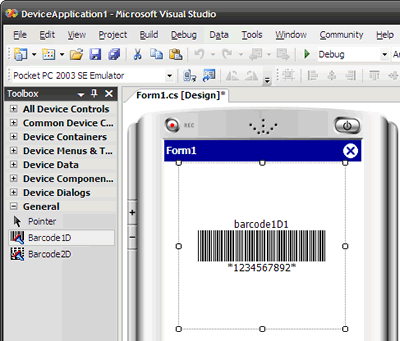
- Open Visual Studio Toolbox and drag & drop the Barcode1D control as is shown in the following figure:
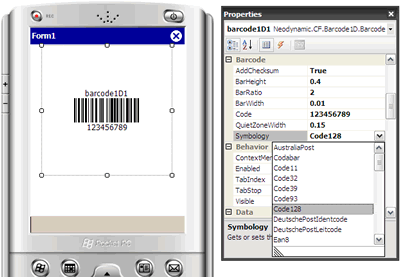
- Specify the Linear (1D) barcode Symbology/standard you want to use by setting up the Symbology property of Barcode1D control just dropped onto the form. For example the following figure shows the setting for encoding Code128
- The value to encode is specified by setting up the Code property of Barcode1D control and by default it's "123456789"
- The Text property of Barcode1D control can be used to add additional text you want to draw on the barcode image. Example, you could set it to "Employee ID"
- Barcode related dimensions are specified by setting properties like BarHeight, BarWidth, BarRatio, etc (all dimension values are measured and must be specified in inches). IMPORTANT: Please refer to the Barcode Professional help for more information about the settings for each standard. Look for "Barcode Symbology Information Center" topic.
- (Optional) All the settings can be made by writing code in your preferred .NET language such as VB.NET or C#. For example, you could specify all settings in the Form_Load event procedure like follows:
VB
'Temporally suspend drawing
Me.barcode1D1.SuspendDrawing()
'Set barcode symbology
Me.barcode1D1.Symbology = Neodynamic.CF.Barcode1D.Symbology1D.Code128
'Set value to encode
Me.barcode1D1.Code = "123456789"
'Set additional text
Me.barcode1D1.Text = "Employee ID"
'Set dimensions
Me.barcode1D1.BarWidth = 0.01F
Me.barcode1D1.BarHeight = 0.5F
'...
'Redraw barcode
Me.barcode1D1.ResumeDrawing()
C#
//Temporally suspend drawing this.barcode1D1.SuspendDrawing(); //Set barcode symbology this.barcode1D1.Symbology = Neodynamic.CF.Barcode1D.Symbology1D.Code128; //Set value to encode this.barcode1D1.Code = "123456789"; //Set additional text this.barcode1D1.Text = "Employee ID"; //Set dimensions this.barcode1D1.BarWidth = 0.01f; this.barcode1D1.BarHeight = 0.5f; //... //Redraw barcode this.barcode1D1.ResumeDrawing(); - That's it. Build your project and test it. You should get something like follows:

- Open Visual Studio Toolbox and drag & drop the Barcode1D control as is shown in the following figure:
- Displaying 2D barcodes, for example Data Matrix
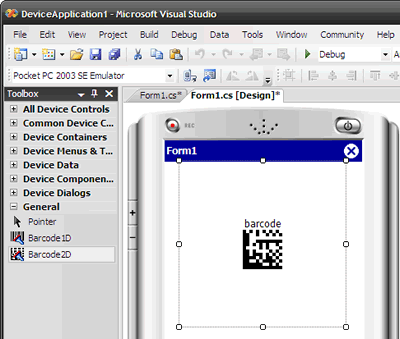
- Open Visual Studio Toolbox and drag & drop the Barcode2D control as is shown in the following figure:
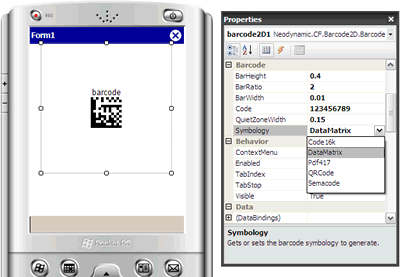
- Specify the 2D barcode Symbology/standard you want to use by setting up the Symbology property of Barcode2D control just dropped onto the form. For example the following figure shows the setting for encoding DataMatrix
- The value to encode is specified by setting up the Code property of Barcode2D control and by default it's "123456789". Notice that Code property is not displayed in 2D barcode symbologies!
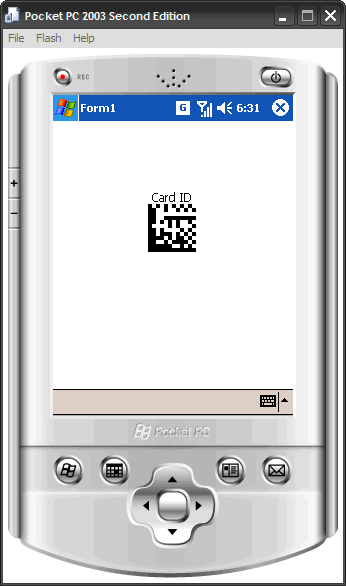
- The Text property of Barcode2D control can be used to add additional text you want to draw on the barcode image. Example, you could set it to "Card ID"
- Barcode related dimensions are specified by setting properties like DataMatrixModuleSize, BarHeight, BarWidth, BarRatio, etc (all dimension values are measured and must be specified in inches). IMPORTANT: Please refer to the Barcode Professional help for more information about the settings for each standard. Look for "Barcode Symbology Information Center" topic.
- (Optional) All the settings can be made by writing code in your preferred .NET language such as VB.NET or C#. For example, you could specify all settings in the Form_Load event procedure like follows:
VB
'Temporally suspend drawing
Me.barcode2D1.SuspendDrawing()
'Set barcode symbology
Me.barcode2D1.Symbology = Neodynamic.CF.Barcode2D.Symbology2D.DataMatrix
'Set value to encode
Me.barcode2D1.Code = "123456789"
'Set additional text
Me.barcode2D1.Text = "Card ID"
'Set dimensions
Me.barcode2D1.DataMatrixModuleSize = 0.04F
'...
'Redraw barcode
Me.barcode2D1.ResumeDrawing()
C#
//Temporally suspend drawing this.barcode2D1.SuspendDrawing(); //Set barcode symbology this.barcode2D1.Symbology = Neodynamic.CF.Barcode2D.Symbology2D.DataMatrix; //Set value to encode this.barcode2D1.Code = "123456789"; //Set additional text this.barcode2D1.Text = "Card ID"; //Set dimensions this.barcode2D1.DataMatrixModuleSize = 0.04f; //... //Redraw barcode this.barcode2D1.ResumeDrawing(); - That's it. Build your project and test it. You should get something like follows:
- Open Visual Studio Toolbox and drag & drop the Barcode2D control as is shown in the following figure:
Generate barcode images by using Barcode Professional classes and then display them onto a form by using a PictureBox control
Follow these steps:
- Install Barcode Professional for .NET Compact Framework.
- Open Visual Studio 2005 and create a new Smart Device project such as Pocket PC 2003
- Displaying Linear (1D) barcodes, for example Code 128
- Open Visual Studio Toolbox and drag & drop a PictureBox control and set its SizeMode property to CenterImage
- Add a reference to Neodynamic.CF.Barcode1D.dll assembly
- In the Form_Load event procedure of the form, write the following sample code which instantiates Barcode1D class and generates a Code 128 barcode image to be displayed in the PictureBox control.
VB
'Create a Barcode1D object
Dim bc As New Neodynamic.CF.Barcode1D.Barcode1D()
'Set barcode symbology
bc.Symbology = Neodynamic.CF.Barcode1D.Symbology1D.Code128
'Set value to encode
bc.Code = "123456789"
'Set additional text
bc.Text = "Employee ID"
'Set dimensions
bc.BarWidth = 0.01F
bc.BarHeight = 0.5F
'...
'Generate barcode image and display it
Me.pictureBox1.Image = bc.GetBarcodeImage()
C#
//Create a Barcode1D object Neodynamic.CF.Barcode1D.Barcode1D bc = new Neodynamic.CF.Barcode1D.Barcode1D(); //Set barcode symbology bc.Symbology = Neodynamic.CF.Barcode1D.Symbology1D.Code128; //Set value to encode bc.Code = "123456789"; //Set additional text bc.Text = "Employee ID"; //Set dimensions bc.BarWidth = 0.01f; bc.BarHeight = 0.5f; //... //Generate barcode image and display it this.pictureBox1.Image = bc.GetBarcodeImage(); - That's it. Build your project and test it. You should get the barcode image displayed in PictureBox control.
- Displaying 2D barcodes, for example Data Matrix
- Open Visual Studio Toolbox and drag & drop a PictureBox control and set its SizeMode property to CenterImage
- Add a reference to Neodynamic.CF.Barcode2D.dll assembly
- In the Form_Load event procedure of the form, write the following sample code which instantiates Barcode2D class and generates a Data Matrix barcode image to be displayed in the PictureBox control.
VB
'Create a Barcode2D object
Dim bc As New Neodynamic.CF.Barcode2D.Barcode2D()
'Set barcode symbology
bc.Symbology = Neodynamic.CF.Barcode2D.Symbology2D.DataMatrix
'Set value to encode
bc.Code = "123456789"
'Set additional text
bc.Text = "Card ID"
'Set dimensions
bc.DataMatrixModuleSize = 0.04F
'...
'Generate barcode image and display it
Me.pictureBox1.Image = bc.GetBarcodeImage()
C#
//Create a Barcode2D object
Neodynamic.CF.Barcode2D.Barcode2D bc = new Neodynamic.CF.Barcode2D.Barcode2D();
//Set barcode symbology
bc.Symbology = Neodynamic.CF.Barcode2D.Symbology2D.DataMatrix;
//Set value to encode
bc.Code = "123456789";
//Set additional text
bc.Text = "Card ID";
//Set dimensions
bc.DataMatrixModuleSize = 0.04f;
//...
//Generate barcode image and display it
this.pictureBox1.Image = bc.GetBarcodeImage();
Need help? Contact Support
We provide best-in-class customer service and support directly from members of our dev team! If we are available when you contact us, you will get a response in few minutes; otherwise the maximum turnaround is 24hs in most cases.