Image Item
The ImageItem class
An ImageItem, represented by the Neodynamic.SDK.Printing.ImageItem class, wraps an image, graphic or picture that is drawn on the label. You create an ImageItem by specifying its location (X and Y) and then the image source, the printed size, and optionally the rotation, flip and monochrome settings.
// ImageItem(x, y)
var logo = new ImageItem(0.5, 0.5);
logo.SourceFile = @"C:\temp\logo.png";
logo.Width = 2;
logo.LockAspectRatio = LockAspectRatio.WidthBased;
An ImageItem can wrap BMP, GIF, JPEG and PNG images. The image content can be specified as a file path or URL, a Base64 string or a byte array. Once the source is set you can control how to size, rotate and flip it, and how it is converted to monochrome (Threshold, Pattern Diffusion, Floyd-Steinberg and Otsu algorithms, with an optional reverse effect).
After creating an ImageItem, add it to the Items collection of the ThermalLabel to print it.
Note
For the complete list of properties and methods of ImageItem and MonochromeSettings, see the API Reference.
Quick Start
C#
using Neodynamic.SDK.Printing;

ThermalLabel tLabel = new ThermalLabel(UnitType.Inch, 4, 3);
tLabel.GapLength = 0.2;

ImageItem logo = new ImageItem(0.5, 0.5);
logo.SourceFile = @"C:\temp\logo.png";               // file path or URL
logo.Width = 2;                                      // printed width, in label units
logo.LockAspectRatio = LockAspectRatio.WidthBased;   // height is calculated

tLabel.Items.Add(logo);
VB.NET
Imports Neodynamic.SDK.Printing

Dim tLabel As New ThermalLabel(UnitType.Inch, 4, 3)
tLabel.GapLength = 0.2

Dim logo As New ImageItem(0.5, 0.5)
logo.SourceFile = "C:\temp\logo.png"               ' file path or URL
logo.Width = 2                                     ' printed width, in label units
logo.LockAspectRatio = LockAspectRatio.WidthBased  ' height is calculated

tLabel.Items.Add(logo)
To print or export the label see Printing the samples.
Main Properties
| Property | Description | Default |
|---|---|---|
SourceFile |
Image file path or URL. | Empty |
SourceBase64 |
Image content as a Base64 string. | Empty |
SourceBinary |
Image content as a byte array. | null |
SourceDpi |
Resolution of the source image, used to calculate its natural size when Width and Height are 0. |
96 |
Width, Height |
Printed size of the image, in the UnitType of the label. |
0, 0 |
LockAspectRatio |
How the proportions are kept when the image is resized. See Image Resizing. | None |
Flip |
None, X, Y or XY. |
None |
RotationAngle |
Rotation in degrees, measured clockwise. | 0 |
MonochromeSettings |
DitherMethod, Threshold and ReverseEffect. See Monochrome conversion. |
OtsuThreshold, 50, false |
ConvertToMonochrome |
Converts the image to black and white. See Color Images. | true |
IsGrayscaleOrBlackWhite |
Indicates that the source pixels are already grayscale or black and white. | false |
HideIfNotFound |
Doesn't print the image (instead of raising an error) when it can't be loaded. | false |
NameAtPrinterStorage |
Name of an image that already exists in the printer's storage. See Images stored in the printer. | Empty |
Image sources
Set only one of SourceFile, SourceBase64 or SourceBinary. If more than one is set, the SDK uses them in this order: SourceFile, SourceBase64, SourceBinary.
// 1. A file path or a URL
img.SourceFile = @"C:\temp\logo.png";
img.SourceFile = "https://example.com/images/logo.png";

// 2. A Base64 string
img.SourceBase64 = Convert.ToBase64String(File.ReadAllBytes(@"C:\temp\logo.png"));

// 3. A byte array
img.SourceBinary = File.ReadAllBytes(@"C:\temp\logo.png");
Note
A URL is downloaded every time the label is rendered, so the machine running your application needs access to it. If the image can't be loaded and HideIfNotFound is false, an exception is raised when the label is rendered or printed.
When you save a label to a file or template (XML), the image content is saved along with it: if the source is a SourceFile, only the path is saved, so the file must be available wherever the template is used. Use SourceBase64 or SourceBinary to make the label self-contained.
Image Resizing
The printed size of the image is configured with Width, Height and LockAspectRatio:
- None: the printed size is the one specified in
WidthandHeight. The image is stretched to that size. - WidthBased: the printed width is the
Widthvalue and the height is calculated to keep the original proportions. - HeightBased: the printed height is the
Heightvalue and the width is calculated to keep the original proportions. - Fit: the image keeps its proportions and fits inside the
WidthxHeightarea.
Tip
If both Width and Height are 0 (the default), the image is printed at its natural size, calculated from its pixels and SourceDpi, and LockAspectRatio is reset to None. The Width and Height properties are updated with that size once the label is rendered.
The image is resized to the number of dots of the printer: Width x Dpi pixels. For the best quality, start with an image that already has (at least) that resolution instead of a small image scaled up. For example, a 2-inch logo for a 203 dpi printer should be about 406 pixels wide.
Image Flipping and Rotation
Use the Flip property to flip the image: X flips it horizontally, Y vertically and XY in both directions.
Use RotationAngle to rotate it. The angle is measured clockwise and can be any value in degrees.
The image processing actions are performed in this order: Resize >> Flip >> Rotate.
Monochrome conversion
Thermal printers print black dots only, so the image must be converted to black and white. For the best quality, provide the source image in black and white already, at the size and resolution that will be printed. Anyway, the ImageItem converts the image with the MonochromeSettings property.
The SDK provides four dithering methods, set in the DitherMethod property:
| Method | Description | Use it for |
|---|---|---|
Threshold |
Any pixel below the threshold becomes black and any pixel above it becomes white. | Simple images like logos or symbols |
OtsuThreshold |
Uses Otsu's method to calculate the threshold automatically from the histogram of the image. Default. | Simple images like logos or symbols |
PatternDiffusion |
Uses a 4x4 dithering matrix to create groups of pixels that approximate the brightness of the area. | Photos and complex images |
FloydSteinberg |
Uses the Floyd-Steinberg algorithm: it tracks the brightness error caused by the threshold and diffuses it over the surrounding pixels. | Photos and complex images |
Threshold is a percentage from 0 to 100 (default 50), used by the Threshold method. A value outside that range throws an ArgumentOutOfRangeException.
ReverseEffect reverses the conversion, so the shape of the image is printed white on black.
img.MonochromeSettings.DitherMethod = DitherMethod.FloydSteinberg;   // a photo
img.MonochromeSettings.Threshold = 60;
img.MonochromeSettings.ReverseEffect = false;
Color Images
By default images are rendered as monochrome. To keep the colors when exporting labels to image files or PDF documents, or when printing to non-thermal printers, set ConvertToMonochrome to false.
img.ConvertToMonochrome = false;
Note
When printing with ZPL, EPL or Fingerprint/Direct Protocol commands the conversion to monochrome always takes place, whatever the value of ConvertToMonochrome.
Images stored in the printer
Sending an image on every label increases the size of the print job. To avoid it, an image can be stored in the printer and referenced from the label:
- Set
NameAtPrinterStorageto the name of an image that already exists in the printer's storage. The label then sends a command to recall the image instead of the image data. - Alternatively, set the
UseCacheproperty of the item (and, optionally,CacheItemId) to let the SDK use a stored graphic.
ImageItem Samples
Printing the samples
The samples below only show how to design the label. To print any of them with a thermal printer connected to your machine and its Windows driver installed, create a WindowsPrintJob as follows. Set Dpi, ProgrammingLanguage and PrinterName to match your printer (the name must be exactly as shown in Windows).
C#
using (WindowsPrintJob pj = new WindowsPrintJob())
{
    PrinterSettings myPrinter = new PrinterSettings();
    myPrinter.Communication.CommunicationType = CommunicationType.USB;
    myPrinter.Dpi = 203;
    myPrinter.ProgrammingLanguage = ProgrammingLanguage.ZPL;
    myPrinter.PrinterName = "Zebra TLP2844-Z";

    pj.PrinterSettings = myPrinter;
    pj.Print(tLabel);
}
VB.NET
Using pj As New WindowsPrintJob()
    Dim myPrinter As New PrinterSettings()
    myPrinter.Communication.CommunicationType = CommunicationType.USB
    myPrinter.Dpi = 203
    myPrinter.ProgrammingLanguage = ProgrammingLanguage.ZPL
    myPrinter.PrinterName = "Zebra TLP2844-Z"

    pj.PrinterSettings = myPrinter
    pj.Print(tLabel)
End Using
If you don't have a printer, export the label instead, for example pj.ExportToPdf(tLabel, "label.pdf", 300) with a PrintJob.
Example #1: a logo printed as monochrome
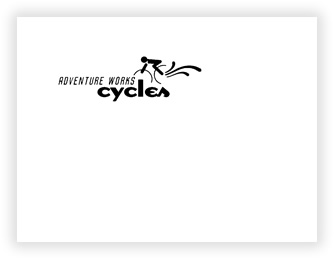
Below is a sample logo in JPEG format. The second figure is a label that features the same image printed as monochrome with an ImageItem.

VB.NET
'Define a ThermalLabel object and set unit to inch and label size
Dim tLabel As New ThermalLabel(UnitType.Inch, 4, 3)
tLabel.GapLength = 0.2

'Define an ImageItem object
Dim logo As New ImageItem(0.5, 0.5)
'Set image source...
logo.SourceFile = "C:\temp\Adventureworks.jpg"
'Set output size...
logo.Width = 2
logo.LockAspectRatio = LockAspectRatio.WidthBased
'monochrome settings
logo.MonochromeSettings.DitherMethod = DitherMethod.Threshold
logo.MonochromeSettings.Threshold = 80

'Add items to ThermalLabel object...
tLabel.Items.Add(logo)
C#
//Define a ThermalLabel object and set unit to inch and label size
ThermalLabel tLabel = new ThermalLabel(UnitType.Inch, 4, 3);
tLabel.GapLength = 0.2;

//Define an ImageItem object
ImageItem logo = new ImageItem(0.5, 0.5);
//Set image source...
logo.SourceFile = @"C:\temp\Adventureworks.jpg";
//Set output size...
logo.Width = 2;
logo.LockAspectRatio = LockAspectRatio.WidthBased;
//monochrome settings
logo.MonochromeSettings.DitherMethod = DitherMethod.Threshold;
logo.MonochromeSettings.Threshold = 80;

//Add items to ThermalLabel object...
tLabel.Items.Add(logo);
Example #2: rotated and reversed (white on black)
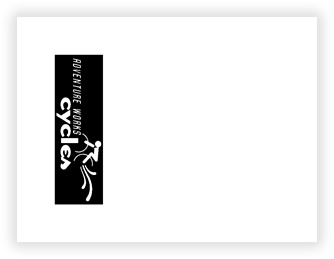
The same logo, rotated 90 degrees and reversed to get a white on black effect.
VB.NET
'Define a ThermalLabel object and set unit to inch and label size
Dim tLabel As New ThermalLabel(UnitType.Inch, 4, 3)
tLabel.GapLength = 0.2

'Define an ImageItem object
Dim logo As New ImageItem(0.5, 0.5)
'Set image source...
logo.SourceFile = "C:\temp\Adventureworks.jpg"
'Set output size...
logo.Width = 2
logo.LockAspectRatio = LockAspectRatio.WidthBased
logo.RotationAngle = 90
'monochrome settings
logo.MonochromeSettings.DitherMethod = DitherMethod.Threshold
logo.MonochromeSettings.Threshold = 80
logo.MonochromeSettings.ReverseEffect = True

'Add items to ThermalLabel object...
tLabel.Items.Add(logo)
C#
//Define a ThermalLabel object and set unit to inch and label size
ThermalLabel tLabel = new ThermalLabel(UnitType.Inch, 4, 3);
tLabel.GapLength = 0.2;

//Define an ImageItem object
ImageItem logo = new ImageItem(0.5, 0.5);
//Set image source...
logo.SourceFile = @"C:\temp\Adventureworks.jpg";
//Set output size...
logo.Width = 2;
logo.LockAspectRatio = LockAspectRatio.WidthBased;
logo.RotationAngle = 90;
//monochrome settings
logo.MonochromeSettings.DitherMethod = DitherMethod.Threshold;
logo.MonochromeSettings.Threshold = 80;
logo.MonochromeSettings.ReverseEffect = true;

//Add items to ThermalLabel object...
tLabel.Items.Add(logo);
Example #3: a photo and an image from memory
A photograph converted with Floyd-Steinberg, loaded from a byte array, flipped horizontally and fit inside a fixed area.
C#
ThermalLabel tLabel = new ThermalLabel(UnitType.Inch, 4, 3);
tLabel.GapLength = 0.2;

byte[] photoBytes = File.ReadAllBytes(@"C:\temp\photo.jpg");

ImageItem photo = new ImageItem(0.25, 0.25);
photo.SourceBinary = photoBytes;
photo.Width = 3.5;
photo.Height = 2.5;
photo.LockAspectRatio = LockAspectRatio.Fit;                      // keep proportions inside 3.5 x 2.5
photo.Flip = Flip.X;                                              // mirror horizontally
photo.MonochromeSettings.DitherMethod = DitherMethod.FloydSteinberg;

tLabel.Items.Add(photo);
Common mistakes
- The image looks small or pixelated. The source has fewer pixels than the printed size. Use an image with at least
WidthxDpipixels, or change the size. - A photo looks like a black blob.
ThresholdandOtsuThresholdare meant for logos. UseFloydSteinbergorPatternDiffusionfor photos. - The logo is stretched.
LockAspectRatioisNone. UseWidthBased,HeightBasedorFit. - The image is not printed and there is no error.
HideIfNotFoundistrueand the file or URL can't be loaded. Check the path or set it tofalseto see the error. - The color image is black and white on the printer. Thermal printing always converts to monochrome.
ConvertToMonochrome = falseonly keeps the colors in exported files and non-thermal printers. ArgumentOutOfRangeExceptionsetting the threshold.MonochromeSettings.Thresholdis a percentage between 0 and 100.