Shape Items
ThermalLabel SDK supports preset shapes that can be placed on the label surface: rectangles, lines, circles, ellipses and tables (grids). All of them derive from the ShapeItem class and share the same stroke settings; the closed shapes (rectangle, circle, ellipse and table) also share the fill settings.
| Class | Description |
|---|---|
RectangleShapeItem |
Rectangles, with optional rounded corners and rotation. |
LineShapeItem |
Horizontal, vertical and diagonal lines. |
CircleShapeItem |
A circle, defined by its diameter. |
EllipseShapeItem |
An ellipse/oval, defined by its width and height. |
TableShapeItem |
A grid of rows and columns. |
Quick Start
ThermalLabel tLabel = new ThermalLabel(UnitType.Inch, 4, 3);

// A rectangle: X, Y, Width, Height
RectangleShapeItem rect = new RectangleShapeItem(0.5, 0.5, 2, 1);
rect.StrokeThickness = 0.03;

// A horizontal line
LineShapeItem line = new LineShapeItem(0.5, 1.8, 2, 0.03);
line.StrokeThickness = 0.03;

// A circle: X, Y, Diameter - filled in black
CircleShapeItem circle = new CircleShapeItem(2.8, 0.5, 0.8);
circle.FillColor = Neodynamic.SDK.Printing.Color.Black;

tLabel.Items.Add(rect);
tLabel.Items.Add(line);
tLabel.Items.Add(circle);
See Printing the samples for how to send the label to the printer.
Common Properties
All shapes
| Property | Description |
|---|---|
X, Y |
The location of the upper-left corner of the shape. |
Width, Height |
The size of the shape. Default is 1. Negative values are set to 0. |
StrokeThickness |
The border (or line) thickness. Default is about 0.01 (precisely 0.0104). A value less than 0 throws an ArgumentException. Set it to 0 to hide the border. |
StrokeColor |
The border/line color: Black (default) or White. |
StrokeColorHex |
The border color in hex notation. See Colors. |
StrokeStyle |
Solid (default), Dash or Dot. See Stroke styles. |
StrokeStylePattern |
Custom dash/gap lengths for StrokeStyle = Dash. |
Closed shapes (Rectangle, Circle, Ellipse and Table)
| Property | Description |
|---|---|
FillColor |
The fill color: White (default, which means no fill) or Black. |
FillColorHex |
The fill color in hex notation. See Colors. |
RotationAngle |
The rotation angle, clockwise. Default is 0. Use 0, 90, 180 or 270 for the best results. |
The shapes also inherit the common properties of any item, such as Name, Visible, Locked, DataField, Expression, UseCache, CacheItemId and PrintAsGraphic. For the complete list of members of every class, see the API Reference.
The border is drawn inside the shape bounds, so the outer size of a shape is always its Width x Height.
Tip
Units: all sizes (X, Y, Width, Height, StrokeThickness, corner radius, column widths, etc.) use the unit of the label, e.g. inches when the label was created with UnitType.Inch.
Colors
The Color enumeration has only two values, Black and White, because thermal printers print in a single color. Use White as "no fill" (the default) or, on top of black areas, to print in reverse.
The StrokeColorHex and FillColorHex properties accept #RGB, #ARGB, #RRGGBB or #AARRGGBB (for example #87cefa). An invalid value is ignored. When a hex color is set it takes precedence over StrokeColor/FillColor, but it is only honored when the shape is drawn:
- when the label is exported to an image or a document, and
- when the shape is sent to the printer as a graphic (see How shapes are printed), in which case the colors are converted to black and white.
When a shape is printed with the printer's own commands, only Black and White are used and the hex values are ignored.
How shapes are printed
Whenever possible the SDK sends native printer commands for a shape, which are faster and smaller than images. When a shape uses a feature the printer cannot draw natively, it is automatically printed as a graphic (an image). The result looks the same, but the label data is bigger.
| Shape | ZPL | EPL | Fingerprint/Direct Protocol |
|---|---|---|---|
| Rectangle | Native | Native | Native |
| Line | Native for horizontal and vertical. Graphic for diagonals. | Native for horizontal and vertical. Graphic for diagonals. | Native for all orientations, diagonals included |
| Circle / Ellipse | Native | Always graphic | Native |
| Table | Native, built from lines and boxes | Native, built from lines and boxes | Native, built from lines and boxes |
A shape is printed as a graphic instead of using native commands when any of these is true:
StrokeStyleis notSolid.PrintAsGraphicistrue, orUseCacheistrue(the graphic is stored in the printer and reused, seeCacheItemId).RotationAngleis not a multiple of90(rectangles, circles and ellipses).- A rectangle or table has rounded corners (
CornerRadius).
Rectangle Item
A Rectangle Item – represented by the Neodynamic.SDK.Printing.RectangleShapeItem class – lets you draw rectangles on the label. RectangleShapeItem objects are created by specifying some basic properties such as Width, Height, FillColor, StrokeThickness, CornerRadius, etc.
| Property | Description |
|---|---|
CornerRadius |
The radii of the corners, as a RectangleCornerRadius. Default is 0 (square corners). |
RotationAngle |
The rotation angle. With 90 or 270 the width and height are swapped and the rectangle is anchored at X, Y. |
RectangleCornerRadius can be created with a single value for all the corners, new RectangleCornerRadius(0.2), or with four values in clockwise order starting at the top-left corner: new RectangleCornerRadius(topLeft, topRight, bottomRight, bottomLeft). Negative radii are set to 0, and a radius larger than half of the shorter side of the rectangle is limited to that value.
RectangleShapeItem Sample
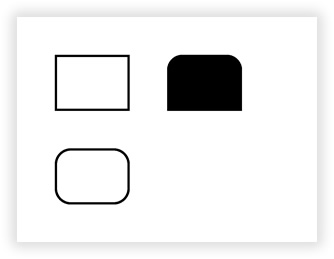
By using RectangleShapeItem objects you can draw rectangles as well as rounded rectangles. The following figure is a sample label featuring rectangle shapes with different settings.
VB.NET
'Define a ThermalLabel object and set unit to inch and label size
Dim tLabel As New ThermalLabel(UnitType.Inch, 4, 3)
tLabel.GapLength = 0.2

'Define some RectangleShapeItem objects
Dim r1 As New RectangleShapeItem(0.5, 0.5, 1, 0.75)
r1.StrokeThickness = 0.03

'With rounded corners
Dim r2 As New RectangleShapeItem(0.5, 1.75, 1, 0.75)
r2.StrokeThickness = 0.03
r2.CornerRadius = New RectangleCornerRadius(0.2)

'With some rounded corners and black fill
Dim r3 As New RectangleShapeItem(2, 0.5, 1, 0.75)
r3.FillColor = Neodynamic.SDK.Printing.Color.Black
r3.CornerRadius = New RectangleCornerRadius(0.2, 0.2, 0, 0)

'Add items to ThermalLabel object...
tLabel.Items.Add(r1)
tLabel.Items.Add(r2)
tLabel.Items.Add(r3)
C#
//Define a ThermalLabel object and set unit to inch and label size
ThermalLabel tLabel = new ThermalLabel(UnitType.Inch, 4, 3);
tLabel.GapLength = 0.2;

//Define some RectangleShapeItem objects
RectangleShapeItem r1 = new RectangleShapeItem(0.5, 0.5, 1, 0.75);
r1.StrokeThickness = 0.03;

//With rounded corners
RectangleShapeItem r2 = new RectangleShapeItem(0.5, 1.75, 1, 0.75);
r2.StrokeThickness = 0.03;
r2.CornerRadius = new RectangleCornerRadius(0.2);

//With some rounded corners and black fill
RectangleShapeItem r3 = new RectangleShapeItem(2, 0.5, 1, 0.75);
r3.FillColor = Neodynamic.SDK.Printing.Color.Black;
r3.CornerRadius = new RectangleCornerRadius(0.2, 0.2, 0, 0);

//Add items to ThermalLabel object...
tLabel.Items.Add(r1);
tLabel.Items.Add(r2);
tLabel.Items.Add(r3);
Note
Color is written fully qualified (Neodynamic.SDK.Printing.Color) to avoid ambiguity with System.Drawing.Color when your code imports that namespace.
Line Item
A Line Item – represented by the Neodynamic.SDK.Printing.LineShapeItem class – lets you draw lines on the label. LineShapeItem objects are created by specifying some basic properties such as Width, Height, StrokeThickness, Orientation, etc.
The Orientation property takes a LineOrientation value:
| Value | Description | Length of the line |
|---|---|---|
Horizontal (default) |
A horizontal line | Width |
Vertical |
A vertical line | Height |
DiagonalDown |
A diagonal from the upper-left to the lower-right corner of the Width x Height box |
Diagonal of the box |
DiagonalUp |
A diagonal from the lower-left to the upper-right corner of the Width x Height box |
Diagonal of the box |
For horizontal and vertical lines the thickness of the line is given by StrokeThickness. To get the same result on the printer and in image exports, set the other dimension (Height for a horizontal line, Width for a vertical one) to the same value as StrokeThickness, or larger. Both Width and Height must be greater than zero when the line is rendered as an image.
LineShapeItem Sample
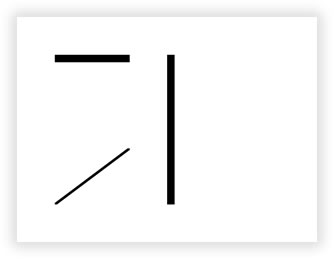
By using LineShapeItem objects you can draw lines at any orientation i.e. horizontal, vertical, diagonal up and diagonal down. The following figure is a sample label featuring some line shapes with different settings.
VB.NET
'Define a ThermalLabel object and set unit to inch and label size
Dim tLabel As New ThermalLabel(UnitType.Inch, 4, 3)
tLabel.GapLength = 0.2

'Define some LineShapeItem objects

'A simple horizontal line
Dim l1 As New LineShapeItem(0.5, 0.5, 1, 0.1)
l1.StrokeThickness = 0.1

'A diagonal up line
Dim l2 As New LineShapeItem(0.5, 1.75, 1, 0.75)
l2.StrokeThickness = 0.03
l2.Orientation = LineOrientation.DiagonalUp

'A simple vertical line
Dim l3 As New LineShapeItem(2, 0.5, 0.1, 2)
l3.StrokeThickness = 0.1
l3.Orientation = LineOrientation.Vertical

'Add items to ThermalLabel object...
tLabel.Items.Add(l1)
tLabel.Items.Add(l2)
tLabel.Items.Add(l3)
C#
//Define a ThermalLabel object and set unit to inch and label size
ThermalLabel tLabel = new ThermalLabel(UnitType.Inch, 4, 3);
tLabel.GapLength = 0.2;

//Define some LineShapeItem objects

//A simple horizontal line
LineShapeItem l1 = new LineShapeItem(0.5, 0.5, 1, 0.1);
l1.StrokeThickness = 0.1;

//A diagonal up line
LineShapeItem l2 = new LineShapeItem(0.5, 1.75, 1, 0.75);
l2.StrokeThickness = 0.03;
l2.Orientation = LineOrientation.DiagonalUp;

//A simple vertical line
LineShapeItem l3 = new LineShapeItem(2, 0.5, 0.1, 2);
l3.StrokeThickness = 0.1;
l3.Orientation = LineOrientation.Vertical;

//Add items to ThermalLabel object...
tLabel.Items.Add(l1);
tLabel.Items.Add(l2);
tLabel.Items.Add(l3);
Circle and Ellipse Items
Circle and Ellipse items – represented by the Neodynamic.SDK.Printing.CircleShapeItem and Neodynamic.SDK.Printing.EllipseShapeItem classes respectively – let you draw circles and ellipses/ovals on the label. Both are created by specifying some basic properties such as Width, Height, FillColor, StrokeThickness, etc.
EllipseShapeItem(x, y, width, height)draws an ellipse inscribed in theWidthxHeightbox.CircleShapeItem(x, y, diameter)is an ellipse whose size is always square.CircleShapeItemderives fromEllipseShapeItem, so it has the same properties; if you set differentWidthandHeightvalues, the smaller one is used as the diameter.
CircleShapeItem and EllipseShapeItem Sample
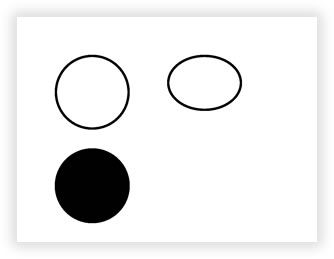
The following figure is a sample label featuring circle and ellipse shapes.
VB.NET
'Define a ThermalLabel object and set unit to inch and label size
Dim tLabel As New ThermalLabel(UnitType.Inch, 4, 3)
tLabel.GapLength = 0.2

'Define a CircleShapeItem object
Dim c1 As New CircleShapeItem(0.5, 0.5, 1)
c1.StrokeThickness = 0.03

'Define a CircleShapeItem object with black fill
Dim c2 As New CircleShapeItem(0.5, 1.75, 1)
c2.FillColor = Neodynamic.SDK.Printing.Color.Black

'Define an EllipseShapeItem object
Dim e1 As New EllipseShapeItem(2, 0.5, 1, 0.75)
e1.StrokeThickness = 0.03

'Add items to ThermalLabel object...
tLabel.Items.Add(c1)
tLabel.Items.Add(c2)
tLabel.Items.Add(e1)
C#
//Define a ThermalLabel object and set unit to inch and label size
ThermalLabel tLabel = new ThermalLabel(UnitType.Inch, 4, 3);
tLabel.GapLength = 0.2;

//Define a CircleShapeItem object
CircleShapeItem c1 = new CircleShapeItem(0.5, 0.5, 1);
c1.StrokeThickness = 0.03;

//Define a CircleShapeItem object with black fill
CircleShapeItem c2 = new CircleShapeItem(0.5, 1.75, 1);
c2.FillColor = Neodynamic.SDK.Printing.Color.Black;

//Define an EllipseShapeItem object
EllipseShapeItem e1 = new EllipseShapeItem(2, 0.5, 1, 0.75);
e1.StrokeThickness = 0.03;

//Add items to ThermalLabel object...
tLabel.Items.Add(c1);
tLabel.Items.Add(c2);
tLabel.Items.Add(e1);
Note
On EPL printers circles and ellipses are always sent as graphics.
Table Item
A Table Item – represented by the Neodynamic.SDK.Printing.TableShapeItem class – lets you draw table or grid shapes on the label. TableShapeItem objects are created by specifying some basic properties such as Width, Height, Columns, Rows, FillColor, StrokeThickness, CornerRadius, etc.
You can add as many columns and rows as needed through the Columns and Rows collection properties.
- A column is represented by the Neodynamic.SDK.Printing.TableColumn class. Its
Widthis zero by default, which means auto-sized. - A row is represented by the Neodynamic.SDK.Printing.TableRow class. Its
Heightis zero by default, which means auto-sized.
A table only draws the grid: it has no cell content. To write text in the cells, add TextItem objects on top of the table (see Placing text in the cells).
Table properties
| Property | Description |
|---|---|
Columns, Rows |
The collections of TableColumn and TableRow objects. |
CornerRadius |
The radii of the table corners. Default is 0. A table with rounded corners is printed as a graphic. |
RotationAngle |
The rotation angle. It must be 0, 90, 180 or 270, otherwise an ArgumentOutOfRangeException is thrown. |
ColumnsLineVisible, RowsLineVisible |
Whether the lines between columns/rows are drawn. Default is true. |
LeftSideVisible, RightSideVisible, TopSideVisible, BottomSideVisible |
Whether each side of the border is drawn. Default is true. |
FillColor / FillColorHex |
The fill color of the whole table. |
TableColumn and TableRow also have FillColor and FillColorHex to fill a single column or row.
Important
The grid lines and the border are only printed when StrokeColor is Black and StrokeThickness is greater than zero. When the table is printed with native printer commands, fills only apply when the color is Black; FillColorHex values (such as the light blue row in the second sample) are shown in image/document exports and in graphic mode only. See Colors.
How the table is sized
The table size is its Width x Height. Columns and rows are laid out inside it as follows:
- A column with
Width = 0(or a row withHeight = 0) takes an equal share of the space not used by the fixed-size columns (rows). - If every column (row) has a fixed size and the sum is smaller than the table width (height), the remaining space is added to the last column (row).
- If the sum of the fixed sizes is larger than the table, the sizes are kept as defined and the columns (rows) overflow the table.
Use GetColumnsSize() and GetRowsSize() to get the final size of each column and row.
TableShapeItem Samples
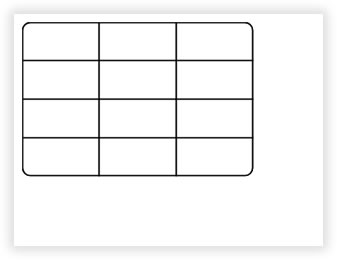
A TableShapeItem featuring 3 columns x 4 rows (both auto-sized) with rounded corners. The table is 3 x 2 inches, so each column is 1 inch wide and each row is 0.5 inch high.
VB.NET
'Define a ThermalLabel object and set unit to inch and label size
Dim tLabel As New ThermalLabel(UnitType.Inch, 4, 3)
tLabel.GapLength = 0.2

'Define a TableShapeItem object
Dim tableItem As New TableShapeItem(0.1, 0.1, 3, 2)
' set stroke
tableItem.StrokeThickness = 0.02
' rounded corners
tableItem.CornerRadius = New RectangleCornerRadius(0.1)
' add 3 cols
tableItem.Columns.Add(New TableColumn())
tableItem.Columns.Add(New TableColumn())
tableItem.Columns.Add(New TableColumn())
' add 4 rows
tableItem.Rows.Add(New TableRow())
tableItem.Rows.Add(New TableRow())
tableItem.Rows.Add(New TableRow())
tableItem.Rows.Add(New TableRow())

'Add items to ThermalLabel object...
tLabel.Items.Add(tableItem)
C#
//Define a ThermalLabel object and set unit to inch and label size
ThermalLabel tLabel = new ThermalLabel(UnitType.Inch, 4, 3);
tLabel.GapLength = 0.2;

// Define a TableShapeItem object
TableShapeItem tableItem = new TableShapeItem(0.1, 0.1, 3, 2);
// set stroke
tableItem.StrokeThickness = 0.02;
// rounded corners
tableItem.CornerRadius = new RectangleCornerRadius(0.1);
// add 3 cols
tableItem.Columns.Add(new TableColumn());
tableItem.Columns.Add(new TableColumn());
tableItem.Columns.Add(new TableColumn());
// add 4 rows
tableItem.Rows.Add(new TableRow());
tableItem.Rows.Add(new TableRow());
tableItem.Rows.Add(new TableRow());
tableItem.Rows.Add(new TableRow());

//Add items to ThermalLabel object...
tLabel.Items.Add(tableItem);
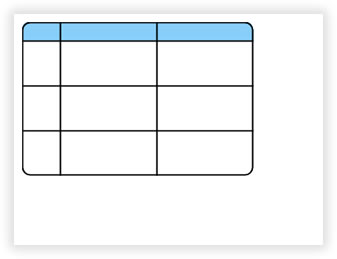
A TableShapeItem featuring 3 columns x 4 rows with a fixed-size column and row, and a custom fill color for the first row. The first column is 0.5 inch wide and the other two share the remaining 2.5 inches (1.25 inches each). The first row is 0.25 inch high and the other three share the remaining 1.75 inches.
VB.NET
'Define a ThermalLabel object and set unit to inch and label size
Dim tLabel As New ThermalLabel(UnitType.Inch, 4, 3)
tLabel.GapLength = 0.2

'Define a TableShapeItem object
Dim tableItem As New TableShapeItem(0.1, 0.1, 3, 2)
' set stroke
tableItem.StrokeThickness = 0.02
' rounded corners
tableItem.CornerRadius = New RectangleCornerRadius(0.1)
' add 3 cols
tableItem.Columns.Add(New TableColumn With { .Width = 0.5 }) ' col with fixed size
tableItem.Columns.Add(New TableColumn())
tableItem.Columns.Add(New TableColumn())
' add 4 rows
tableItem.Rows.Add(New TableRow With { .Height = 0.25, .FillColorHex = "#87cefa" }) ' row with fixed size and fill color
tableItem.Rows.Add(New TableRow())
tableItem.Rows.Add(New TableRow())
tableItem.Rows.Add(New TableRow())

'Add items to ThermalLabel object...
tLabel.Items.Add(tableItem)
C#
//Define a ThermalLabel object and set unit to inch and label size
ThermalLabel tLabel = new ThermalLabel(UnitType.Inch, 4, 3);
tLabel.GapLength = 0.2;

// Define a TableShapeItem object
TableShapeItem tableItem = new TableShapeItem(0.1, 0.1, 3, 2);
// set stroke
tableItem.StrokeThickness = 0.02;
// rounded corners
tableItem.CornerRadius = new RectangleCornerRadius(0.1);
// add 3 cols
tableItem.Columns.Add(new TableColumn() { Width = 0.5 }); // col with fixed size
tableItem.Columns.Add(new TableColumn());
tableItem.Columns.Add(new TableColumn());
// add 4 rows
tableItem.Rows.Add(new TableRow() { Height = 0.25, FillColorHex = "#87cefa" }); // row with fixed size and fill color
tableItem.Rows.Add(new TableRow());
tableItem.Rows.Add(new TableRow());
tableItem.Rows.Add(new TableRow());

//Add items to ThermalLabel object...
tLabel.Items.Add(tableItem);
Tip
Because rounded corners and FillColorHex are drawn as a graphic or in image exports only, a table that must be printed natively (smaller and faster) should use square corners and FillColor = Color.Black for filled rows.
Placing text in the cells
Use GetColumnsSize() and GetRowsSize() to calculate the position of each cell and add a TextItem for each one.
VB.NET
Dim tLabel As New ThermalLabel(UnitType.Inch, 4, 3)

Dim table As New TableShapeItem(0.1, 0.1, 3, 1)
table.Columns.Add(New TableColumn With { .Width = 1.5 })
table.Columns.Add(New TableColumn())
table.Rows.Add(New TableRow())
table.Rows.Add(New TableRow())
tLabel.Items.Add(table)

Dim cols As Double() = table.GetColumnsSize() ' 1.5, 1.5
Dim rows As Double() = table.GetRowsSize()    ' 0.5, 0.5
Dim cells As String(,) = { {"Item", "Qty"}, {"Apples", "3"} }

Dim y As Double = table.Y
For r As Integer = 0 To rows.Length - 1
    Dim x As Double = table.X
    For c As Integer = 0 To cols.Length - 1
        ' 0.05 inch of padding on every side
        tLabel.Items.Add(New TextItem(x + 0.05, y + 0.05, cols(c) - 0.1, rows(r) - 0.1, cells(r, c)))
        x += cols(c)
    Next
    y += rows(r)
Next
C#
ThermalLabel tLabel = new ThermalLabel(UnitType.Inch, 4, 3);

TableShapeItem table = new TableShapeItem(0.1, 0.1, 3, 1);
table.Columns.Add(new TableColumn() { Width = 1.5 });
table.Columns.Add(new TableColumn());
table.Rows.Add(new TableRow());
table.Rows.Add(new TableRow());
tLabel.Items.Add(table);

double[] cols = table.GetColumnsSize(); // 1.5, 1.5
double[] rows = table.GetRowsSize();    // 0.5, 0.5
string[,] cells = { { "Item", "Qty" }, { "Apples", "3" } };

double y = table.Y;
for (int r = 0; r < rows.Length; r++)
{
    double x = table.X;
    for (int c = 0; c < cols.Length; c++)
    {
        // 0.05 inch of padding on every side
        tLabel.Items.Add(new TextItem(x + 0.05, y + 0.05, cols[c] - 0.1, rows[r] - 0.1, cells[r, c]));
        x += cols[c];
    }
    y += rows[r];
}
Stroke styles
By default the border and lines are Solid. StrokeStyle can also be:
| Value | Description |
|---|---|
Dash |
A dashed line. The length of the dashes and gaps is set by StrokeStylePattern. |
Dot |
A dotted line. |
StrokeStylePattern is a list of lengths separated by a pipe (|): dash length, gap length, and so on, in the label unit. For example 0.2|0.1 draws dashes of 0.2 with gaps of 0.1, and 0.1|0.2|0.1|0.5 alternates two dash/gap pairs. If the pattern is empty, both the dash and the gap are as long as StrokeThickness. If the pattern has an odd number of values, the last one is repeated. The pattern only applies to Dash.
RectangleShapeItem rect = new RectangleShapeItem(0.5, 0.5, 2, 1);
rect.StrokeThickness = 0.02;
rect.StrokeStyle = StrokeStyle.Dash;
rect.StrokeStylePattern = "0.1|0.05";
Shapes with a non-solid stroke are always printed as graphics.
Printing the samples
All samples above only define the label. Use the following code to print any of them:
VB.NET
'Create a WindowsPrintJob object
Using pj As New WindowsPrintJob()
    'Create PrinterSettings object
    Dim myPrinter As New PrinterSettings()
    myPrinter.Communication.CommunicationType = CommunicationType.USB
    myPrinter.Dpi = 203
    myPrinter.ProgrammingLanguage = ProgrammingLanguage.ZPL
    myPrinter.PrinterName = "Zebra ZD500R"

    'Set PrinterSettings to WindowsPrintJob
    pj.PrinterSettings = myPrinter
    'Print ThermalLabel object...
    pj.Print(tLabel)
End Using
C#
//Create a WindowsPrintJob object
using (WindowsPrintJob pj = new WindowsPrintJob())
{
    //Create PrinterSettings object
    PrinterSettings myPrinter = new PrinterSettings();
    myPrinter.Communication.CommunicationType = CommunicationType.USB;
    myPrinter.Dpi = 203;
    myPrinter.ProgrammingLanguage = ProgrammingLanguage.ZPL;
    myPrinter.PrinterName = "Zebra ZD500R";

    //Set PrinterSettings to WindowsPrintJob
    pj.PrinterSettings = myPrinter;
    //Print ThermalLabel object...
    pj.Print(tLabel);
}
Saving the label as XML
Each shape is saved as an element of the label template. Only the properties that differ from their defaults are written (so a Width or Height of 1 is omitted).
<RectangleShapeItem X="0.5" Y="0.5" Height="0.75" StrokeThickness="0.03" CornerRadius="0.2" />
<LineShapeItem X="0.5" Y="1.75" Height="0.75" StrokeThickness="0.03" Orientation="DiagonalUp" />
<CircleShapeItem X="0.5" Y="0.5" FillColor="Black" />
<EllipseShapeItem X="2" Y="0.5" Height="0.75" StrokeThickness="0.03" />
<TableShapeItem X="0.1" Y="0.1" Width="3" Height="2" StrokeThickness="0.02" CornerRadius="0.1">
  <Columns>
    <Column Width="0.5" />
    <Column Width="0" />
    <Column Width="0" />
  </Columns>
  <Rows>
    <Row Height="0.25" FillColorHex="#87cefa" />
    <Row Height="0" />
    <Row Height="0" />
    <Row Height="0" />
  </Rows>
</TableShapeItem>
CornerRadius is saved as a single number when all corners are equal, or as four comma-separated numbers (topLeft,topRight,bottomRight,bottomLeft) otherwise.
Common mistakes
- Expecting a colored fill on the printer.
FillColorHexandStrokeColorHexshow up in image exports, but a printer prints in black and white. UseColor.Black/Color.White. - Using
FillColor = Whiteto "erase" something.Whitemeans no fill: nothing is printed, and shapes below stay visible. - A stroke thicker than the shape. When a rectangle, ellipse or table is rendered as an image, a
StrokeThicknesslarger than the shorter side throws an error. Lines are limited to the shape size instead. - A zero
WidthorHeighton a line. The printer commands don't need it, but rendering as an image or sending the line as a graphic does. Keep both greater than zero. - Rotation angles that are not multiples of 90. Tables throw an exception. Rectangles and ellipses accept any angle, but then they are printed as graphics.
- Looking for text inside a table. Tables have no cell content; add
TextItemobjects over the cells.