Barcode Item
The BarcodeItem class
A BarcodeItem, represented by the Neodynamic.SDK.Printing.BarcodeItem class, generates barcodes (Linear 1D, 2D and Postal standards) that are drawn or printed on the label. You create a BarcodeItem by specifying its location and size, the barcode symbology and the value to encode.
// BarcodeItem(x, y, width, height, symbology, code)
var bc = new BarcodeItem(0.25, 0.25, 2, 1, BarcodeSymbology.Code128, "ABC-12345");
x, y, width and height define the area of the label where the barcode is allocated and use the UnitType of the label. The default area is 1 x 0.5 and the default symbology is Code39.
BarcodeItem objects feature data binding, masks and counters, text alignment, rotation, barcode sizing, rich border settings, artistic styles and more. After creating a BarcodeItem, add it to the Items collection of the ThermalLabel to print it.
Note
For the complete list of properties and methods of BarcodeItem and the enums it uses, see the API Reference.
Quick Start
C#
using Neodynamic.SDK.Printing;

ThermalLabel tLabel = new ThermalLabel(UnitType.Inch, 4, 2);
tLabel.GapLength = 0.2;

BarcodeItem bc = new BarcodeItem(0.25, 0.25, 3, 1, BarcodeSymbology.Code128, "ABC-12345");
bc.BarWidth = 0.015;   // width of the narrowest bar (the "X" dimension)
bc.BarHeight = 0.8;    // height of the bars

tLabel.Items.Add(bc);
VB.NET
Imports Neodynamic.SDK.Printing

Dim tLabel As New ThermalLabel(UnitType.Inch, 4, 2)
tLabel.GapLength = 0.2

Dim bc As New BarcodeItem(0.25, 0.25, 3, 1, BarcodeSymbology.Code128, "ABC-12345")
bc.BarWidth = 0.015   ' width of the narrowest bar (the "X" dimension)
bc.BarHeight = 0.8    ' height of the bars

tLabel.Items.Add(bc)
To print or export the label see Printing the samples.
Main Properties
| Property | Description | Default |
|---|---|---|
Symbology |
The barcode standard to generate. See Barcode Symbologies. | Code39 |
Code |
The value to encode. | "1234567890" |
CodeEncoding |
Character encoding format of the Code value. |
Text |
HumanReadableText |
Text printed instead of Code (the barcode still encodes Code). |
Empty |
Text |
Additional informative text, not encoded. | Empty |
DisplayCode |
Prints the human readable text. | true |
CodeAlignment, TextAlignment |
Position of the human readable text and of the additional text. | BelowCenter, AboveCenter |
Font, TextFont |
Fonts of the human readable text and of the additional text. See Using Fonts. | NativePrinterFontA, 10 pt |
ForeColor, TextForeColor |
Color of the human readable text and of the additional text. | Black |
BarColor, BackColor |
Color of the bars and of the background (Color.Black or Color.White). |
Black / White |
BarWidth |
Width of the narrowest bar (the "X" dimension). | 0.0104 |
BarRatio |
Ratio of wide bars to narrow bars (the "N" value). | 2 |
BarHeight |
Height of the bars. | 0.5 |
BarWidthAdjustment |
Fine adjustment applied to the bar width. | 0 |
AddChecksum, DisplayChecksum |
Calculates and appends a checksum, and shows it in the text. | true, true |
QuietZone |
Left, top, right and bottom quiet zones. | 0.1, 0, 0.1, 0.02 |
UseQuietZoneForText |
Allows the text to be drawn on the quiet zones. | false |
Sizing |
None, Fill, FitProportional or AutoSize. See Barcode Sizing. |
None |
BarcodeAlignment |
Position of the barcode inside its area. | TopLeft |
BarcodePadding |
Space between the border and the barcode. Used only when Sizing is Fill. |
0 |
RotationAngle |
0, 90, 180 or 270 degrees, clockwise. | 0 |
BorderThickness, BorderColor, CornerRadius |
Frame around the barcode. | 0, Black, 0 |
RightToLeft |
Draws the human readable text right to left (Arabic, Hebrew, etc.). | false |
CodeFormatPattern, TextFormatPattern |
String.Format patterns applied to Code (the result is encoded) and to Text. |
Empty |
CounterStep, CounterUseLeadingZeros, Mask, MaskIncrement |
Counters and masks. See Counters and Masks. | |
HideIfEmpty |
Hides the barcode when Code is empty. |
false |
ErrorBehavior |
What to do when the barcode can't be rendered. See Errors. | BlankImage |
PrintAsResidentElement |
Uses the printer's own barcode commands (ZPL only). See Print As Resident Element. | false |
All measures (Width, Height, BarWidth, BarHeight, QuietZone, BorderThickness, module sizes, etc.) use the UnitType of the label.
Barcode Symbologies
To print a barcode, set the Symbology property to the standard you want and the Code property to the string to encode.
BarcodeItem supports most popular Linear (1D), Postal and 2D symbologies, for example:
| Family | Examples (BarcodeSymbology values) |
|---|---|
| Linear 1D | Code39, Code93, Code128, Code11, Code16k, Codabar, Interleaved2of5, Industrial2of5, Itf14, Msi, Plessey, Telepen |
| GS1 / retail | GS1128, UccEan128, Ean13, Ean8, UpcA, UpcE, Isbn, Issn, Ismn, EanUpcAddOn2, EanUpcAddOn5, GS1 DataBar (GS1DataBarOmnidirectional, GS1DataBarLimited, GS1DataBarExpanded, stacked and truncated variants, also available as Rss*), EAN/UPC Composite (...CCA, ...CCB, ...CCC) |
| 2D | DataMatrix, QRCode, MicroQRCode, GS1QRCode, SwissQRCode, Pdf417, CompactPdf417, MicroPdf417, MacroPdf417, MaxiCode, AztecCode, Han Xin Code, DotCode, CodablockF, Code49, Tlc39 |
| Postal | Postnet, Planet, UspsIntelligentMail, UspsOneCode4CB, plus British Royal Mail, Australia Post, DHL and others |
Note
The table shows examples only. The BarcodeSymbology enum is the complete list (see the API Reference).
Each symbology has its own settings. They are exposed as properties whose names start with the symbology, so they are easy to find:
| Prefix | Applies to | Examples |
|---|---|---|
EanUpc... |
EAN and UPC | EanUpcGuardBar, EanUpcGuardBarHeight, EanUpcSupplement, EanUpcSupplementCode, EanUpcMagnificationFactor |
Code128..., Code16k..., Code39..., Code93..., Code11... |
Code 128, Code 16K, Code 39, Code 93, Code 11 | Code128CharSet, Code39FullAsciiMode, Code11TwoDigitsChecksum |
DataMatrix... |
Data Matrix | DataMatrixModuleSize, DataMatrixFormat, DataMatrixEncoding, DataMatrixProcessTilde, DataMatrixSymbolCount |
QRCode..., MicroQRCode... |
QR Code, Micro QR Code | QRCodeModuleSize, QRCodeErrorCorrectionLevel, QRCodeVersion, QRCodeMask, QRCodeEncoding |
Pdf417..., MicroPdf417... |
PDF417 family | Pdf417Rows, Pdf417Columns, Pdf417ErrorCorrectionLevel, Pdf417CompactionType, Pdf417Truncated |
AztecCode..., MaxiCode..., HanXinCode..., DotCode... |
Those 2D symbologies | AztecCodeModuleSize, MaxiCodeMode, HanXinCodeVersion, DotCodeModuleShape |
Itf14..., BearerBar... |
ITF-14, 2 of 5, Code 128, UCC/EAN-128 | Itf14LeftHMark, BearerBarStyle, BearerBarThickness |
Postal4State..., Postnet..., Planet..., Usps... |
Postal | Postal4StateTrackerBarHeight, PostnetHeightTallBar, UspsFimPattern |
Gs1..., Isbt128..., Hibc... |
GS1, ISBT 128, HIBC | GS1DataStrictValidation, Isbt128DataStructure, HibcFormatHumanReadableText |
Barcode-specific ProcessTilde properties (for example DataMatrixProcessTilde) enable the ~ escape sequences for that symbology. The ...ByteEncodingName properties (for example QRCodeByteEncodingName, default ISO-8859-1) set the code page used when text is encoded in byte mode.
For details on each standard, see the Barcode Symbology Information Center.
Special characters for GS1-128 and Code 128
BarcodeItem exposes constants to build values for GS1-128, UCC/EAN-128 and Code 128: BarcodeItem.FNC1, AI2, AI3, AI4, AI5, GS, RS, EOT and CODE128_FNC1 to CODE128_FNC4.
// GS1-128: (01) GTIN + (10) lot
var gs1 = new BarcodeItem(0.25, 0.25, 3.5, 1, BarcodeSymbology.GS1128,
    BarcodeItem.AI2 + "01" + "09501101530003" + BarcodeItem.AI2 + "10" + "ABC123");
Text on barcodes
BarcodeItem supports two kinds of text drawn along with the bars:
- Value to encode (human readable text). The text you normally see under a barcode. By default it shows the
Codeproperty. If you need to show something different, for example a formatted version, setHumanReadableText: it is printed instead ofCode, but the barcode always encodesCode. - Additional text. Informative text set with the
Textproperty. It is not encoded in the barcode.
Each text has its own alignment (CodeAlignment and TextAlignment), font (Font and TextFont) and color (ForeColor and TextForeColor). Set DisplayCode = false to hide the human readable text.
Note
2D barcodes like Data Matrix, QR Code, PDF417 and MaxiCode don't print the value of Code, because these symbologies can encode non-printable characters. To print some text with them, use HumanReadableText or Text.
If the checksum is enabled (AddChecksum, true by default) it is appended to the encoded value and, with DisplayChecksum, to the printed text. Set AddChecksum = false when your Code already includes the check digit.
Barcode Sizing
When you create a BarcodeItem you specify the area (X, Y, Width and Height) where the barcode is allocated. The Sizing property controls how the barcode is placed in that area:
- None (standard size). The barcode size depends on the value to encode (
Code), the symbology and the dimension properties likeBarWidth,BarRatio,BarHeight,DataMatrixModuleSize, etc. Always make the area large enough to contain the whole barcode, otherwise the barcode is cut off and becomes unreadable. You can align the barcode inside the area withBarcodeAlignment. - Fill (stretching). The whole barcode, including the human readable text, fills the area. Use
BarcodePaddingto leave a margin. Be careful: some barcodes can become unreadable if they are forced to fill an area smaller than their natural size. - FitProportional. The SDK calculates the bar or module sizes automatically so the barcode fits the area proportionally. Be careful: as with
Fill, a barcode forced into an area smaller than its natural size can become unreadable. Always test with the maximum number of characters you expect inCode. - AutoSize. The barcode is resized to the size defined by the barcode dimension properties (
BarWidth,BarHeight,BarRatio, module size, etc.). TheWidthandHeightof the item are recalculated.
To know the size that a barcode needs, call GetAutoSize(dpi, updateLayout):
// Item1 = width, Item2 = height
Tuple<double, double> size = bc.GetAutoSize(300);

// updateLayout = true also updates X, Y, Width and Height based on BarcodeAlignment
bc.GetAutoSize(300, true);
Tip
To check that a barcode fits, set Sizing = BarcodeSizing.AutoSize or call GetAutoSize and compare the result with your area.
Barcode Rotation
BarcodeItem supports rotation. Set RotationAngle to 0, 90, 180 or 270 degrees, measured clockwise. Any value that is not a multiple of 90 throws an ArgumentOutOfRangeException.
Appearance
- Colors.
BarColor,BackColor,ForeColor,TextForeColorandBorderColoracceptColor.BlackorColor.White. Each has a...Hexcounterpart (for exampleBarColorHex) that accepts#RGB,#RRGGBB,#AARRGGBB, etc. - Borders.
BorderThicknesssets the width of each side;CornerRadiusrounds the corners. - White on black. Set
BackColor = Color.BlackandBarColor = Color.White(and the text colors) to print a reversed barcode. - Artistic barcodes. The
Art*properties customize the look of the symbol:ArtModuleShapeandArtFinderShapechange the shape of modules and finder patterns,ArtBarImagePatternfills the bars with an image, andArtLogoImage(withArtLogoImagePosition,ArtLogoImagePercentageandArtLogoImageOpacity) stamps a logo. Images can be a file path or a Base64 string.
Note
Barcodes with artistic settings are always printed as graphics. Keep a good contrast and test the result with a scanner, especially when you place a logo on a 2D symbol.
Counters and Masks
Like TextItem, a BarcodeItem can change its value on every printed label:
CounterStep: the counter increases (positive) or decreases (negative) by this number on every label.CounterUseLeadingZeroskeeps the leading zeros.MaskandMaskIncrement: format and increment the value with a mask pattern (D,H,O,A,Nand%).
See Counters and Masks and Input Mask Patterns in the TextItem topic: the placeholders work the same.
var serial = new BarcodeItem(0.25, 0.25, 2.5, 1, BarcodeSymbology.Code128, "000100");
serial.CounterStep = 1;
serial.CounterUseLeadingZeros = true;
Errors and invalid values
If the value in Code is not valid for the selected symbology (for example, letters in an EAN-13), the barcode can't be generated. The ErrorBehavior property decides what happens:
BarcodeErrorBehavior.BlankImage(default): the barcode is not drawn.BarcodeErrorBehavior.ThrowException: an exception is thrown with the description of the error. Use it while developing.
Set HideIfEmpty = true to skip the barcode silently when Code is empty.
How barcodes are printed
To give the same result on screen, in files and on any printer language, the SDK renders a barcode in one of these ways:
| Rendering | Description | When |
|---|---|---|
| Native shapes | Bars are sent as rectangles drawn with the printer's native commands. | ZPL and EPL, when no setting requires a graphic. |
| Graphic | The barcode is rendered as an image and sent to the printer. | ZPL and EPL when a setting requires it (below). Fingerprint/Direct Protocol always prints barcodes as graphics. |
| Resident barcode | The printer's own barcode command is used. Smallest print job. | ZPL only, with PrintAsResidentElement = true (below). |
For ZPL and EPL, the barcode is printed as a graphic when any of these conditions is true:
- the human readable
Fontis not a Native Printer Font, RightToLeftistrueorCornerRadiusis not zero,SizingisFill,- the
Textproperty is not empty, - the bars are white on a black background,
CodeAlignmentisAbove...orBelowJustifyand the code is displayed,- the barcode is ITF-14 with H marks, or one of
MaxiCode,SwissQRCode,DINSpecQRCodeorDINSpecDataMatrix, - any
Art*setting is used, - or you set
PrintAsGraphic = true.
Print As Resident Element
To provide a WYSIWYG experience with the visual label editors and an exact output regardless of the printer language, barcodes are normally drawn with rectangles or graphics. The drawback is that this sends many more commands than the native barcode commands of the printer.
If PrintAsResidentElement is true, the BarcodeItem is rendered with the resident barcode commands of the printer. For the moment, this is available for ZPL printers only.
When you set PrintAsResidentElement = true, the SDK also sets Sizing to AutoSize (and, for some symbologies, resets the quiet zone).
Not every setting can be rendered by the printer, so call PrintAsResidentElementIsSupported to validate the current settings:
string error;
if (bc.PrintAsResidentElementIsSupported(out error) == false)
{
    Console.WriteLine(error);   // lists each setting that prevents the resident rendering
}
The visual editors do this automatically and show the result in the Print As Resident Element icon. At printing time, if the validation fails the barcode is rendered as native shapes or as a graphic, depending on its settings.
A barcode can't be printed as a resident element when:
- the symbology is not in the list below (this includes the EAN/UPC composite symbologies
...CCA,...CCBand...CCC), RightToLeftistrue,CornerRadiusis not zero orBorderThicknessis not zero,Sizingis notAutoSize,Textis not empty,- the code is displayed and
CodeAlignmentis a...Justifyvalue (for most symbologies), - ITF-14 uses H marks, or any bearer bar is used,
- it is a
MaxiCodebarcode that is rotated or whoseCodedoesn't start with[)>, - it is a GS1 DataBar barcode whose
BarHeightdoesn't match itsBarWidth(the height must be the bar width x 33 for Omnidirectional and Stacked Omnidirectional, x 13 for Truncated, x 10 for Limited and x 34 for Expanded and Expanded Stacked).
The symbologies supported by this feature are:
- AztecCode
- Code11
- Code39
- Code49
- Code93
- Code128
- CodablockF
- Codabar
- Interleaved2of5
- Industrial2of5
- Msi
- Plessey
- Ean8
- Ean13
- UpcA
- UpcE
- EanUpcAddOn2
- EanUpcAddOn5
- UccEan128
- GS1128
- Tlc39
- DataMatrix
- QRCode
- Pdf417
- CompactPdf417
- MacroPdf417
- MicroPdf417
- MaxiCode
- Postnet
- Planet
- UspsIntelligentMail
- UspsOneCode4CB
- GS1 DataBar, all variants:
GS1DataBarOmnidirectional,GS1DataBar14,Rss14,GS1DataBarTruncated,GS1DataBar14Truncated,Rss14Truncated,GS1DataBarStacked,GS1DataBar14Stacked,Rss14Stacked,GS1DataBarStackedOmnidirectional,GS1DataBar14StackedOmnidirectional,Rss14StackedOmnidirectional,GS1DataBarLimited,RssLimited,GS1DataBarExpanded,RssExpanded,GS1DataBarExpandedStacked,RssExpandedStacked
BarcodeItem Samples
Printing the samples
The samples below only show how to design the label. To print any of them with a thermal printer connected to your machine and its Windows driver installed, create a WindowsPrintJob as follows. Set Dpi, ProgrammingLanguage and PrinterName to match your printer (the name must be exactly as shown in Windows).
C#
using (WindowsPrintJob pj = new WindowsPrintJob())
{
    PrinterSettings myPrinter = new PrinterSettings();
    myPrinter.Communication.CommunicationType = CommunicationType.USB;
    myPrinter.Dpi = 203;
    myPrinter.ProgrammingLanguage = ProgrammingLanguage.ZPL;
    myPrinter.PrinterName = "Zebra TLP2844-Z";

    pj.PrinterSettings = myPrinter;
    pj.Print(tLabel);
}
VB.NET
Using pj As New WindowsPrintJob()
    Dim myPrinter As New PrinterSettings()
    myPrinter.Communication.CommunicationType = CommunicationType.USB
    myPrinter.Dpi = 203
    myPrinter.ProgrammingLanguage = ProgrammingLanguage.ZPL
    myPrinter.PrinterName = "Zebra TLP2844-Z"

    pj.PrinterSettings = myPrinter
    pj.Print(tLabel)
End Using
If you don't have a printer, export the label instead, for example pj.ExportToPdf(tLabel, "label.pdf", 300) with a PrintJob.
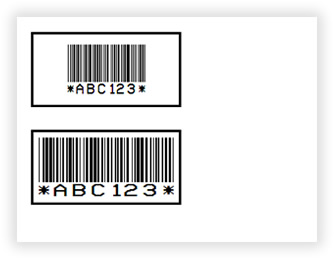
Example #1: Code 39 with borders and sizing Fill
Two linear Code 39 barcodes with borders and the human readable text with justify alignment. One of them is sized to fill the specified area.
VB.NET
'Define a ThermalLabel object and set unit to inch and label size
Dim tLabel As New ThermalLabel(UnitType.Inch, 4, 3)
tLabel.GapLength = 0.2

'Define a BarcodeItem object for encoding Code 39 symbology
Dim bc1 As New BarcodeItem(0.2, 0.2, 2, 1, BarcodeSymbology.Code39, "ABC123")
bc1.AddChecksum = False
bc1.CodeAlignment = BarcodeTextAlignment.BelowJustify
bc1.BarWidth = 0.01
bc1.BarHeight = 0.5
bc1.QuietZone = New FrameThickness(0)
bc1.BarcodeAlignment = BarcodeAlignment.MiddleCenter
bc1.BorderThickness = New FrameThickness(0.03)

'A second Code 39 barcode with sizing = Fill
Dim bc2 As BarcodeItem = CType(bc1.Clone(), BarcodeItem)
bc2.Y = 1.5
bc2.BarcodePadding = New FrameThickness(0.1)
bc2.Sizing = BarcodeSizing.Fill

'Add items to ThermalLabel object...
tLabel.Items.Add(bc1)
tLabel.Items.Add(bc2)
C#
//Define a ThermalLabel object and set unit to inch and label size
ThermalLabel tLabel = new ThermalLabel(UnitType.Inch, 4, 3);
tLabel.GapLength = 0.2;

//Define a BarcodeItem object for encoding Code 39 symbology
BarcodeItem bc1 = new BarcodeItem(0.2, 0.2, 2, 1, BarcodeSymbology.Code39, "ABC123");
bc1.AddChecksum = false;
bc1.CodeAlignment = BarcodeTextAlignment.BelowJustify;
bc1.BarWidth = 0.01;
bc1.BarHeight = 0.5;
bc1.QuietZone = new FrameThickness(0);
bc1.BarcodeAlignment = BarcodeAlignment.MiddleCenter;
bc1.BorderThickness = new FrameThickness(0.03);

//A second Code 39 barcode with sizing = Fill
BarcodeItem bc2 = bc1.Clone() as BarcodeItem;
bc2.Y = 1.5;
bc2.BarcodePadding = new FrameThickness(0.1);
bc2.Sizing = BarcodeSizing.Fill;

//Add items to ThermalLabel object...
tLabel.Items.Add(bc1);
tLabel.Items.Add(bc2);
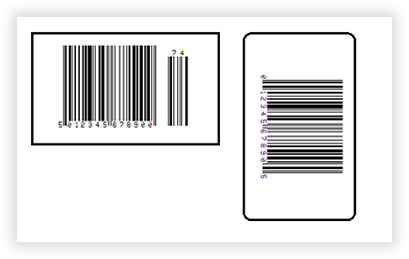
Example #2: EAN-13 with add-on and rotated UPC-A
An EAN-13 barcode with a supplement (add-on) code and a UPC-A barcode with rounded corners, rotated 90 degrees.
VB.NET
'Define a ThermalLabel object and set unit to inch and label size
Dim tLabel As New ThermalLabel(UnitType.Inch, 5, 3)
tLabel.GapLength = 0.2

'Define a BarcodeItem object for encoding EAN-13 symbology
Dim bc1 As New BarcodeItem(0.2, 0.2, 2.5, 1.5, BarcodeSymbology.Ean13, "5012345678900")
bc1.BarWidth = 0.013
bc1.BarHeight = 1
bc1.EanUpcGuardBar = True
bc1.EanUpcGuardBarHeight = bc1.BarHeight + 5 * bc1.BarWidth
bc1.EanUpcSupplement = Supplement.Digits2
bc1.EanUpcSupplementCode = "74"
bc1.BarcodeAlignment = BarcodeAlignment.MiddleCenter
bc1.BorderThickness = New FrameThickness(0.03)
bc1.Font.Size = 5

'Define a BarcodeItem object for encoding UPC-A symbology
Dim bc2 As New BarcodeItem(3, 0.2, 2.5, 1.5, BarcodeSymbology.UpcA, "012345678905")
bc2.BarWidth = 0.013
bc2.BarHeight = 1
bc2.EanUpcGuardBar = True
bc2.EanUpcGuardBarHeight = bc2.BarHeight + 5 * bc2.BarWidth
bc2.BarcodeAlignment = BarcodeAlignment.MiddleCenter
bc2.BorderThickness = New FrameThickness(0.03)
bc2.CornerRadius = New RectangleCornerRadius(0.1)
bc2.RotationAngle = 90
bc2.Font.Size = 5

'Add items to ThermalLabel object...
tLabel.Items.Add(bc1)
tLabel.Items.Add(bc2)
C#
//Define a ThermalLabel object and set unit to inch and label size
ThermalLabel tLabel = new ThermalLabel(UnitType.Inch, 5, 3);
tLabel.GapLength = 0.2;

//Define a BarcodeItem object for encoding EAN-13 symbology
BarcodeItem bc1 = new BarcodeItem(0.2, 0.2, 2.5, 1.5, BarcodeSymbology.Ean13, "5012345678900");
bc1.BarWidth = 0.013;
bc1.BarHeight = 1;
bc1.EanUpcGuardBar = true;
bc1.EanUpcGuardBarHeight = bc1.BarHeight + 5 * bc1.BarWidth;
bc1.EanUpcSupplement = Supplement.Digits2;
bc1.EanUpcSupplementCode = "74";
bc1.BarcodeAlignment = BarcodeAlignment.MiddleCenter;
bc1.BorderThickness = new FrameThickness(0.03);
bc1.Font.Size = 5;

//Define a BarcodeItem object for encoding UPC-A symbology
BarcodeItem bc2 = new BarcodeItem(3, 0.2, 2.5, 1.5, BarcodeSymbology.UpcA, "012345678905");
bc2.BarWidth = 0.013;
bc2.BarHeight = 1;
bc2.EanUpcGuardBar = true;
bc2.EanUpcGuardBarHeight = bc2.BarHeight + 5 * bc2.BarWidth;
bc2.BarcodeAlignment = BarcodeAlignment.MiddleCenter;
bc2.BorderThickness = new FrameThickness(0.03);
bc2.CornerRadius = new RectangleCornerRadius(0.1);
bc2.RotationAngle = 90;
bc2.Font.Size = 5;

//Add items to ThermalLabel object...
tLabel.Items.Add(bc1);
tLabel.Items.Add(bc2);
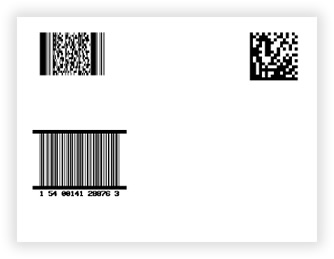
Example #3: PDF417, Data Matrix and ITF-14 with bearer bars
A PDF417 barcode, a Data Matrix and an ITF-14 barcode with bearer bars.
VB.NET
'Define a ThermalLabel object and set unit to inch and label size
Dim tLabel As New ThermalLabel(UnitType.Inch, 4, 3)
tLabel.GapLength = 0.2

'Define a BarcodeItem object for encoding PDF417 symbology
Dim bc1 As New BarcodeItem(0.2, 0.2, 2, 1, BarcodeSymbology.Pdf417, "PRODUCT CODE 98765")
bc1.BarWidth = 0.01
bc1.BarRatio = 3 'For PDF417, bar ratio should be >= 3

'Define a BarcodeItem object for encoding DataMatrix symbology
Dim bc2 As New BarcodeItem(3, 0.2, 2.5, 1.5, BarcodeSymbology.DataMatrix, "0123456789ABCDEF")
bc2.DataMatrixModuleSize = 0.04

'Define a BarcodeItem object for encoding ITF-14 symbology with Bearer Bars
'The code has 13 digits: the 14th digit is the checksum, added because AddChecksum is True by default
Dim bc3 As New BarcodeItem(0.2, 1.5, 2, 1, BarcodeSymbology.Itf14, "1540014128876")
bc3.BarWidth = 0.01
bc3.BarHeight = 0.7
bc3.BearerBarStyle = BearerBarStyle.HorizontalRules
bc3.BearerBarThickness = 0.05
bc3.UseQuietZoneForText = True
bc3.Font.Size = 5

'Add items to ThermalLabel object...
tLabel.Items.Add(bc1)
tLabel.Items.Add(bc2)
tLabel.Items.Add(bc3)
C#
//Define a ThermalLabel object and set unit to inch and label size
ThermalLabel tLabel = new ThermalLabel(UnitType.Inch, 4, 3);
tLabel.GapLength = 0.2;

//Define a BarcodeItem object for encoding PDF417 symbology
BarcodeItem bc1 = new BarcodeItem(0.2, 0.2, 2, 1, BarcodeSymbology.Pdf417, "PRODUCT CODE 98765");
bc1.BarWidth = 0.01;
bc1.BarRatio = 3; //For PDF417, bar ratio should be >= 3

//Define a BarcodeItem object for encoding DataMatrix symbology
BarcodeItem bc2 = new BarcodeItem(3, 0.2, 2.5, 1.5, BarcodeSymbology.DataMatrix, "0123456789ABCDEF");
bc2.DataMatrixModuleSize = 0.04;

//Define a BarcodeItem object for encoding ITF-14 symbology with Bearer Bars
//The code has 13 digits: the 14th digit is the checksum, added because AddChecksum is true by default
BarcodeItem bc3 = new BarcodeItem(0.2, 1.5, 2, 1, BarcodeSymbology.Itf14, "1540014128876");
bc3.BarWidth = 0.01;
bc3.BarHeight = 0.7;
bc3.BearerBarStyle = BearerBarStyle.HorizontalRules;
bc3.BearerBarThickness = 0.05;
bc3.UseQuietZoneForText = true;
bc3.Font.Size = 5;

//Add items to ThermalLabel object...
tLabel.Items.Add(bc1);
tLabel.Items.Add(bc2);
tLabel.Items.Add(bc3);
Example #4: Print As Resident Element (ZPL)
A Code 128 barcode printed with the resident ZPL barcode command.
C#
BarcodeItem bc = new BarcodeItem(0.25, 0.25, 3, 1, BarcodeSymbology.Code128, "ABC-12345");
bc.BarWidth = 0.015;
bc.BarHeight = 0.8;
bc.PrintAsResidentElement = true;   // also sets Sizing = AutoSize

string error;
if (bc.PrintAsResidentElementIsSupported(out error) == false)
{
    Console.WriteLine("Not supported as resident element: " + error);
}

tLabel.Items.Add(bc);
Common mistakes
- The barcode is cut off or doesn't scan. The area (
WidthxHeight) is smaller than the barcode. Enlarge the area, useSizing = AutoSizeor checkGetAutoSize. - The barcode doesn't scan on the printer. Check
BarWidthagainst the DPI of the printer: the narrowest bar should be at least 2 or 3 dots wide. - The printed code has an extra digit.
AddChecksumistrueby default. Set it tofalseif yourCodealready has the check digit. - A 2D barcode doesn't show any text. 2D symbologies don't print
Code. UseHumanReadableTextorText. ArgumentOutOfRangeExceptionwhen rotating.RotationAngleonly accepts multiples of 90.PrintAsResidentElementhas no effect. It is available for ZPL only, and the settings must passPrintAsResidentElementIsSupported.- The barcode is blank. The value in
Codeis not valid for the symbology. SetErrorBehavior = BarcodeErrorBehavior.ThrowExceptionto see the reason.