Text Item
The TextItem class
A TextItem (class Neodynamic.SDK.Printing.TextItem) wraps a text string that is drawn or printed on the label inside a rectangular area. You create it by specifying its location and size, and its text:
TextItem(x, y, width, height, text)
X, Y, Width and Height use the UnitType of the ThermalLabel the item is added to. X and Y are measured from the top-left corner of the label. The default size of a TextItem is 1 x 0.5.
A TextItem supports data binding, counters and masks, text alignment (horizontal and vertical), multi-line text, rotation, text sizing, Unicode, RTL languages (Hebrew, Arabic, etc.), native printer fonts, installed Windows fonts and custom TTF files, white text on black, rich border settings, text stroke, character and line spacing, and rich text formatting through simple tags, HTML or RTF.
A TextItem is printed only after you add it to the Items collection of the ThermalLabel object.
Quick Start
The following code creates a 4 x 3 inch label with a title and a paragraph, and exports it to a PDF file. You don't need a printer to try it.
C#
using Neodynamic.SDK.Printing;

ThermalLabel tLabel = new ThermalLabel(UnitType.Inch, 4, 3);
tLabel.GapLength = 0.2;

// A single line title
TextItem title = new TextItem(0.25, 0.25, 3.5, 0.5, "Hello TextItem!");
title.Font.Name = "Arial";
title.Font.Size = 20;
title.Font.Bold = true;

// A multi-line paragraph, centered
TextItem paragraph = new TextItem(0.25, 1, 3.5, 1.5, "TextItem wraps long text inside its Width and Height automatically.");
paragraph.Font.Name = "Arial";
paragraph.Font.Size = 12;
paragraph.TextAlignment = TextAlignment.Center;

tLabel.Items.Add(title);
tLabel.Items.Add(paragraph);

// Export to PDF (the last parameter is the output resolution in DPI)
using (PrintJob pj = new PrintJob())
{
    pj.ExportToPdf(tLabel, "text-item.pdf", 300);
}
VB.NET
Imports Neodynamic.SDK.Printing

Dim tLabel As New ThermalLabel(UnitType.Inch, 4, 3)
tLabel.GapLength = 0.2

' A single line title
Dim title As New TextItem(0.25, 0.25, 3.5, 0.5, "Hello TextItem!")
title.Font.Name = "Arial"
title.Font.Size = 20
title.Font.Bold = True

' A multi-line paragraph, centered
Dim paragraph As New TextItem(0.25, 1, 3.5, 1.5, "TextItem wraps long text inside its Width and Height automatically.")
paragraph.Font.Name = "Arial"
paragraph.Font.Size = 12
paragraph.TextAlignment = TextAlignment.Center

tLabel.Items.Add(title)
tLabel.Items.Add(paragraph)

' Export to PDF (the last parameter is the output resolution in DPI)
Using pj As New PrintJob()
    pj.ExportToPdf(tLabel, "text-item.pdf", 300)
End Using
Note
The font size is measured in points by default (Font.Unit is FontUnit.Point). To print, replace the export with a WindowsPrintJob as shown in Printing the samples.
Main Properties
| Property | Description | Default |
|---|---|---|
Text |
The text to print. | Empty string |
Font |
Font name, size, unit, bold, italic, underline, strikeout, custom font file, code page. | NativePrinterFontA, 10 pt |
ForeColor / BackColor |
Text and background color (Color.Black or Color.White). |
Black / White |
TextAlignment |
Left, Center, Right or Justify. |
Left |
TextVerticalAlignment |
Top, Bottom or Middle. |
Top |
Multiline |
Whether the text can span more than one line. | true |
Sizing |
Text sizing and effects. See Sizing & Effects. | None |
MinFontSize |
Minimum font size used by the scaling options. | 0 |
RotationAngle |
Rotation in degrees, measured clockwise. | 0 |
RightToLeft |
Draws the text right to left (Arabic, Hebrew, etc.). | false |
BorderThickness, BorderColor, CornerRadius |
Frame around the text. | 0, Black, 0 |
TextPadding |
Space between the border and the text. | 0 |
StrokeThickness, StrokeColorHex |
Outline around the characters. | 0 |
CharSpacing, LineSpacing |
Extra space between characters and between lines. | 0 |
ScaleX, ScaleY |
Scale factor of the text in each direction. | 1 |
UseSlashedZero |
Replaces the zero with a slashed zero. | false |
MaxLength |
Maximum number of characters (0 means unlimited). | 0 |
HideIfEmpty |
Hides the item when its content is empty. | false |
CultureName |
Culture used to format dates (e.g. es-ES). |
en-US |
ForeColorHex, BackColorHex, BorderColorHex |
Colors in hex notation (#RGB, #RRGGBB, #AARRGGBB...). |
Empty |
CounterStep, CounterUseLeadingZeros, Mask, MaskIncrement |
Counters and masks. See Counters and Masks. | |
ValidationRegEx, ValidationErrorMessage |
Validates the text. See Limits and Validation. | Empty |
InputMaskPattern, InputMaskPromptChar |
Input mask for the visual label editors. See Input Mask Patterns. | Empty, _ |
For the complete list of properties and methods of TextItem and Font, see the API Reference.
All measures (Width, Height, BorderThickness, TextPadding, StrokeThickness, CharSpacing, LineSpacing, CornerRadius) use the UnitType of the label. The font size uses Font.Unit.
Working with Fonts
To draw or print text you must set up the font of the TextItem. The font can be:
- a Native Printer Font (NPF), which is built into the printer,
- any Windows font installed on the client or target machine,
- a separate TTF font file that you deploy with your application (
Font.CustomFontFile).
The default font is NativePrinterFontA, 10 pt. See Using Fonts for the features of each font type, FontManager, custom TTF files and uploading TTF fonts to the printer.
Native Printer Fonts
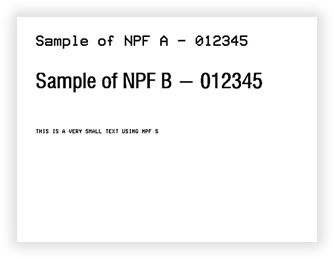
The SDK provides three Native Printer Fonts: Font.NativePrinterFontA, Font.NativePrinterFontB and Font.NativePrinterFontS. They are mapped to the built-in fonts of the printer, so the text is sent to the printer as text, not as an image. That is faster and the output is crisp.
| Native Printer Font | Supported sizes | ZPL (203 dpi) | EPL | Fingerprint |
|---|---|---|---|---|
NativePrinterFontA |
5, 10, 15, 20, 25 pt | Font D | Font 2 | Monospace 821 Bold BT |
NativePrinterFontB |
7, 14, 21, 28, 35 pt | Font 0 | Font 4 | CG Triumvirate Condensed Bold |
NativePrinterFontS |
3 pt | Font B | Font 1 | Andale Mono |
Keep these rules in mind:
- The size must be one of the supported sizes. If you set another value, the nearest supported size is used (see
Font.GetNearestSizeForNativePrinterFonts). - Native Printer Fonts support single line text only.
NativePrinterFontSallows only uppercase letters.- The
RotationAnglemust be a multiple of 90. Other values throw anArgumentOutOfRangeException. - When the text doesn't fit in the
WidthandHeightof the item, it is trimmed. - For characters outside the basic charset, set
Font.CodePage(default isCP850).
Other fonts
When you use an installed Windows font or a custom TTF file, the text is rendered as a graphic by default. If a character is not available in the font you selected, the renderer tries a fallback font installed on the machine.
Text vs Graphics Output
When you print, the TextItem is converted to printer commands as text whenever possible. Otherwise, it is rendered as a graphic (an image sent to the printer), which is slower and uses more memory on the printer.
The text is sent as a graphic when any of the following applies:
- The font is not a native printer font (or, in ZPL, a printer built-in font such as ZPL Font 0 / Swiss 721, or a font stored in the printer through
Font.NameAtPrinterStorage). - It uses rich text formatting (
[b],[i],[u]tags, HTML or RTF). Sizingis notNone.RightToLeftistrue.CornerRadius,StrokeThicknessorCharSpacingare not zero.TextVerticalAlignmentisMiddle.ScaleXorScaleYare different from 1.- The
RotationAngleis not a multiple of 90. PrintAsGraphicistrue.
For EPL and Fingerprint/Direct Protocol there are a few additional restrictions, for example a non-zero LineSpacing, or TextAlignment.Justify in Fingerprint/Direct Protocol.
Unicode and RTL text support
The TextItem supports Unicode strings, so you can set the Text property to any kind of characters. The font you set up must support those characters too.
RTL
With TextItem you can also print text for RTL (Right to Left) languages like Arabic, Hebrew, etc. Again, the font must support such language characters.
Some RTL considerations:
- If the
Textcontains RTL characters only, setRightToLefttotrueso the text is rendered with the correct alignment. - If the
Textis a single paragraph that mixes LTR and RTL characters, setRightToLefttofalse. - If the
Texthas multiple paragraphs, and some contain LTR characters only while others contain RTL characters only, setRightToLefttofalseand surround each RTL paragraph with the [rtl] ... [/rtl] markup. You can also use an HTML<p>or<span>tag with thedir="rtl"attribute (see Rich text through HTML markup).
Please refer to the samples at the end of this page.
Text Alignment
When you create a TextItem, you specify the area (X, Y, Width and Height) where the text is allocated and printed. Inside that area:
TextAlignmentaligns the text horizontally to theLeft,Center,Right, or justifies it (Justify).TextVerticalAlignmentaligns the text vertically to theTop(default),MiddleorBottom.Multilineallows the text to span more than one line (default istrue). Set it tofalseto force a single line.
Sizing & Effects
By default, the text is printed with the size specified in the Font property. The Sizing property lets you render the text with different sizes and effects:
Sizing |
Description | Single line | Multi-line |
|---|---|---|---|
None |
Text is rendered without any sizing. | Yes | Yes |
Stretch |
The text fills its allocated area. Useful for titles or legends like "IMPORTANT", "NOTICE", "WARNING", "CAUTION", "FRAGILE", etc. | Yes | No |
FontSizeScaling |
The font size is automatically reset so the text always fits the container. | Yes | No |
ParagraphScaling |
Like FontSizeScaling, but also for multi-line text. The current font size is the maximum size. |
Yes | Yes |
ParagraphScalingAndFill |
The font size is automatically reset to render the text paragraph filling the container. | Yes | Yes |
Arc and OuterArc |
The text is rendered on an arc path inside the container. | Yes | No |
Vertical |
The text is rendered vertically (like stacked characters) inside the container. | Yes | No |
AutoSize |
The container is resized so it can hold the whole text. | Yes | Yes |
OverflowSplit |
The text content is split in extra labels when its length exceeds the bounding box. | Yes | Yes |
Use MinFontSize to set a lower limit for the font size when you use FontSizeScaling, ParagraphScaling or ParagraphScalingAndFill.
To know the size a text needs, call GetAutoSize(). It returns a Tuple<double, double> with the width (Item1) and height (Item2) that fit the content. Use GetAutoSize(maxWidth, updateLayout) to calculate it within a maximum width, and to update X, Y, Width and Height of the item automatically.
Borders, Padding and White Text On Black
The TextItem features rich border settings that allow you to draw text inside a rectangular frame. The frame size is determined by the Width and Height properties, the stroke thickness is set through BorderThickness, and the color through BorderColor. You can set a different thickness for each side. The frame can have all corners rounded, or each corner individually rounded (for example, only the top corners). The roundness is set through CornerRadius. Use TextPadding to separate the text from the frame.
Another common design on thermal labels is White Text On Black: white text printed over a black area. To get it, set ForeColor to Color.White and BackColor to Color.Black. You can combine it with Sizing = TextSizing.Stretch to highlight a text on the label.
Stroke, Spacing and Scaling
StrokeThicknessandStrokeColorHexdraw an outline around the characters.CharSpacingadds (positive) or removes (negative) horizontal space between characters.LineSpacingadds (positive) or removes (negative) vertical space between lines.ScaleXandScaleYscale the text in each direction.UseSlashedZeroreplaces the digit0with a slashed zero (Ø, U+00D8). The font must include that character. It isn't applied toNativePrinterFontAandNativePrinterFontSin ZPL.RotationAnglerotates the text clockwise.
Counters and Masks
A TextItem can change its content on every printed label:
CounterStepincreases (positive value) or decreases (negative value) a numeric counter on every printed label. SetCounterUseLeadingZerostotrueto keep the leading zeros.MaskandMaskIncrementformat the text and increment it on every label. The length of the mask defines the number of characters to format, and the mask is aligned to the right-most position of the text.
| Mask element | Description |
|---|---|
D or d |
Decimal numeric 0-9 |
H or h |
Hexadecimal 0-9 plus a-f or A-F |
O or o |
Octal 0-7 |
A or a |
Alphabetic A-Z or a-z |
N or n |
Alphanumeric 0-9 plus A-Z or a-z |
% |
Ignore character or skip |
The default MaskIncrement is equivalent to 1. For alphabetic strings, A or a is the zero placeholder, so to increment a letter by one, the increment string must contain B or b. Use % in the increment string for characters that must not be incremented.
The TextItem can also be bound to a data source through the DataField property (and DataFieldFormatString).
For more information and examples, please refer to:
Real Time Clock (RTC) support
By using special formats in the text, you can print time and date values from the printer's Real Time Clock when available. The following formats can be embedded into the Text property and are replaced at printing time:
| Format | Value |
|---|---|
{yy} |
2-digit year number |
{yyyy} |
4-digit year number |
{M} |
Abbreviated month name |
{m} |
Month number |
{d} |
Day number |
{H} |
Hour of the day (military), 00 to 23 |
{h} |
Hour of the day (civilian), 01 to 12 |
{p} |
AM/PM designation |
{min} |
Minutes |
{sec} |
Seconds |
For example: "Printed on {yyyy}-{m}-{d} at {H}:{min}:{sec}".
Note
RTC is supported for ZPL and Fingerprint/Direct Protocol printers only.
For EPL printers, as well as for PDF and image outputs, date and time values are taken from the client OS when the label is generated.
In ZPL, {M} and {p} are rendered by the printer using its own language setting, not CultureName, so the printed output may differ from the preview.
Rich Text
Basic Rich Text Formatting
The TextItem supports a basic set of markup for combining bold, italic and underline in the same text, by using the [b]...[/b], [i]...[/i] and [u]...[/u] tags respectively. They can be combined and nested.
This is [b]bold[/b], this is [i]italic[/i] and this is [u][b]bold and underlined[/b][/u].
Important
If you use these rich text format tags, the printer commands are generated in graphics format, which affects printing performance. Use them cautiously.
Basic Microsoft RTF (Rich Text Format) support
The TextItem can render a raw RTF string (one that starts with {\rtf1 and ends with }), limited to text features. This includes:
- font name and font size,
- text color and highlight (background) color,
- styles: bold, italic, underline and strikethrough,
- line breaks (
\par,\line) and tabs (\tab), - RTL text.
Tables, images, objects, lists, footnotes and fields are not supported and are skipped.
The following is an example of a supported RTF string:
{\rtf1\ansi{\colortbl ;\red255\green0\blue0;\red0\green128\blue0;}\fs20\cf1 Red small \fs48\cf2 Green big \fs20\cf0 Default size again}
And the output looks like this:

Important
If you use RTF strings, the printer commands are generated in graphics format, which affects printing performance. Use them cautiously.
Rich text through HTML markup
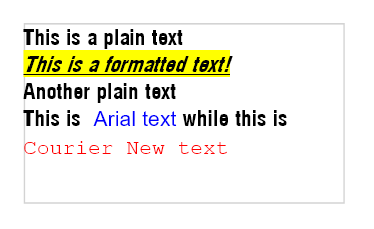
The TextItem also features a basic set of HTML markup to combine bold, italic, underline, strikethrough, text color, background color, font family and font size, by using the well-known HTML <p> and <span> tags with styles.
The HTML markup (string) specified through the Text property must follow these rules:
- The string must start with
<html>and end with</html>(lowercase, with nothing before or after). - To format a given part of the text, use
<p>and<span>tags with astyle="..."attribute. - Nested
<span>tags are supported. - The text content can contain HTML entities.
- The
<br>tag is the only way to add line breaks. - The only CSS properties supported in the
styleattribute are:color: the foreground text color, in hex format.background-color: the background text color, in hex format.font-weight: bold is the only supported value.font-style: italic is the only supported value.font-family: the font family name.font-size: the font size. Only absolute units such aspxandptare supported. Relative units (%,em) are not.text-decoration:underlineandline-throughare the only supported values.
- To mark a text as RTL, use a
<p>or<span>tag with thedir="rtl"attribute.
The following is an example of the supported HTML markup:
<html>
This is a plain text
<br>
<span style="background-color:#ffff00; font-style: italic; text-decoration: underline">This is a formatted text!</span>
<br>
Another plain text
<br>
This is <span style="color:#0000ff;font-family: Arial">Arial text</span> while this is <span style="color:#ff0000;font-family: Courier New">Courier New text</span>
</html>
And the output looks like this:
Important
If you use HTML markup, the printer commands are generated in graphics format, which affects printing performance. Use it cautiously.
Limits and Validation
MaxLengthlimits the number of characters. If you set a longerText, it is truncated.HideIfEmptyhides the item when its content comes from a data field, counter or mask and is empty.ValidationRegExis a regular expression (ECMAScript flavor) used to validate the text when the printer commands are generated. If the text doesn't match, anArgumentExceptionis thrown with the message set inValidationErrorMessage(or a default message when it's empty).
Input Mask Patterns
TextItem objects can be configured to force end users to enter the text based on a mask pattern when using the visual label editors (Visual Label Editors Add-on). This doesn't affect the printed output.
The pattern is specified through the InputMaskPattern property and it must be a string composed of one or more of the following masking elements. Use InputMaskPromptChar (default _) to set the character displayed for each position the user hasn't filled in yet.
| Masking Element | Description |
|---|---|
| 0 | Digit, required. This element accepts any single digit between 0 and 9. |
| 9 | Digit or space, optional. |
| # | Digit or space, optional. If this position is blank in the mask, it is rendered as a space in the Text property. Plus (+) and minus (-) signs are allowed. |
| L | Letter, required. Restricts input to the ASCII letters a-z and A-Z. Equivalent to [a-zA-Z] in regular expressions. |
| ? | Letter, optional. Restricts input to the ASCII letters a-z and A-Z. Equivalent to [a-zA-Z]? in regular expressions. |
| & | Character, required. |
| C | Character, optional. Any non-control character. |
| A | Alphanumeric, required. |
| a | Alphanumeric, optional. |
| . | Decimal placeholder. |
| , | Thousands placeholder. |
| : | Time separator. |
| / | Date separator. |
| $ | Currency symbol. |
| < | Shift down. Converts all characters that follow to lowercase. |
| > | Shift up. Converts all characters that follow to uppercase. |
| | | Disable a previous shift up or shift down. |
| \ | Escape. Escapes a mask character, turning it into a literal. \\ is the escape sequence for a backslash. |
| All other characters | Literals. All non-mask elements appear as themselves within the TextItem. Literals always occupy a static position in the mask at design time, and cannot be moved or deleted by the end user. |
TextItem Samples
Printing the samples
The samples below only show how to design the label. To print any of them with a thermal printer connected to your machine and its Windows driver installed, create a WindowsPrintJob as follows. Set Dpi, ProgrammingLanguage and PrinterName to match your printer (the name must be exactly as shown in Windows).
C#
using (WindowsPrintJob pj = new WindowsPrintJob())
{
    PrinterSettings myPrinter = new PrinterSettings();
    myPrinter.Communication.CommunicationType = CommunicationType.USB;
    myPrinter.Dpi = 203;
    myPrinter.ProgrammingLanguage = ProgrammingLanguage.ZPL;
    myPrinter.PrinterName = "Zebra TLP2844-Z";

    pj.PrinterSettings = myPrinter;
    pj.Print(tLabel);
}
VB.NET
Using pj As New WindowsPrintJob()
    Dim myPrinter As New PrinterSettings()
    myPrinter.Communication.CommunicationType = CommunicationType.USB
    myPrinter.Dpi = 203
    myPrinter.ProgrammingLanguage = ProgrammingLanguage.ZPL
    myPrinter.PrinterName = "Zebra TLP2844-Z"

    pj.PrinterSettings = myPrinter
    pj.Print(tLabel)
End Using
If you don't have a printer, export the label instead, for example pj.ExportToPdf(tLabel, "label.pdf", 300) with a PrintJob.
Native Printer Fonts
The following code creates a few TextItem objects using the Native Printer Fonts (NPF). Please read more about Fonts...
VB.NET
'Define a ThermalLabel object and set unit to inch and label size
Dim tLabel As New ThermalLabel(UnitType.Inch, 4, 3)
tLabel.GapLength = 0.2

'A sample text using NativePrinterFontA font
Dim txt1 As New TextItem(0.25, 0.25, 3.5, 0.5, "Sample of NPF A - 012345")
txt1.Font.Name = Neodynamic.SDK.Printing.Font.NativePrinterFontA
txt1.Font.Unit = FontUnit.Point
txt1.Font.Size = 10

'A sample text using NativePrinterFontB font
Dim txt2 As New TextItem(0.25, 0.75, 3.5, 0.5, "Sample of NPF B - 012345")
txt2.Font.Name = Neodynamic.SDK.Printing.Font.NativePrinterFontB
txt2.Font.Unit = FontUnit.Point
txt2.Font.Size = 14

'A sample text using NativePrinterFontS font
Dim txt3 As New TextItem(0.25, 1.5, 3.5, 0.25, "THIS IS A VERY SMALL TEXT USING NPF S")
txt3.Font.Name = Neodynamic.SDK.Printing.Font.NativePrinterFontS

'Add items to ThermalLabel object...
tLabel.Items.Add(txt1)
tLabel.Items.Add(txt2)
tLabel.Items.Add(txt3)
C#
//Define a ThermalLabel object and set unit to inch and label size
ThermalLabel tLabel = new ThermalLabel(UnitType.Inch, 4, 3);
tLabel.GapLength = 0.2;

//A sample text using NativePrinterFontA font
TextItem txt1 = new TextItem(0.25, 0.25, 3.5, 0.5, "Sample of NPF A - 012345");
txt1.Font.Name = Neodynamic.SDK.Printing.Font.NativePrinterFontA;
txt1.Font.Unit = FontUnit.Point;
txt1.Font.Size = 10;

//A sample text using NativePrinterFontB font
TextItem txt2 = new TextItem(0.25, 0.75, 3.5, 0.5, "Sample of NPF B - 012345");
txt2.Font.Name = Neodynamic.SDK.Printing.Font.NativePrinterFontB;
txt2.Font.Unit = FontUnit.Point;
txt2.Font.Size = 14;

//A sample text using NativePrinterFontS font
TextItem txt3 = new TextItem(0.25, 1.5, 3.5, 0.25, "THIS IS A VERY SMALL TEXT USING NPF S");
txt3.Font.Name = Neodynamic.SDK.Printing.Font.NativePrinterFontS;

//Add items to ThermalLabel object...
tLabel.Items.Add(txt1);
tLabel.Items.Add(txt2);
tLabel.Items.Add(txt3);
Unicode, RTL, White on Black and Multi-line
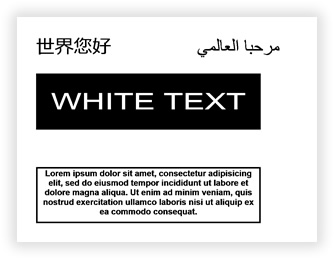
The following code creates a few TextItem objects with most of the features briefly described above.
VB.NET
'Define a ThermalLabel object and set unit to inch and label size
Dim tLabel As New ThermalLabel(UnitType.Inch, 4, 3)
tLabel.GapLength = 0.2

'Hello World in Chinese
Dim txt1 As New TextItem(0.25, 0.25, 1, 0.5, "世界您好")
txt1.Font.Name = "Arial"
txt1.Font.Unit = FontUnit.Point
txt1.Font.Size = 18

'Hello World in Arabic (RTL)
Dim txt2 As New TextItem(2, 0.25, 1.5, 0.5, "مرحبا العالمي")
txt2.Font.Name = "Arial"
txt2.Font.Unit = FontUnit.Point
txt2.Font.Size = 18
txt2.RightToLeft = True

'Stretched text with White On Black effect
Dim txt3 As New TextItem(0.25, 0.75, 3, 0.75, "WHITE TEXT")
txt3.Font.Name = "Arial"
txt3.Sizing = TextSizing.Stretch
txt3.BackColor = Neodynamic.SDK.Printing.Color.Black
txt3.ForeColor = Neodynamic.SDK.Printing.Color.White
txt3.TextPadding = New FrameThickness(0.2)

'Multiline text with center alignment
Dim txt4 As New TextItem(0.25, 2, 3, 0.75, "Lorem ipsum dolor sit amet, consectetur adipisicing elit, sed do eiusmod tempor incididunt ut labore et dolore magna aliqua. Ut enim ad minim veniam, quis nostrud exercitation ullamco laboris nisi ut aliquip ex ea commodo consequat.")
txt4.Font.Name = "Arial"
txt4.Font.Unit = FontUnit.Point
txt4.Font.Size = 8
txt4.Font.Bold = True
txt4.TextAlignment = TextAlignment.Center
txt4.BorderThickness = New FrameThickness(0.02)

'Add items to ThermalLabel object...
tLabel.Items.Add(txt1)
tLabel.Items.Add(txt2)
tLabel.Items.Add(txt3)
tLabel.Items.Add(txt4)
C#
//Define a ThermalLabel object and set unit to inch and label size
ThermalLabel tLabel = new ThermalLabel(UnitType.Inch, 4, 3);
tLabel.GapLength = 0.2;

//Hello World in Chinese
TextItem txt1 = new TextItem(0.25, 0.25, 1, 0.5, "世界您好");
txt1.Font.Name = "Arial";
txt1.Font.Unit = FontUnit.Point;
txt1.Font.Size = 18;

//Hello World in Arabic (RTL)
TextItem txt2 = new TextItem(2, 0.25, 1.5, 0.5, "مرحبا العالمي");
txt2.Font.Name = "Arial";
txt2.Font.Unit = FontUnit.Point;
txt2.Font.Size = 18;
txt2.RightToLeft = true;

//Stretched text with White On Black effect
TextItem txt3 = new TextItem(0.25, 0.75, 3, 0.75, "WHITE TEXT");
txt3.Font.Name = "Arial";
txt3.Sizing = TextSizing.Stretch;
txt3.BackColor = Neodynamic.SDK.Printing.Color.Black;
txt3.ForeColor = Neodynamic.SDK.Printing.Color.White;
txt3.TextPadding = new FrameThickness(0.2);

//Multiline text with center alignment
TextItem txt4 = new TextItem(0.25, 2, 3, 0.75, "Lorem ipsum dolor sit amet, consectetur adipisicing elit, sed do eiusmod tempor incididunt ut labore et dolore magna aliqua. Ut enim ad minim veniam, quis nostrud exercitation ullamco laboris nisi ut aliquip ex ea commodo consequat.");
txt4.Font.Name = "Arial";
txt4.Font.Unit = FontUnit.Point;
txt4.Font.Size = 8;
txt4.Font.Bold = true;
txt4.TextAlignment = TextAlignment.Center;
txt4.BorderThickness = new FrameThickness(0.02);

//Add items to ThermalLabel object...
tLabel.Items.Add(txt1);
tLabel.Items.Add(txt2);
tLabel.Items.Add(txt3);
tLabel.Items.Add(txt4);
Mixing LTR and RTL paragraphs
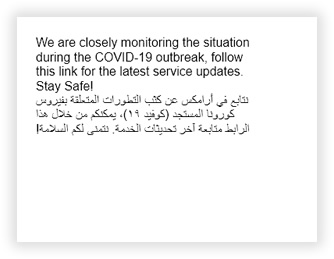
The following code creates a TextItem mixing LTR and RTL paragraphs by using the [rtl]...[/rtl] markup.
VB.NET
'Define a ThermalLabel object and set unit to inch and label size
Dim tLabel As New ThermalLabel(UnitType.Inch, 4, 3)
tLabel.GapLength = 0.2

'LTR and RTL paragraphs inside a single TextItem
Dim ltrPara As String = "We are closely monitoring the situation during the COVID-19 outbreak, follow this link for the latest service updates. Stay Safe!"
Dim rtlPara As String = "[rtl]!نتابع في أرامكس عن كثب التطورات المتعلقة بفيروس كورونا المستجد (كوفيد ١٩)، يمكنكم من خلال هذا الرابط متابعة آخر تحديثات الخدمة. نتمنى لكم السلامة[/rtl]"

Dim text As String = ltrPara + Environment.NewLine + rtlPara

Dim txt1 As New TextItem(0.25, 0.25, 3, 2.5, text)
txt1.Font.Name = "Arial"
txt1.Font.Unit = FontUnit.Point
txt1.Font.Unit = FontUnit.Point
txt1.Font.Size = 12

'Add items to ThermalLabel object...
tLabel.Items.Add(txt1)
C#
//Define a ThermalLabel object and set unit to inch and label size
ThermalLabel tLabel = new ThermalLabel(UnitType.Inch, 4, 3);
tLabel.GapLength = 0.2;

//LTR and RTL paragraphs inside a single TextItem
string ltrPara = "We are closely monitoring the situation during the COVID-19 outbreak, follow this link for the latest service updates. Stay Safe!";
string rtlPara = "[rtl]!نتابع في أرامكس عن كثب التطورات المتعلقة بفيروس كورونا المستجد (كوفيد ١٩)، يمكنكم من خلال هذا الرابط متابعة آخر تحديثات الخدمة. نتمنى لكم السلامة[/rtl]";

string text = ltrPara + Environment.NewLine + rtlPara;
TextItem txt1 = new TextItem(0.25, 0.25, 3, 2.5, text);
txt1.Font.Name = "Arial";
txt1.Font.Unit = FontUnit.Point;
txt1.Font.Size = 12;

//Add items to ThermalLabel object...
tLabel.Items.Add(txt1);
Custom TTF font file
The following sample uses a custom *.ttf font file: a "dingbat" type font called RecycleIt Font, which features a lot of recycling symbols.
Note
The RecycleIt font is used here for demo purposes only. Please read the license agreement of the fonts you use in your apps before using them.
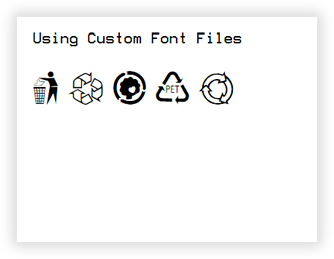
VB.NET
'Define a ThermalLabel object and set unit to inch and label size
Dim tLabel As New ThermalLabel(UnitType.Inch, 4, 3)
tLabel.GapLength = 0.2

'A sample text using NativePrinterFontA font
Dim txt1 As New TextItem(0.25, 0.25, 3.5, 0.5, "Using Custom Font Files")
txt1.Font.Name = Neodynamic.SDK.Printing.Font.NativePrinterFontA
txt1.Font.Unit = FontUnit.Point
txt1.Font.Size = 10

'A sample text using a custom ttf font file
Dim txt2 As New TextItem(0.25, 0.75, 3.5, 0.5, "M 8 S Z I")
txt2.Font.CustomFontFile = "C:\Temp\CustomFonts\RecycleIt.ttf"
txt2.Font.Unit = FontUnit.Point
txt2.Font.Size = 24

'Add items to ThermalLabel object...
tLabel.Items.Add(txt1)
tLabel.Items.Add(txt2)
C#
//Define a ThermalLabel object and set unit to inch and label size
ThermalLabel tLabel = new ThermalLabel(UnitType.Inch, 4, 3);
tLabel.GapLength = 0.2;

//A sample text using NativePrinterFontA font
TextItem txt1 = new TextItem(0.25, 0.25, 3.5, 0.5, "Using Custom Font Files");
txt1.Font.Name = Neodynamic.SDK.Printing.Font.NativePrinterFontA;
txt1.Font.Unit = FontUnit.Point;
txt1.Font.Size = 10;

//A sample text using a custom ttf font file
TextItem txt2 = new TextItem(0.25, 0.75, 3.5, 0.5, "M 8 S Z I");
txt2.Font.CustomFontFile = @"C:\Temp\CustomFonts\RecycleIt.ttf";
txt2.Font.Unit = FontUnit.Point;
txt2.Font.Size = 24;

//Add items to ThermalLabel object...
tLabel.Items.Add(txt1);
tLabel.Items.Add(txt2);