
How to improve the appearance of SQL BLOB images in Report Viewer RDLC using ImageDraw and ASP.NET - PDF & Excel Support
Product ImageDraw for ASP.NET Published 05/24/2006 Updated 05/24/2006
Requirements
Neodynamic ImageDraw (2.0 or later) for ASP.NET
Microsoft .NET Framework (2.0 or later)
Microsoft Visual Studio .NET (2005 or later - Visual Web Developer Express Edition)
Microsoft Visual Studio 2005 ReportViewer control for ASP.NET
Microsoft SQL Server 2000 or later
You can use RDLC (Report Definition Language Client-side processing) reports to deliver images, photos or pictures stored in SQL BLOB (Binary Large Object) fields using the standard Image control. However those images are rendered as is (i.e. as they are stored in those BLOB records) and with a new size if desired as well.
Due to its flexible design, ImageDraw allows you to dynamically apply imaging effects on those SQL BLOB images in RDLC reports highly improving the whole appearance of them!
In the following sample we're going to create a RDLC report which shows Music Albums data including CD Cover images stored in SQL BLOB fields using ImageDraw and Visual Studio 2005 ReportViewer controls in an ASP.NET Web Application
The idea is enhance the appearance of the images onto the reports using ImageDraw Object Model.

In this sample we're going to use our NeoMIX database sample, a SQL Server database that you can get at the end of this guide.
Follow these steps
- Install/Restore the NeoMIX SQL Server Database on your machine. Note: A backup file of the NeoMIX database can be found in the download files at the end of this guide.
- Open Visual Studio 2005 and create a new ASP.NET Web Application (Website).
- Add to the project a DataSet item naming it MusicData.xsd. You are asked if you want to place the .xsd in the App_Code directory. Answer yes. A new .xsd file is added to the App_Code folder, the .xsd is opened in Dataset Designer, and the TableAdapter Configuration Wizard is automatically launched.
- In the first step of the Wizard, make a connection to NeoMix SQL Server database sample. After that, click on Next button.
- Check the "Yes, save the connection as: NeoMixConnectionString" and click on Next.
- Select "Use SQL statements" and click on Next.
- Write the following SQL Statement as is shown in the following figure:
SELECT Genres.Name AS Genre, Artists.Name AS ArtistName, Albums.Name AS AlbumName, Albums.Company, Albums.Price, Albums.CdCoverBinary FROM Genres INNER JOIN Artists ON Genres.Id = Artists.GenreId INNER JOIN Albums ON Artists.Id = Albums.ArtistId ORDER BY Genres.Name, Artists.Name, Albums.Name
Click on Finish.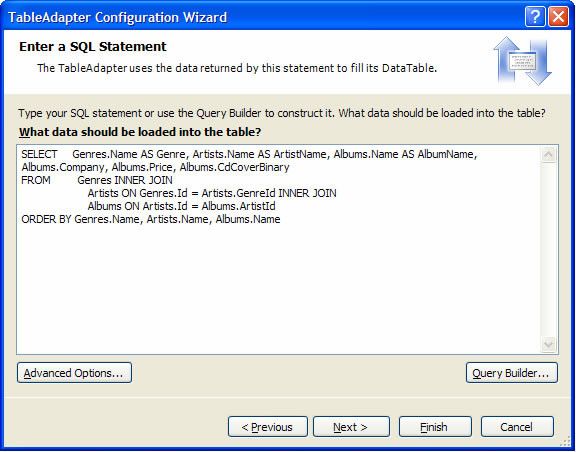
- The MusicData.xsd data set show look like the following figure:
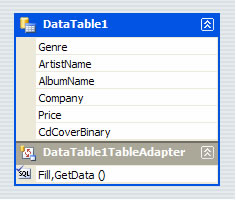
- Add a new Report (RDLC) item naming it MusicReport.rdlc. Design the report as is shown in the following figure:
The report features 2 (two) Groups one for Genres and one for Artists' Names. The selected item on the figure is an Image control that will be used to render the ImageDraw Composite Image!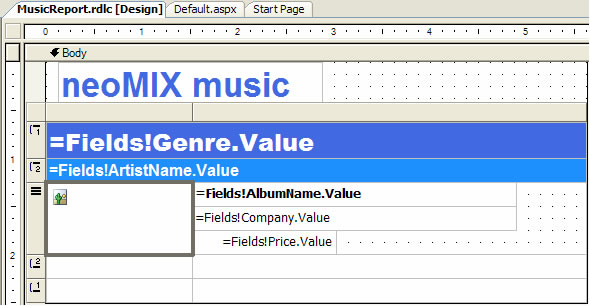
- Now it's time to configure and use ImageDraw in order it can do it job later.
- Ensure to install Neodynamic ImageDraw for ASP.NET on your machine
IMPORTANT: After installing ImageDraw you must register it into the Global Assembly Cache (GAC). The assembly to register is located in [ImageDrawInstallDir]\Redistributable\For .NET 2.0\Neodynamic.WebControls.ImageDraw.dll - In VS 2005 and with the report opened at design-time, add a reference to the ImageDraw assembly (NeodynamicWebControls.ImageDraw.dll) going to Report > Report properties.
Click on References tab and add the entries shown in the following figure:
Assembly references: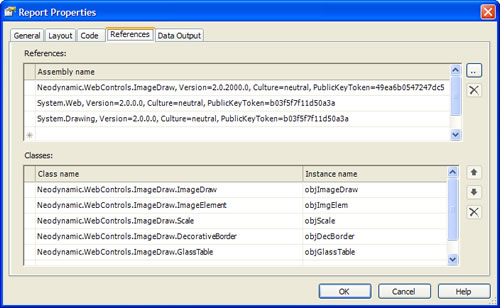
- Neodynamic.WebControls.ImageDraw, Version=2.0.2000.0, Culture=neutral, PublicKeyToken=49ea6b0547247dc5
- System.Web, Version=2.0.0.0, Culture=neutral, PublicKeyToken=b03f5f7f11d50a3a
- System.Drawing, Version=2.0.0.0, Culture=neutral, PublicKeyToken=b03f5f7f11d50a3a
Classes definition:- Neodynamic.WebControls.ImageDraw.ImageDraw - objImageDraw
- Neodynamic.WebControls.ImageDraw.ImageElement - objImgElem
- Neodynamic.WebControls.ImageDraw.Scale - objScale
- Neodynamic.WebControls.ImageDraw.DecorativeBorder - objDecBorder
- Neodynamic.WebControls.ImageDraw.GlassTable - objGlassTable
- We're going to use a VB.NET function to manipulate the SQL BLOB image source using the ImageDraw class instances defined in the previous point. Click on Code tab and write the following function:
VB
Public Function GetAlbumThumbnail(ByVal cover As Byte()) As Byte()

	objImgElem.Source = Neodynamic.WebControls.ImageDraw.ImageSource.Binary
	objImgElem.SourceBinary = cover

	objScale.HeightPercentage = 50
	objScale.WidthPercentage = 50

	objDecBorder.Width = 3
	objDecBorder.Fill.BackgroundColor = System.Drawing.Color.LightSteelBlue

	objGlassTable.ReflectionPercentage = 25
	objGlassTable.ReflectionOpacity = 50

	If (objImgElem.Actions.Count = 0) Then
		objImgElem.Actions.Add(objScale)
		objImgElem.Actions.Add(objDecBorder)
		objImgElem.Actions.Add(objGlassTable)
	End If

	If (objImageDraw.Elements.Count = 0) Then
		objImageDraw.Elements.Add(objImgElem)
	End If

	Return objImageDraw.GetOutputImageBinary()

End Function
This function features a parameter that in this case will be the SQL BLOB field containing the original Album cover. Inside this function, ImageDraw Object Model is used to manipulate the original image improving its appearance applying on to it some built-in ImageDraw Imaging effects such us Scale, DecorativeBorder and GlassTable! - Click OK to close the Report Properties dialog box.
- Ensure to install Neodynamic ImageDraw for ASP.NET on your machine
- Open the default.aspx ASP.NET Web Form and drag & drop a ReportViewer control onto it. Set the MusicReport.rdlc local report to it.
- Add the following code to the Page_Load event procedure:
VB
Me.ReportViewer1.LocalReport.AddTrustedCodeModuleInCurrentAppDomain("Neodynamic.WebControls.ImageDraw, Version=2.0.2000.0, Culture=neutral, PublicKeyToken=49ea6b0547247dc5")
Me.ReportViewer1.LocalReport.AddTrustedCodeModuleInCurrentAppDomain("System.Web, Version=2.0.0.0, Culture=neutral, PublicKeyToken=b03f5f7f11d50a3a")
Me.ReportViewer1.LocalReport.AddTrustedCodeModuleInCurrentAppDomain("System.Drawing, Version=2.0.0.0, Culture=neutral, PublicKeyToken=b03f5f7f11d50a3a")
C#
this.ReportViewer1.LocalReport.AddTrustedCodeModuleInCurrentAppDomain("Neodynamic.WebControls.ImageDraw, Version=2.0.2000.0, Culture=neutral, PublicKeyToken=49ea6b0547247dc5");
this.ReportViewer1.LocalReport.AddTrustedCodeModuleInCurrentAppDomain("System.Web, Version=2.0.0.0, Culture=neutral, PublicKeyToken=b03f5f7f11d50a3a");
this.ReportViewer1.LocalReport.AddTrustedCodeModuleInCurrentAppDomain("System.Drawing, Version=2.0.0.0, Culture=neutral, PublicKeyToken=b03f5f7f11d50a3a");
Ensure that you've registered or installed the ImageDraw assembly into the Global Assembly Cache (GAC) - That's it. Run your project. You show get something like the following figure:
ImageDraw supports PDF & Excel exportation. So, if you do that onto the previous form all images generated by ImageDraw will be preserved!
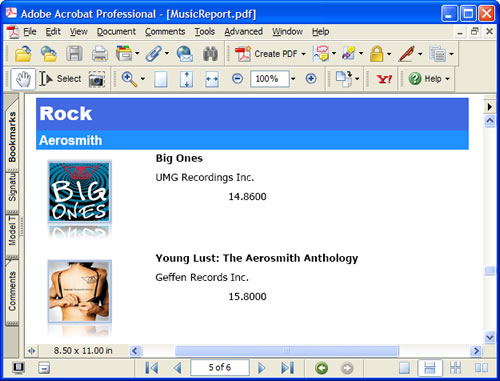
ImageDraw images are preserved in PDF format

ImageDraw images are preserved in Excel format
Sample Files Download
Here are the VB.NET and C# versions of this sample. Please, download the zip file you want to. After extract it you'll find all necessary files to reproduce this step by step guide.
- For Visual Basic.NET: ImageDrawReportViewerRdlcSqlBlobVB.zip (2.65 MB)
- For Visual C#.NET: ImageDrawReportViewerRdlcSqlBlobCS.zip (2.65 MB)
Remember to download and install ImageDraw in order to reproduce this sample demo.
Need help? Contact Support
We provide best-in-class customer service and support directly from members of our dev team! If we are available when you contact us, you will get a response in few minutes; otherwise the maximum turnaround is 24hs in most cases.