
Barcode Data Binding in Windows Forms
Product Barcode Professional for Windows Forms Published 05/26/2009 Updated 05/26/2009
Requirements
Neodynamic Barcode Professional for Windows Forms (any version)
Microsoft .NET Framework 1.0 or greater
Microsoft Visual Studio .NET 2002 or 2003
Microsoft Visual Studio 2005
Microsoft Visual Studio 2005 Express Editions (VB, C#, J#, and C++)
In the following step by step guide we're going to create a simple Windows Forms application that accomplishes data binding tasks. In this sample we use Microsoft's Northwind database sample for SQL Server.
Follow these steps:
- Ensure you have installed Barcode Professional for Windows Forms
- Launch Visual Studio and create a new Windows Forms application
- Open the default Form at design-time and add the following controls as is shown in the following figure:

Now, go to the form class and add the following code:
- Declare this two members variables
VB
Dim ds As DataSet
Dim bmbProducts As BindingManagerBase
C#
DataSet ds; BindingManagerBase bmbProducts; - Add the following code in the Form_Load event procedure VB.NET
VB
Dim cnn As New System.Data.SqlClient.SqlConnection("server=(local);database=Northwind;integrated security=true")
Dim sqlcmd As New System.Data.SqlClient.SqlCommand("SELECT Products.ProductName, Categories.CategoryName, Products.UnitPrice, Products.ProductID FROM Products INNER JOIN Categories ON Products.CategoryID = Categories.CategoryID", cnn)
Dim da As New System.Data.SqlClient.SqlDataAdapter(sqlcmd)

ds = New DataSet
da.Fill(ds, "Products")

bmbProducts = BindingContext(ds, "Products")

TextBox1.DataBindings.Add("Text", ds, "Products.ProductName")
TextBox2.DataBindings.Add("Text", ds, "Products.CategoryName")
TextBox3.DataBindings.Add("Text", ds, "Products.UnitPrice")
BarcodeProfessional1.DataBindings.Add("Code", ds, "Products.ProductID")

BarcodeProfessional1.Text = ""
BarcodeProfessional1.Symbology = Neodynamic.WinControls.BarcodeProfessional.Symbology.Industrial2of5
C#
System.Data.SqlClient.SqlConnection cnn = new System.Data.SqlClient.SqlConnection("server=(local);database=Northwind;integrated security=true"); System.Data.SqlClient.SqlCommand sqlcmd = new System.Data.SqlClient.SqlCommand("SELECT Products.ProductName, Categories.CategoryName, Products.UnitPrice, Products.ProductID FROM Products INNER JOIN Categories ON Products.CategoryID = Categories.CategoryID", cnn); System.Data.SqlClient.SqlDataAdapter da = new System.Data.SqlClient.SqlDataAdapter(sqlcmd); ds = new DataSet(); da.Fill(ds, "Products"); bmbProducts = BindingContext[ds, "Products"]; TextBox1.DataBindings.Add("Text", ds, "Products.ProductName"); TextBox2.DataBindings.Add("Text", ds, "Products.CategoryName"); TextBox3.DataBindings.Add("Text", ds, "Products.UnitPrice"); BarcodeProfessional1.DataBindings.Add("Code", ds, "Products.ProductID"); BarcodeProfessional1.Text = ""; BarcodeProfessional1.Symbology = Neodynamic.WinControls.BarcodeProfessional.Symbology.Industrial2of5; - Add the following code in the Click event procedure for << Previous button
VB
bmbProducts.Position -= 1C#
bmbProducts.Position -= 1; - Add the following code in the Click event procedure for Next >> button
VB
bmbProducts.Position += 1C#
bmbProducts.Position += 1;
- Declare this two members variables
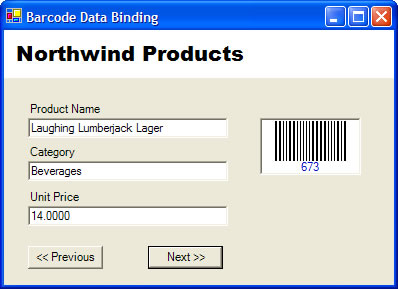
- That's it. Run the app. You'll get something like the following:
Need help? Contact Support
We provide best-in-class customer service and support directly from members of our dev team! If we are available when you contact us, you will get a response in few minutes; otherwise the maximum turnaround is 24hs in most cases.