How to use Barcode Professional in Reporting Services 2005 - Product List Sample with PDF, TIFF, Web Archive & Excel support
Product Barcode Professional for Reporting Services
Published 04/30/2007
Updated 04/30/2007
Overview
Barcode Professional is the first and best Barcode Custom Report Item designed for Reporting Services 2005 that allows you to display barcode images in RDL (Report Definition Language) reports that are serving from a Report Server. You can use all Barcode Symbologies - Linear & 2D - built-in Barcode Professional.
In the following sample we'll create a Report Server Project which features barcode images by using Barcode Professional, Visual Studio 2005 or SQL Server Business Intelligence Development Studio, and Reporting Services 2005.
In this sample we'll create a Product List RDL report by using Microsoft's AdventureWorks database sample.
Requirements
Neodynamic Barcode Professional 2.0 for Reporting Services or greater
Microsoft .NET Framework 2.0 or greater
Microsoft Visual Studio 2005 or SQL Server Business Intelligence Development Studio
Microsoft SQL Server 2005 Standard or Enterprise Edition
Microsoft SQL Server 2005 Reporting Services
In this guide you'll view and enjoy all design-time features of Barcode Professional that makes it the best barcode solution for Reporting Services 2005
Follow up these steps
- Open Visual Studio 2005 or SQL Server Business Intelligence Development Studio and create a new Report Server Project
- Add a new Data Source pointing to the AventureWorks database
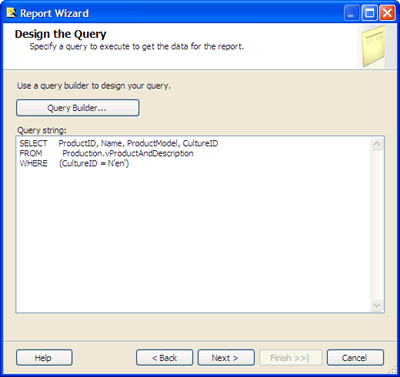
- Add a new Report item, name it to ProductList.rdlc, and enter the following SQL Statement:
SELECT ProductID, Name, ProductModel, CultureID FROM Production.vProductAndDescription WHERE (CultureID = N'en')
as is shown in the below figure.
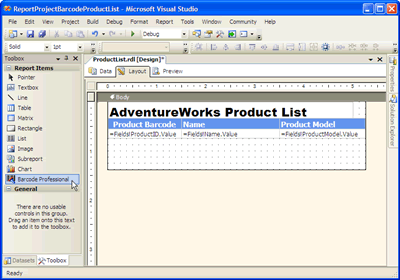
- Select a Tabular type report and add the fields ProductID, Name, and ProductModel into the Report's Detail section. The report should look like the following figure.
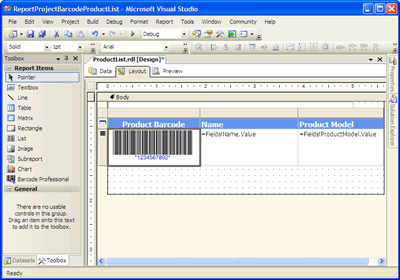
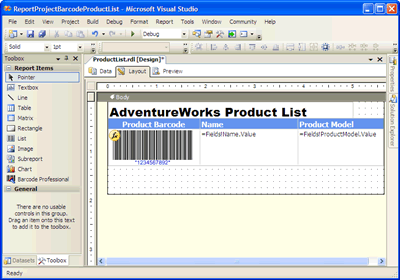
Drag & Drop Barcode Professional from the Toolbox onto the first column of the table. NOTE: read the product help documentation to learn how to include Barcode Professional on the Visual Studio's Toolbox.
-
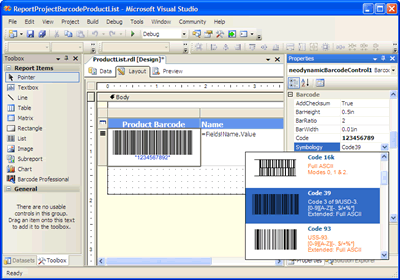
Now it's time to set some properties of Barcode Professional. You can accomplish it in two ways:
- Using the property window of Visual Studio
- Using the property editor right-clicking on the barcode item and selecting Properties
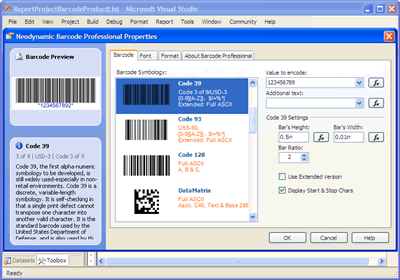 Barcode Professional 2.0 Property Editor
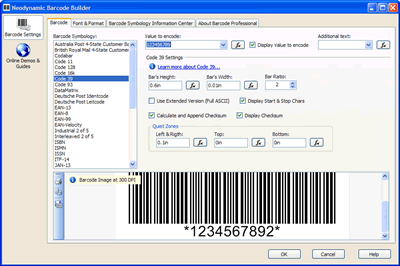 Barcode Professional 3.0/4.0 Property Editor (Barcode Builder)
- We're going to use the property editor. So, right-click on the barcode item and select Properties. On the Editor dialog, set the value to encode to the ProductID field as is shown in the following figure:
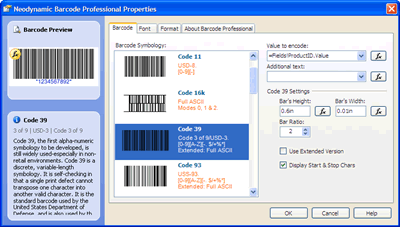 Barcode Professional 2.0 Property Editor
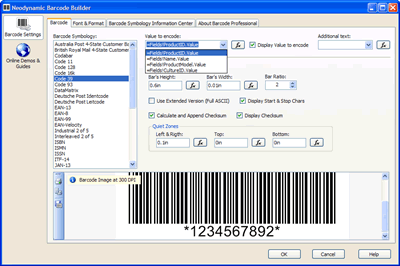 Barcode Professional 3.0/4.0 Property Editor (Barcode Builder)
Click OK to close the Editor dialog. You can change other properties like rotation, font settings, and so on. You can use any expression to the enabled properties too.
- You'll notice that when you set a Data Source's field to some property a yellow formula icon will appear on the barcode image, indicating that the barcode is data-bounded.
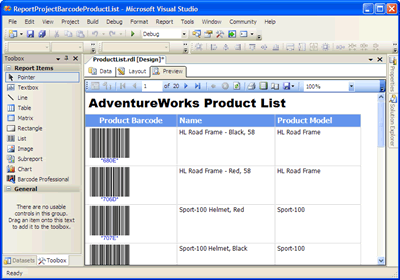
- That's it. Click on the Preview tab to preview the report
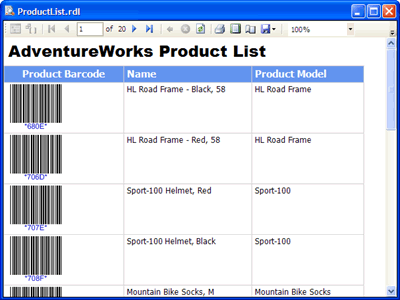
- Want to check it on DebugLocal configuration. Set it and run the project.
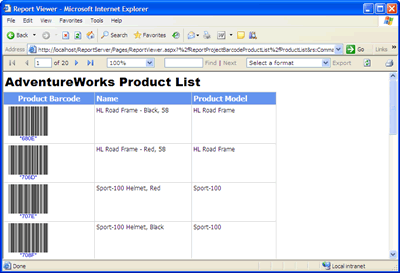
- Well, after some testing it's time to deploy the project. Set the Configuration to Production and Deploy it.
- Barcode Professional supports PDF, TIFF, Web Archive & Excel exportation. So, if you do that onto the previous report web page you'll get your report with barcode images in all those different formats.
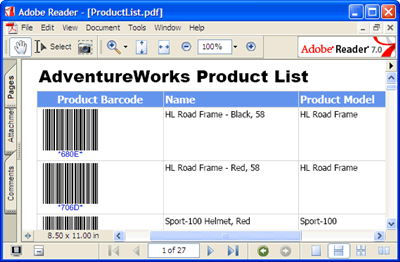 PDF Support
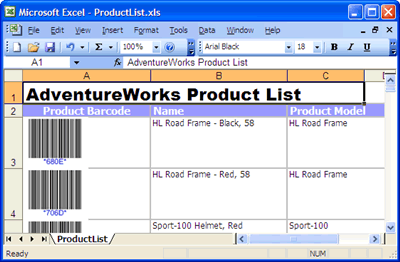 Excel Support
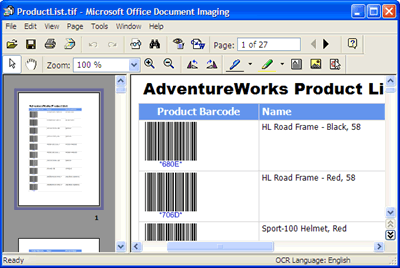 TIFF Support
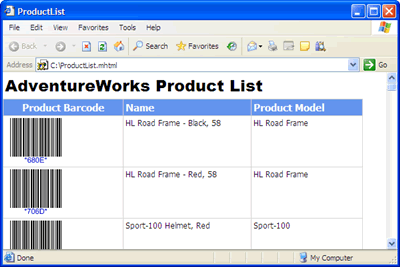 Web Archive
- Deployment
Please, refer to the product help documentation about this topic.