How to create Crystal Reports featuring barcode images using Typed DataSet in .NET SDK
Product Barcode Professional SDK for .NET Published 01/20/2009 Updated 01/20/2009
Overview
In the following Step-By-Step Guide we're going to create a Crystal Report which features barcoding capabilities by using Barcode Professional SDK for .NET and using as data source for the report a Typed DataSet.
Requirements
Neodynamic Barcode Professional SDK 1.0 (or greater) for .NET
Microsoft .NET Framework 2.0 (or greater)
Microsoft Visual Studio 2005/2008
Microsoft SQL Server 2005 (any version) with Northwind Database sample installed
Crystal Reports for Visual Studio .NET 2005/2008
Follow up these steps
- Open Visual Studio and create a new Windows Forms application naming it CrystalReportBarcodeDataSet.
-
Add a new DataSet item to the project and name it Northwind.xsd
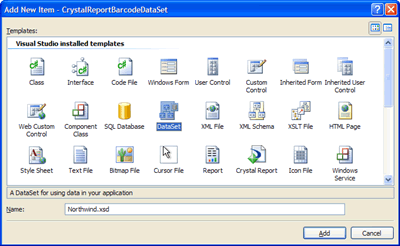
Adding a Typed DataSet
-
Add a new TableAdapter to the DataSet (Right-clicking on the DataSet design surface and selecting Add > TableAdapter... or by dragging & dropping a TableAdapter from the Toolbox).
Follow the wizard steps. In the first step, please create a connection to the Northwind SQL Server Database sample and click Next. In the second step, choose "Use SQL statements" and click Next. After that, please enter the following SQL Statement: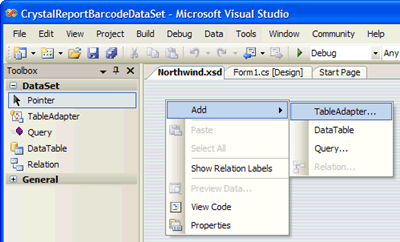
Adding a TableAdapter to the Northwind DataSet
SELECT ProductID, ProductName, UnitPrice FROM Products
Click Finish to close the Wizard dialog box.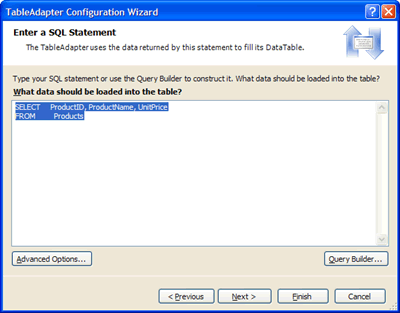
Specifying a SQL Statement that returns Northwind Product info
-
After that, add a new custom Column to the DataTable just created and name it Barcode as is shown in the following figure
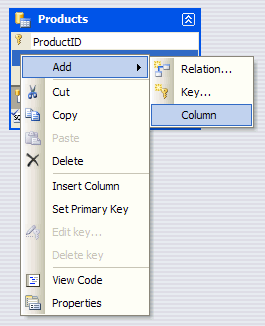
Adding a new Column to the DataTable for barcoding purpose
-
Change the data type of the Barcode column to System.Byte[] (Array of Byte). NOTE: the System.Byte[] data type is not listed and thus why you must type it manually.
![Setting up the Barcode Column to System.Byte[] data type](https://www.neodynamic.com/demo-faq/barcode-net-sdk/101/figure05Small.png)
Setting up the Barcode Column to System.Byte[] data type
- Save the Northwind.xsd file.
-
Now add a new Crystal Report item to the project and name it CrystalReportBarcode.rpt.
Click Add button. Next, choose "Blank Report" in the Crystal Report Gallery dialog box.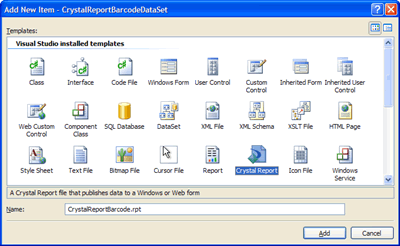
Adding a Crystal Report to the project
Click OK button.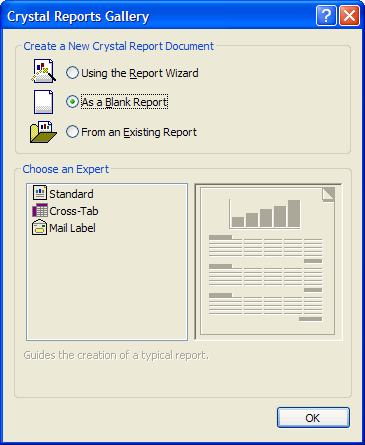
Creating a blank report
-
Launch Crystal Report Database Expert by going to Crystal Reports > Database > Database Expert...
In the Database Expert dialog box select the Products DataTable (from the left pane) so it appears in the "Selected Tables" list (right pane) as is shown in the following figure.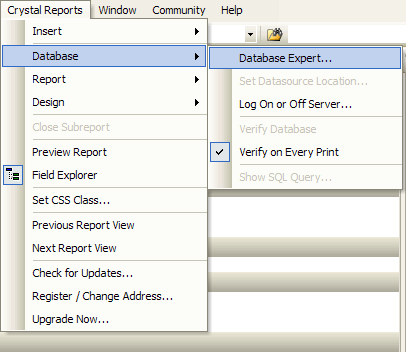
Opening Crystal Reports Database Expert dialog box
Click OK button. After that, the Products DataTable should be available in the Field Explorer Window as is shown in the following figure. NOTE: To display the Field Explorer press Ctrl+Alt+T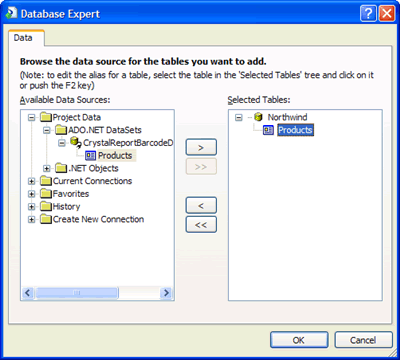
Choosing the Products DataTable as data source of the Crystal Report
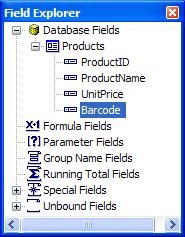
The Products DataTable available in the Field Explorer
-
Please design the report so it looks like the following figure. Just drag & drop the fields from the Field Explorer onto the report as is shown in the figure.
The most important field in our scenario is Barcode (Please DO NOT change the dimensions of such field on the report surface). Select the Barcode item on the report and right-clicking onto it select "Format Object" from the context menu to open the Format Editor dialog box. In that dialog box, please check Can Grow option and click OK button.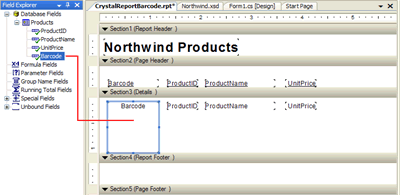
The barcode report layout
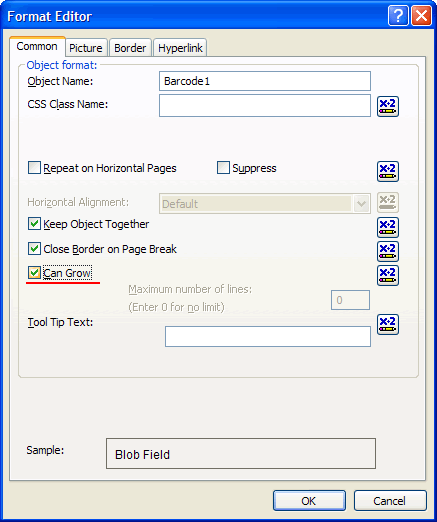
Setting up "Can Grow" option for the Barcode item in the Format Editor dialog box
- Save the report.
- Now Create/Open a Windows Form at design time and drag & drop a CrystalReportViewer control onto it.
- After that, from the Solution Explorer, add a reference to Barcode Professional SDK for .NET assembly: Neodynamic.SDK.Barcode.dll
-
Write the following code in the Form_Load event procedure.
VB
Private Sub Form1_Load(ByVal sender As Object, ByVal e As System.EventArgs) Handles Me.Load

    'Filling Products DataTable from DB
    Dim ta As New NorthwindTableAdapters.ProductsTableAdapter()
    Dim dt As New Northwind.ProductsDataTable()
    ta.Fill(dt)

    'Create an instance of Barcode Professional
    Dim bcp As New Neodynamic.SDK.BarcodeProfessional()
    'Barcode settings
    bcp.Symbology = Neodynamic.SDK.Symbology.Code39
    bcp.Extended = true
    bcp.AddChecksum = false
    bcp.BarHeight = 0.4f

    'Append fictitious Company internal prefix
    Dim prodPrefix As String = "12345"

    Dim row As Northwind.ProductsRow
    For Each row In dt.Rows
        'Set the value to encode
        bcp.Code = prodPrefix + row.ProductID.ToString()
        'Generate the barcode image and store it into the Barcode Column
        row.Barcode = bcp.GetBarcodeImage(System.Drawing.Imaging.ImageFormat.Png)
    Next

    'Create a report object
    'and set its data source with the DataSet
    Dim report As New CrystalReportBarcode()
    report.SetDataSource(CType(dt, DataTable))

    Me.CrystalReportViewer1.ReportSource = report
End Sub
C#
private void Form1_Load(object sender, EventArgs e) { //Filling Products DataTable from DB NorthwindTableAdapters.ProductsTableAdapter ta = new NorthwindTableAdapters.ProductsTableAdapter(); Northwind.ProductsDataTable dt = new Northwind.ProductsDataTable(); ta.Fill(dt); //Create an instance of Barcode Professional Neodynamic.SDK.BarcodeProfessional bcp = new Neodynamic.SDK.BarcodeProfessional(); //Barcode settings bcp.Symbology = Neodynamic.SDK.Symbology.Code39; bcp.Extended = true; bcp.AddChecksum = false; bcp.BarHeight = 0.4f; //Append fictitious Company internal prefix string prodPrefix = "12345"; //Update DataTable with barcode image foreach (Northwind.ProductsRow row in dt.Rows) { //Set the value to encode bcp.Code = prodPrefix + row.ProductID.ToString(); //Generate the barcode image and store it into the Barcode Column row.Barcode = bcp.GetBarcodeImage(System.Drawing.Imaging.ImageFormat.Png); } //Create a report object //and set its data source with the DataSet CrystalReportBarcode report = new CrystalReportBarcode(); report.SetDataSource((DataTable)dt); this.crystalReportViewer1.ReportSource = report; } -
That's it. Run your application. You should get the barcode images displayed on the report.
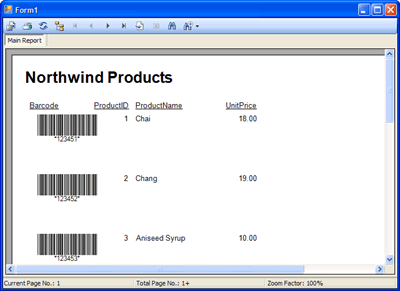
The Crystal Report featuring barcodes generated by Barcode Professional
CrystalReportViewer control lets you to export the displayed report to Acrobat PDF, Microsoft Excel XLS as well as other well know document formats. In all cases the barcode images are maintained.
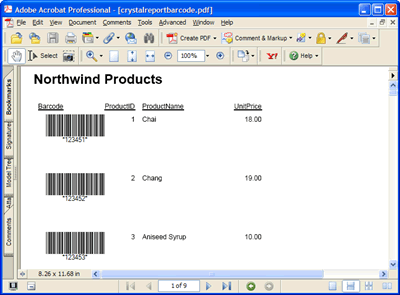
The Crystal Report report in Acrobat PDF format featuring barcodes generated by Barcode Professional
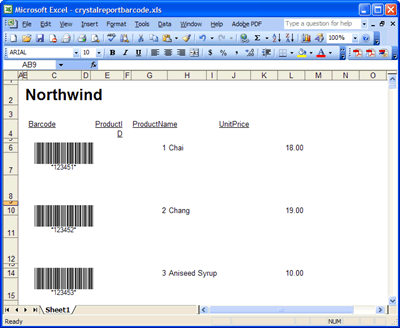
The Crystal Report report in Microsoft Excel XLS format featuring barcodes generated by Barcode Professional