
Neodynamic ThermalLabel SDK 8.0+
Microsoft .NET Framework 4.6.1+
Microsoft Visual Studio 2017+
Any Zebra Thermal Printer supporting ZPL (Zebra Programming Language) or EPL (Eltron Programming Language)
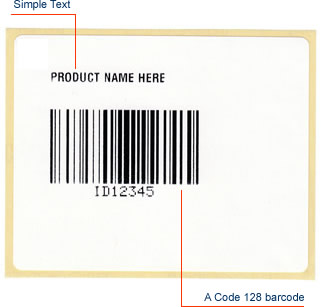
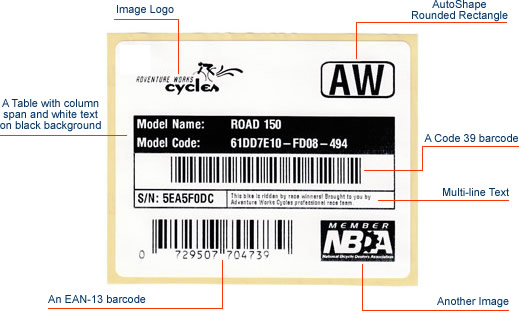
By using Neodynamic ThermalLabel SDK for .NET you can easily create, design and print barcode labels to all Zebra ZPL or EPL printers by writing just pure .NET code in VB or C#. The source code provided is about how to create and print two barcode thermal labels, one simple label featuring a barcode with simple text and another one featuring a more advanced layout including tables, images, texts and barcodes.
The following figure shows the first basic label that is printed by using the sample code.
This figure shows the second label which is more complex in design but easy to create by using ThermalLabel SDK for .NET
We provide best-in-class customer service and support directly from members of our dev team! If we are available when you contact us, you will get a response in few minutes; otherwise the maximum turnaround is 24hs in most cases.