See Also
Features
Buy Now
Online Help
Demo
Licensing

Back

How to print multicolumn labels in Zebra ZPL-EPL printers with VB.NET or C# by using ThermalLabel SDK for .NET

Prerequisites
  • Neodynamic ThermalLabel SDK v3.0 for .NET (or greater)
    NOTE: This demo works with ThermalLabel SDK v3.0 but NOT with v4.0
  • Microsoft .NET Framework 2.0 (or greater)
  • Microsoft Visual Studio 2005 / 2008 /2010
  • Microsoft Visual Studio 2005 / 2008 /2010 Express Editions (VB, C#)
  • Any Zebra Thermal Printer supporting ZPL (Zebra Programming Language) or EPL (Eltron Programming Language)
Most Thermal Printers do not provide a built-in mechanism for printing on media roll featuring more than one single label per row (a.k.a. multi-column printing support). To bypass this limitation, ThermalLabel SDK provides this feature out-of-the-box allowing you to print any number of labels per row!

In this guide, you will learn how to print barcodes and texts on a media roll containing two labels per row and using in this case a "Counters" scenario but you can use the same approach in data binding as well.

The multicolumn label layout we'll be using in this guide is shown in the following figure. The media roll features 2 labels per row. Each label is 50mm x 30mm and the horizontal and vertical gaps between labels is 3mm each.
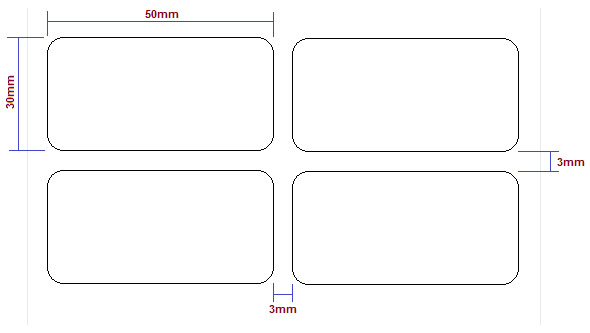
Printing multiple labels per row on media roll support!


IMPORTANT: To test the sample code you must have installed a Zebra ZPL-based or EPL-based thermal printer.
Follow these steps:
  • Download and install latest version of Neodynamic ThermalLabel SDK for .NET
  • Open Visual Studio (v2005, or v2008, or 2010) and create a Windows Forms application.
  • Add a reference to Neodynamic.SDK.ThermalLabel.dll assembly.
  • Add a button control onto the form and paste the following code in the click event handler of the button:

    IMPORTANT NOTICE Although ThermalLabel SDK supports both ZPL and EPL printers, a label design you write using .NET code like C# or VB.NET will not produce the same output printing under ZPL and EPL printers. If you need to support both printer languages in your project then you will have to design two different labels targeting each printer language separately.

    For ZPL-based Printers Visual Basic .NET
    'Define a ThermalLabel object and set unit to MM and label size
    Dim tLabel As New ThermalLabel(UnitType.Mm, 50, 0)
    'Set the number of labels per row
    tLabel.LabelsPerRow = 2
    'Set the horiz gap between labels
    tLabel.LabelsHorizontalGapLength = 3
    
    'Define a TextItem object
    Dim txt As New TextItem(5, 5, "Decreasing 50")
    'Set font...
    txt.Font.CharHeight = 14
    'set Counter...
    txt.CounterStep = -1
    
    'Define a BarcodeItem object
    Dim bc As New BarcodeItem(5, 15, BarcodeSymbology.Code128, "ABC01")
    'Set bars' width and height...
    bc.BarWidth = 0.4
    bc.BarHeight = 10
    'set Counter...
    bc.CounterStep = 1
    bc.CounterUseLeadingZeros = True
    
    'Add items to ThermalLabel object...
    tLabel.Items.Add(txt)
    tLabel.Items.Add(bc)
    
    'Create a PrintJob object
    Dim pj As New PrintJob()
    'Thermal Printer is connected through USB
    pj.PrinterSettings.Communication.CommunicationType = CommunicationType.USB
    'Set Thermal Printer resolution
    pj.PrinterSettings.Dpi = 203
    'Set Thermal Printer language
    pj.PrinterSettings.ProgrammingLanguage = ProgrammingLanguage.ZPL
    'Set Thermal Printer name 
    pj.PrinterSettings.PrinterName = "Zebra  GK420t"
    'Set Copies to 10!!!
    pj.Copies = 10
    'Print ThermalLabel object...
    pj.Print(tLabel)
    
    Visual C# .NET
    //Define a ThermalLabel object and set unit to MM and label size
    ThermalLabel tLabel = new ThermalLabel(UnitType.Mm, 50, 0);
    //Set the number of labels per row
    tLabel.LabelsPerRow = 2;
    //Set the horiz gap between labels
    tLabel.LabelsHorizontalGapLength = 3;
    //Define a TextItem object
    TextItem txt = new TextItem(5, 5, "Decreasing 50");
    //Set font...
    txt.Font.CharHeight = 14;
    //set Counter...
    txt.CounterStep = -1;
    //Define a BarcodeItem object
    BarcodeItem bc = new BarcodeItem(5, 15, BarcodeSymbology.Code128, "ABC01");
    //Set bars' width and height...
    bc.BarWidth = 0.4;
    bc.BarHeight = 10;
    //set Counter...
    bc.CounterStep = 1;
    bc.CounterUseLeadingZeros = true;
    //Add items to ThermalLabel object...
    tLabel.Items.Add(txt);
    tLabel.Items.Add(bc);
    //Create a PrintJob object
    PrintJob pj = new PrintJob();
    //Thermal Printer is connected through USB
    pj.PrinterSettings.Communication.CommunicationType = CommunicationType.USB;
    //Set Thermal Printer resolution
    pj.PrinterSettings.Dpi = 203;
    //Set Thermal Printer language 
    pj.PrinterSettings.ProgrammingLanguage = ProgrammingLanguage.ZPL;
    //Set Thermal Printer name 
    pj.PrinterSettings.PrinterName = "Zebra  GK420t";
    //Set Copies to 10!!!
    pj.Copies = 10;
    //Print ThermalLabel object...
    pj.Print(tLabel);


    For EPL-based Printers Visual Basic .NET
    'Define a ThermalLabel object and set unit to MM and label size
    Dim tLabel As New ThermalLabel(UnitType.Mm, 50, 30)
    'Set the number of labels per row
    tLabel.LabelsPerRow = 2
    'Set the horiz gap between labels
    tLabel.LabelsHorizontalGapLength = 3
    'Set the vertical gap between labels
    tLabel.GapLength = 3
    
    'Define a TextItem object
    Dim txt As New TextItem(5, 5, "Decreasing 50")
    'Set font...
    txt.Font.Name = "2"
    txt.Font.CharHeight = 14
    txt.Font.CharWidth = 8
    
    'set Counter...
    txt.CounterStep = -1
    
    'Define a BarcodeItem object
    Dim bc As New BarcodeItem(5, 15, BarcodeSymbology.Code128, "ABC01")
    'Set bars' width and height...
    bc.BarWidth = 0.4
    bc.BarHeight = 10
    'set Counter...
    bc.CounterStep = 1
    bc.CounterUseLeadingZeros = True
    
    'Add items to ThermalLabel object...
    tLabel.Items.Add(txt)
    tLabel.Items.Add(bc)
    
    'Create a PrintJob object
    Dim pj As New PrintJob()
    'Thermal Printer is connected through USB
    pj.PrinterSettings.Communication.CommunicationType = CommunicationType.USB
    'Set Thermal Printer resolution
    pj.PrinterSettings.Dpi = 203
    'Set Thermal Printer language
    pj.PrinterSettings.ProgrammingLanguage = ProgrammingLanguage.EPL
    'Set Thermal Printer name 
    pj.PrinterSettings.PrinterName = "Zebra  GK420t"
    'Set Copies to 10!!!
    pj.Copies = 10
    'Print ThermalLabel object...
    pj.Print(tLabel)
    
    Visual C# .NET
    //Define a ThermalLabel object and set unit to MM and label size
    ThermalLabel tLabel = new ThermalLabel(UnitType.Mm, 50, 0);
    //Set the number of labels per row
    tLabel.LabelsPerRow = 2;
    //Set the horiz gap between labels
    tLabel.LabelsHorizontalGapLength = 3;
    //Set the vertical gap between labels
    tLabel.GapLength = 3;
    //Define a TextItem object
    TextItem txt = new TextItem(5, 5, "Decreasing 50");
    //Set font...
    txt.Font.Name = "2";
    txt.Font.CharHeight = 14;
    txt.Font.CharWidth = 8;
    
    //set Counter...
    txt.CounterStep = -1;
    //Define a BarcodeItem object
    BarcodeItem bc = new BarcodeItem(5, 15, BarcodeSymbology.Code128, "ABC01");
    //Set bars' width and height...
    bc.BarWidth = 0.4;
    bc.BarHeight = 10;
    //set Counter...
    bc.CounterStep = 1;
    bc.CounterUseLeadingZeros = true;
    //Add items to ThermalLabel object...
    tLabel.Items.Add(txt);
    tLabel.Items.Add(bc);
    //Create a PrintJob object
    PrintJob pj = new PrintJob();
    //Thermal Printer is connected through USB
    pj.PrinterSettings.Communication.CommunicationType = CommunicationType.USB;
    //Set Thermal Printer resolution
    pj.PrinterSettings.Dpi = 203;
    //Set Thermal Printer language 
    pj.PrinterSettings.ProgrammingLanguage = ProgrammingLanguage.EPL;
    //Set Thermal Printer name 
    pj.PrinterSettings.PrinterName = "Zebra  GK420t";
    //Set Copies to 10!!!
    pj.Copies = 10;
    //Print ThermalLabel object...
    pj.Print(tLabel);
    
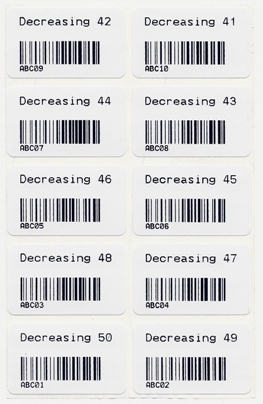
  • Run the sample Windows Forms application and test it. The output printing should look like the following.
Printing multiple labels per row on media roll support!


If you need more information or assistance, please contact our .
 Copyright © 2003 - 2012 Neodynamic S.R.L. All rights reserved.