
How to get the barcode image centered in Reporting Services
Product Barcode Professional for Reporting Services Published 01/25/2007 Updated 01/25/2007
Requirements
Neodynamic Barcode Professional 3.0 for Reporting Services
Microsoft .NET Framework 1.1 or greater
Microsoft Visual Studio .NET 2003, Microsoft Visual Studio 2005 or SQL Server Business Intelligence Development Studio
Microsoft SQL Server 2000/2005 Reporting Services or Visual Studio Local Reports RDLC
In some cases, you could want to create a barcode image centered inside a given area. Take a look the following scenarios to learn how to accomplish that simple task.
If you are using Reporting Services 2000 or Visual Studio Local Reports RDLC
Given these reporting scenarios, suppose you want to create a barcode image centered inside an area of size 2 inch x 1 inch. In order to accomplish that task you must:
- Set the AutoSize property to False and the desired area size to Width and Height properties of the Barcode Professional instance used in the VB.NET function in the Code section of your report. For example:
Public Function GetBarcode(ByVal valueToEncode As String) As Byte() objBarcode.Code = valueToEncode objBarcode.Symbology = Neodynamic.ReportingServices.Symbology.Code128 objBarcode.BarWidth = 0.01 objBarcode.BarHeight = 0.4 'Settings for centering the barcode image objBarcode.AutoSize = False objBarcode.Width = 2 objBarcode.Height = 1 Return objBarcode.GetBarcodeImage() End Function - Set the Sizing property to AutoSize of the Image control used to display the barcode image on the report surface i.e. the same Image control which Value property is set up with an expression invoking the GetBarcode function.
For instance, if the value "1234567890" is passed to the hypothetical GetBarcode function, then you'll get the following barcode image centered inside the desired area (2 inch x 1 inch):

The output barcode image centered inside the desired area
IMPORTANT NOTE
Be aware of the settings you specify to BarHeight, BarWidth, BarRatio, and Code properties of Barcode Professional because the barcode image generated could be bigger than the area where it must be centered and if it is the case, then the barcode image will be clipped. In conclusion, be sure that the desired area size is large enough to accommodate the largest barcode image so that it does not be clipped.
If you are using Reporting Services 2005
In this reporting scenario, the Barcode Professional Report Item is placed on the report surface where you want to display the barcode image. If Barcode Professional is used as a Report Item, then a few main properties must be specified. Given the previous hypothetical example, if you want to create a barcode image centered inside an area of size 2 inch x 1 inch, then you must set up the following properties of the Barcode Professional Report Item:
- Set the AutoSize property to False
- Set the Size property to 2in, 1in
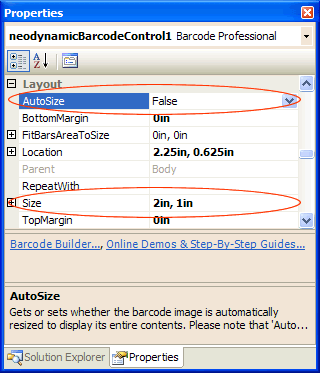
Barcode Professional Report Item properties settings for centering barcode images
Need help? Contact Support
We provide best-in-class customer service and support directly from members of our dev team! If we are available when you contact us, you will get a response in few minutes; otherwise the maximum turnaround is 24hs in most cases.