Data Binding
ThermalLabel SDK supports .NET data binding scenarios, allowing you to print thermal labels bound to a data source: one label is generated for each row (record) of the data source.
The supported data source types are:
| Data source | Notes |
|---|---|
| List / Collection / Array of custom .NET objects (POCO) | Any IEnumerable. Public properties become fields (public fields are not used). Sub-properties are reachable with dot notation, e.g. Info.Serial. |
| ADO.NET | DataTable, DataSet (use DataMember to pick a table; the first table is used otherwise), IDataReader and DataView. |
| CSV | File path or string. |
| XML | File path or string. |
| JSON Array | File path or string. |
How to bind a label
- Set a valid data source to the
ThermalLabel.DataSourceproperty. Set the
DataFieldproperty of the items that must display data. The following items can be bound:TextItem(its text),BarcodeItem(the code to encode),LiteralItem(its text) andRFIDTagItem(the data to encode).ImageItem(its image source, see Binding images).RepeaterItem, for repeating an area of the label once per child record. See Repeater Item.
Shape items (line, rectangle, ellipse, table) have no bindable content.
- Optionally, use
DataFieldFormatStringon each item to format the value,DataFieldReplicateson the label to print several copies of each record, andDataSourceCultureInfoto control the culture used for formatting. - Print the label as usual (or generate commands / export it). The same label and data source also work with
ExportToImageandExportToPdf.
DataField
DataField is the name of the column (ADO.NET, CSV, XML, JSON) or the property (custom objects) to display. For custom objects, sub-properties are written with dots: Info.Serial, where the first part (Info) must be the name of a public property of the row object. Field names are case-sensitive.
Note
If the value of a field is empty or DBNull, the item prints empty for that record. If the field doesn't exist (or a sub-property is null), no exception is thrown: the item just doesn't receive data and keeps its design-time content. Double-check the spelling of the field names when an item doesn't show what you expect.
DataFieldFormatString
DataFieldFormatString follows the .NET String.Format syntax. You can write either a complete format that contains the {0} placeholder, or just the format specifier:
DataFieldFormatString |
Value | Result |
|---|---|---|
ISBN: {0} |
0-7356-0562-9 |
ISBN: 0-7356-0562-9 |
Total: {0:N2} |
12.5 |
Total: 12.50 |
N2 |
12.5 |
12.50 |
yyyy-MM-dd |
a DateTime |
2026-10-15 |
Values are formatted with ThermalLabel.DataSourceCultureInfo (default CultureInfo.InvariantCulture). Set it to your culture if you want, for example, the currency symbol (C2) or the date format of a specific region: tLabel.DataSourceCultureInfo = new CultureInfo("de-DE");
DataFieldReplicates
The ThermalLabel object also features the DataFieldReplicates property, which can be set to the name of a data field from the data source that must be used for specifying the number of replicates (copies) of each data source row. It's important to note that:
- The field should hold an integer value. Integer types, numeric strings (like the ones coming from CSV, XML or JSON) and decimals (truncated,
2.9means2) are accepted. - This property takes place over the
PrintJob.Replicatesproperty: whenDataFieldReplicatesis applied,PrintJob.Replicatesis ignored. - A row whose value is
0, negative or not a number is not printed (as long as at least one row has a valid count). If no row has a valid count, all rows are printed once (multiplied byPrintJob.Replicatesif it's set).
// every product is printed as many times as its "Qty" field says
tLabel.DataSource = products;
tLabel.DataFieldReplicates = "Qty";
If you prefer the same number of copies for every row, use PrintJob.Replicates instead (each row is repeated that number of times; default is 0, which means no replication).
Tip
When consecutive rows are identical (for example, the same record replicated), ZPL, EPL and Fingerprint/Direct Protocol output is optimized: the label is sent once with a quantity command instead of being repeated. This is controlled by PrintJob.CommandsOptimizationEnabled (default true).
Binding images
An ImageItem bound to a data field accepts, in the data source:
- a file path or an absolute URL to an image,
- a Base64 string with the image content, or
- a
byte[]with the image content (for example, a BLOB column in a database).
If the value is none of them, the item is rendered as empty. See Image Item.
Counters, masks and expressions
Data binding can be combined with counters, masks and expressions (Expression property). If an item has both a DataField and a counter or mask, the first row of the data source provides the seed value, and the following labels are generated by progressing the counter or mask.
Data binding and the number of labels per row
If the label has LabelsPerRow greater than one (or it is a sheet of labels), consecutive data source rows are placed side by side in the same printed row. See ThermalLabel Basics.
Following the progress of a long job
For jobs with many records, subscribe to the PrintJob.LabelProgress event. It is raised after each individual label is generated, gives you the commands (or image) for just that label, and lets you cancel the rest of the job by setting Cancel = true (a PrintJobCanceledException is then thrown).
CSV, XML & JSON data sources
CSV, XML & JSON data sources can be specified as a system file path or as a String:
| Format | File path | String |
|---|---|---|
| CSV | must end with .csv |
must be prefixed by csv: |
| XML | must end with .xml |
must be prefixed by xml: |
| JSON | must end with .json |
must be prefixed by json: |
Prefixes and file extensions are not case-sensitive (csv:, CSV:, .csv and .CSV are all valid), and white spaces before the prefix are ignored. When using a String, the CSV, XML or JSON content can also be encoded in Base64 format (after the prefix). The SDK only treats the text as Base64 when it is valid Base64 and the decoded bytes are valid UTF-8 text, so a plain CSV like csv:Name is never mistaken for Base64.
Note
A string with no valid prefix, or a file with another extension, is not recognized as a data source and no labels are generated.
Details of each format:
- CSV: the first line must be the header with the field names. Values are always read as text. The parser follows the usual CSV rules (RFC 4180):
- The delimiter is detected automatically from the header line: comma (default), semicolon, tab or pipe. This is handy for CSV files exported by regional versions of Excel, which use
;. - Values can be enclosed in double quotes. Inside quotes, delimiters and line breaks are allowed, and a double quote is written twice:
"He said ""hi""". For example,"Smith, John"is a single value. - Spaces around unquoted values are trimmed; spaces inside quotes are kept.
- Blank lines are ignored, and a BOM at the beginning of the file is ignored too.
- Rows with fewer values than the header are padded with empty values; extra values get generated column names (
col3,col4, ...). - In header names, spaces are replaced with underscores (
First NamebecomesFirst_Name), empty names are replaced withcolN, and duplicated names get a suffix (Name,Name_2).
- The delimiter is detected automatically from the header line: comma (default), semicolon, tab or pipe. This is handy for CSV files exported by regional versions of Excel, which use
- XML: the content is loaded into a
DataSetand the first table is used as the data source (for the sample below, theBookelements). - JSON: the content must be a JSON array of objects, for example
[{"id":"10","name":"User"},{"id":"11","name":"Group"}](a single object is also accepted and is treated as one record).- The fields are the union of the fields of all the objects, so objects don't need to have the same fields; a missing field is empty.
- Text values in ISO 8601 date format are converted to dates, so they can be formatted with
DataFieldFormatString. If a field mixes different kinds of values (for example dates and plain text), it is read as text.
tLabel.DataSource = @"C:\temp\books.xml";                         // file
tLabel.DataSource = "csv:Id,Name\n1,Olive Oil\n2,Chocolate";       // string
tLabel.DataSource = "CSV:Id;Name\n1;\"Oil, extra virgin\"";        // not case-sensitive, ';' detected, quoted value
tLabel.DataSource = "json:[{\"Id\":\"1\",\"Name\":\"Olive Oil\"}]"; // string
Notes about other data sources
- Arrays and lists of simple values (like
string[],List<int>orDateTime[]) produce a single column, which gets the default ADO.NET nameColumn1. DataView: the view'sRowFilterandSortare applied, so only the visible rows, in the view's order, are printed.DataSet: useDataMemberto choose the table (the first table is used when it's empty). An unknownDataMemberthrows anArgumentException.IDataReader: it is read completely into memory before printing.- Custom objects: the columns are created from the public properties (except indexers) of the first object of the list, so all objects should be of the same type.
nullitems produce an empty label.
The following are some samples of data binding scenarios with different types of data sources.
Custom Object Data Binding scenario
The following sample features a class called Product with two basic properties: Id and Name, plus a complex subproperty containing the Serial number. A list of Product and a ThermalLabel objects will be used to perform a data binding scenario, printing one thermal label for each product as shown in the following figure.
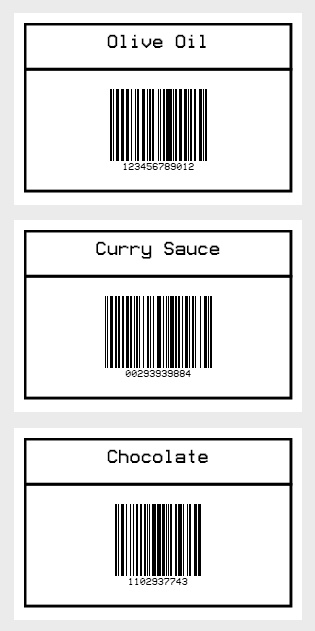
- The Product & ProductInfo classes:
VB
Public Class ProductInfo
    Public Property Serial As String
    Public Property Weight As Double
End Class

Public Class Product
    Public Property Id As String
    Public Property Name As String
    Public Property Info As ProductInfo
End Class
CS
public class ProductInfo
{
    public string Serial { get; set; }
    public double Weight { get; set; }
}

public class Product
{
    public string Id { get; set; }
    public string Name { get; set; }
    public ProductInfo Info { get; set; }
}
- ThermalLabel with Custom Object Data Binding
VB
'Define a ThermalLabel object and set unit to inch and label size
Dim tLabel As New ThermalLabel(UnitType.Inch, 3, 2)
tLabel.GapLength = 0.2

'Define a TextItem object for product name
Dim txt As New TextItem(0.1, 0.1, 2.8, 0.5, "")
'set data field
txt.DataField = "Name"
'set font
txt.Font.Name = Neodynamic.SDK.Printing.Font.NativePrinterFontA
txt.Font.Unit = FontUnit.Point
txt.Font.Size = 10
'set border
txt.BorderThickness = New FrameThickness(0.03)
'set alignment
txt.TextAlignment = TextAlignment.Center
txt.TextPadding = New FrameThickness(0, 0.1, 0, 0)

'Define a BarcodeItem object for encoding product serial with a Code 128 symbology
Dim bc As New BarcodeItem(0.1, 0.57, 2.8, 1.3, BarcodeSymbology.Code128, "")
'set data field (sub-property)
bc.DataField = "Info.Serial"
'set barcode size
bc.BarWidth = 0.01
bc.BarHeight = 0.75
'set barcode alignment
bc.BarcodeAlignment = BarcodeAlignment.MiddleCenter
'set text alignment
bc.CodeAlignment = BarcodeTextAlignment.BelowCenter
'set border
bc.BorderThickness = New FrameThickness(0.03)
bc.Font.Size = 5

'Add items to ThermalLabel object...
tLabel.Items.Add(txt)
tLabel.Items.Add(bc)

'Create data source...
Dim products As New List(Of Product) From {
    New Product With {
        .Id = "OO2935",
        .Name = "Olive Oil",
        .Info = New ProductInfo With {
            .Serial = "123456789012",
            .Weight = 1.3
        }
    },
    New Product With {
        .Id = "CS4948",
        .Name = "Curry Sauce",
        .Info = New ProductInfo With {
            .Serial = "00293939884",
            .Weight = 1.76
        }
    },
    New Product With {
        .Id = "CH0094",
        .Name = "Chocolate",
        .Info = New ProductInfo With {
            .Serial = "1102937743",
            .Weight = 0.34
        }
    }
}

'set data source...
tLabel.DataSource = products

'Create a WindowsPrintJob object
Using pj As New WindowsPrintJob()
    'Create PrinterSettings object
    Dim myPrinter As New PrinterSettings()
    myPrinter.Communication.CommunicationType = CommunicationType.USB
    myPrinter.Dpi = 203
    myPrinter.ProgrammingLanguage = ProgrammingLanguage.ZPL
    myPrinter.PrinterName = "Zebra  TLP2844-Z"

    'Set PrinterSettings to WindowsPrintJob
    pj.PrinterSettings = myPrinter
    'Print ThermalLabel object...
    pj.Print(tLabel)
End Using
CS
//Define a ThermalLabel object and set unit to inch and label size
ThermalLabel tLabel = new ThermalLabel(UnitType.Inch, 3, 2);
tLabel.GapLength = 0.2;

//Define a TextItem object for product name
TextItem txt = new TextItem(0.1, 0.1, 2.8, 0.5, "");
//set data field
txt.DataField = "Name";
//set font
txt.Font.Name = Neodynamic.SDK.Printing.Font.NativePrinterFontA;
txt.Font.Unit = FontUnit.Point;
txt.Font.Size = 10;
//set border
txt.BorderThickness = new FrameThickness(0.03);
//set alignment
txt.TextAlignment = TextAlignment.Center;
txt.TextPadding = new FrameThickness(0, 0.1, 0, 0);

//Define a BarcodeItem object for encoding product serial with a Code 128 symbology
BarcodeItem bc = new BarcodeItem(0.1, 0.57, 2.8, 1.3, BarcodeSymbology.Code128, "");
//set data field (sub-property)
bc.DataField = "Info.Serial";
//set barcode size
bc.BarWidth = 0.01;
bc.BarHeight = 0.75;
//set barcode alignment
bc.BarcodeAlignment = BarcodeAlignment.MiddleCenter;
//set text alignment
bc.CodeAlignment = BarcodeTextAlignment.BelowCenter;
//set border
bc.BorderThickness = new FrameThickness(0.03);
bc.Font.Size = 5;

//Add items to ThermalLabel object...
tLabel.Items.Add(txt);
tLabel.Items.Add(bc);

//Create data source...
List<Product> products = new List<Product>()
{
    new Product
    {
        Id = "OO2935",
        Name = "Olive Oil",
        Info = new ProductInfo
        {
            Serial = "123456789012",
            Weight = 1.3
        }
    },
    new Product
    {
        Id = "CS4948",
        Name = "Curry Sauce",
        Info = new ProductInfo
        {
            Serial = "00293939884",
            Weight = 1.76
        }
    },
    new Product
    {
        Id = "CH0094",
        Name = "Chocolate",
        Info = new ProductInfo
        {
            Serial = "1102937743",
            Weight = 0.34
        }
    }
};

//set data source...
tLabel.DataSource = products;

//Create a WindowsPrintJob object
using (WindowsPrintJob pj = new WindowsPrintJob())
{
    //Create PrinterSettings object
    PrinterSettings myPrinter = new PrinterSettings();
    myPrinter.Communication.CommunicationType = CommunicationType.USB;
    myPrinter.Dpi = 203;
    myPrinter.ProgrammingLanguage = ProgrammingLanguage.ZPL;
    myPrinter.PrinterName = "Zebra  TLP2844-Z";

    //Set PrinterSettings to WindowsPrintJob
    pj.PrinterSettings = myPrinter;
    //Print ThermalLabel object...
    pj.Print(tLabel);
}
Tip
To get the printer commands (or an image/PDF) instead of printing, use a PrintJob object: set pj.ProgrammingLanguage and pj.ThermalLabel, then call GetNativePrinterCommands(), ExportToImage(...) or ExportToPdf(...). See ThermalLabel Basics.
XML file Data Binding scenario
The following sample features an XML file containing books info. An ADO.NET DataSet object wrapping the books info from the XML source and a ThermalLabel object will be used to perform a data binding scenario, printing one thermal label for each book as shown in the following figure.
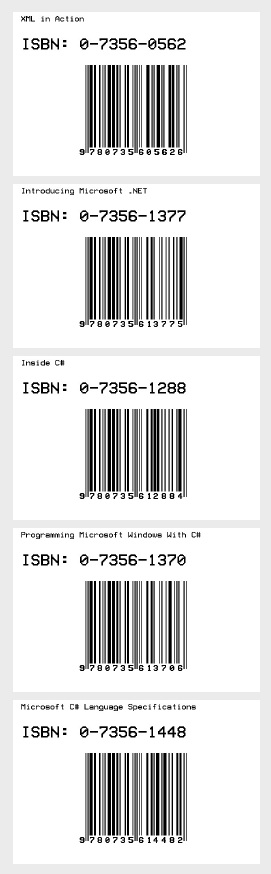
- Create an XML File in C:\temp\books.xml with the following content:
XML
<Books xmlns="">
  <Book ISBN="0-7356-0562-9" Title="XML in Action" />
  <Book ISBN="0-7356-1377-X" Title="Introducing Microsoft .NET" />
  <Book ISBN="0-7356-1288-9" Title="Inside C#" />
  <Book ISBN="0-7356-1370-2" Title="Programming Microsoft Windows With C#" />
  <Book ISBN="0-7356-1448-2" Title="Microsoft C# Language Specifications" />
</Books>
- ThermalLabel with an XML file Data Binding
VB
'Define a ThermalLabel object and set unit to inch and label size
Dim tLabel As New ThermalLabel(UnitType.Inch, 3, 2)
tLabel.GapLength = 0.2

'Define a TextItem object for binding to book's title
Dim txt1 As New TextItem(0.1, 0.05, 2.8, 0.3, "")
'set data field
txt1.DataField = "Title"
'set font
txt1.Font.Name = Neodynamic.SDK.Printing.Font.NativePrinterFontA
txt1.Font.Unit = FontUnit.Point
txt1.Font.Size = 5
'set alignment
txt1.TextAlignment = TextAlignment.Left

'Define a TextItem object for binding to ISBN code
Dim txt2 As New TextItem(0.1, 0.32, 2, 0.5, "")
'set data field
txt2.DataField = "ISBN"
'set the format to display
txt2.DataFieldFormatString = "ISBN: {0}"
'set font
txt2.Font.Name = Neodynamic.SDK.Printing.Font.NativePrinterFontA
txt2.Font.Unit = FontUnit.Point
txt2.Font.Size = 10
'set alignment
txt2.TextAlignment = TextAlignment.Left

'Define a BarcodeItem object for encoding ISBN barcode
Dim bc As New BarcodeItem(0.1, 0.57, 2.8, 1.3, BarcodeSymbology.Isbn, "")
'set data field
bc.DataField = "ISBN"
'set barcode size
bc.BarWidth = 0.013
bc.BarHeight = 1
bc.EanUpcGuardBar = True
bc.EanUpcGuardBarHeight = bc.BarHeight + 5 * bc.BarWidth
'set barcode alignment
bc.BarcodeAlignment = BarcodeAlignment.MiddleCenter
'set font for human readable text
bc.Font.Name = Neodynamic.SDK.Printing.Font.NativePrinterFontA
bc.Font.Unit = FontUnit.Point
bc.Font.Size = 5

'Add items to ThermalLabel object...
tLabel.Items.Add(txt1)
tLabel.Items.Add(txt2)
tLabel.Items.Add(bc)

'Create data source...
Dim books As New DataSet()
books.ReadXml("c:\temp\books.xml")

'set data source...
tLabel.DataSource = books

'Create a WindowsPrintJob object
Using pj As New WindowsPrintJob()
    'Create PrinterSettings object
    Dim myPrinter As New PrinterSettings()
    myPrinter.Communication.CommunicationType = CommunicationType.USB
    myPrinter.Dpi = 203
    myPrinter.ProgrammingLanguage = ProgrammingLanguage.ZPL
    myPrinter.PrinterName = "Zebra  TLP2844-Z"

    'Set PrinterSettings to WindowsPrintJob
    pj.PrinterSettings = myPrinter
    'Print ThermalLabel object...
    pj.Print(tLabel)
End Using
CS
//Define a ThermalLabel object and set unit to inch and label size
ThermalLabel tLabel = new ThermalLabel(UnitType.Inch, 3, 2);
tLabel.GapLength = 0.2;

//Define a TextItem object for binding to book's title
TextItem txt1 = new TextItem(0.1, 0.05, 2.8, 0.3, "");
//set data field
txt1.DataField = "Title";
//set font
txt1.Font.Name = Neodynamic.SDK.Printing.Font.NativePrinterFontA;
txt1.Font.Unit = FontUnit.Point;
txt1.Font.Size = 5;
//set alignment
txt1.TextAlignment = TextAlignment.Left;

//Define a TextItem object for binding to ISBN code
TextItem txt2 = new TextItem(0.1, 0.32, 2, 0.5, "");
//set data field
txt2.DataField = "ISBN";
//set the format to display
txt2.DataFieldFormatString = "ISBN: {0}";
//set font
txt2.Font.Name = Neodynamic.SDK.Printing.Font.NativePrinterFontA;
txt2.Font.Unit = FontUnit.Point;
txt2.Font.Size = 10;
//set alignment
txt2.TextAlignment = TextAlignment.Left;

//Define a BarcodeItem object for encoding ISBN barcode
BarcodeItem bc = new BarcodeItem(0.1, 0.57, 2.8, 1.3, BarcodeSymbology.Isbn, "");
//set data field
bc.DataField = "ISBN";
//set barcode size
bc.BarWidth = 0.013;
bc.BarHeight = 1;
bc.EanUpcGuardBar = true;
bc.EanUpcGuardBarHeight = bc.BarHeight + 5 * bc.BarWidth;
//set barcode alignment
bc.BarcodeAlignment = BarcodeAlignment.MiddleCenter;
//set font for human readable text
bc.Font.Name = Neodynamic.SDK.Printing.Font.NativePrinterFontA;
bc.Font.Unit = FontUnit.Point;
bc.Font.Size = 5;

//Add items to ThermalLabel object...
tLabel.Items.Add(txt1);
tLabel.Items.Add(txt2);
tLabel.Items.Add(bc);

//Create data source...
DataSet books = new DataSet();
books.ReadXml(@"c:\temp\books.xml");

//set data source...
tLabel.DataSource = books;

//Create a WindowsPrintJob object
using (WindowsPrintJob pj = new WindowsPrintJob())
{
    //Create PrinterSettings object
    PrinterSettings myPrinter = new PrinterSettings();
    myPrinter.Communication.CommunicationType = CommunicationType.USB;
    myPrinter.Dpi = 203;
    myPrinter.ProgrammingLanguage = ProgrammingLanguage.ZPL;
    myPrinter.PrinterName = "Zebra  TLP2844-Z";

    //Set PrinterSettings to WindowsPrintJob
    pj.PrinterSettings = myPrinter;
    //Print ThermalLabel object...
    pj.Print(tLabel);
}
Tip
You don't need the DataSet to use an XML file: the file path can be used directly as the data source. In the previous sample, tLabel.DataSource = @"c:\temp\books.xml"; produces the same labels.
ADO.NET Database Data Binding scenario
The following sample features an MS Access Database file (C:\Temp\DatabaseSample.mdb) containing an Employees table. An ADO.NET DataTable as well as a ThermalLabel object will be used for a data binding scenario, printing one thermal label for each employee as shown in the following figure.
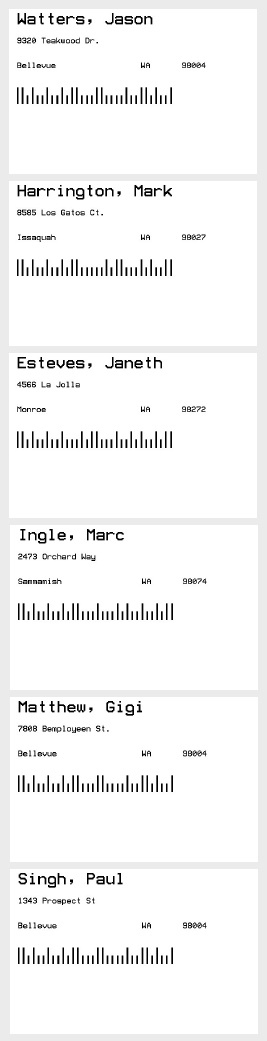
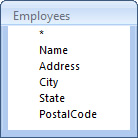
- The structure of the Employees table in DatabaseSample.mdb file is as follows:
Note
Please copy the DatabaseSample.mdb to C:\Temp\DatabaseSample.mdb before testing the following code. The sample uses the Microsoft.JET.OLEDB.4.0 provider, which is only available for 32-bit processes on Windows. In a 64-bit process, install the Microsoft Access Database Engine and use the Microsoft.ACE.OLEDB.12.0 provider instead. The way the DataTable is filled doesn't matter to the SDK: it works the same with SQL Server, SQLite or any other ADO.NET provider.
VB
'Define a ThermalLabel object and set unit to inch and label size
Dim tLabel As New ThermalLabel(UnitType.Inch, 3, 2)
tLabel.GapLength = 0.2

'Define a couple of TextItem objects for Employee info
Dim txt1 As New TextItem(0.1, 0.05, 2.8, 0.3, "")
'set data field
txt1.DataField = "Name"
'set font
txt1.Font.Name = Neodynamic.SDK.Printing.Font.NativePrinterFontA
txt1.Font.Unit = FontUnit.Point
txt1.Font.Size = 10
'set alignment
txt1.TextAlignment = TextAlignment.Left

Dim txt2 As New TextItem(0.1, 0.35, 2.8, 0.3, "")
'set data field
txt2.DataField = "Address"
'set font
txt2.Font.Name = Neodynamic.SDK.Printing.Font.NativePrinterFontA
txt2.Font.Unit = FontUnit.Point
txt2.Font.Size = 5
'set alignment
txt2.TextAlignment = TextAlignment.Left

Dim txt3 As New TextItem(0.1, 0.65, 1.5, 0.3, "")
'set data field
txt3.DataField = "City"
'set font
txt3.Font.Name = Neodynamic.SDK.Printing.Font.NativePrinterFontA
txt3.Font.Unit = FontUnit.Point
txt3.Font.Size = 5
'set alignment
txt3.TextAlignment = TextAlignment.Left

Dim txt4 As New TextItem(1.6, 0.65, 0.5, 0.3, "")
'set data field
txt4.DataField = "State"
'set font
txt4.Font.Name = Neodynamic.SDK.Printing.Font.NativePrinterFontA
txt4.Font.Unit = FontUnit.Point
txt4.Font.Size = 5
'set alignment
txt4.TextAlignment = TextAlignment.Left

Dim txt5 As New TextItem(2.1, 0.65, 0.7, 0.3, "")
'set data field
txt5.DataField = "PostalCode"
'set font
txt5.Font.Name = Neodynamic.SDK.Printing.Font.NativePrinterFontA
txt5.Font.Unit = FontUnit.Point
txt5.Font.Size = 5
'set alignment
txt5.TextAlignment = TextAlignment.Left

'Define a BarcodeItem object for encoding the postal code in USPS Postnet
Dim bc As New BarcodeItem(0.1, 0.95, 2.8, 0.65, BarcodeSymbology.Postnet, "")
'set data field
bc.DataField = "PostalCode"
'set narrow bar width
bc.BarWidth = 0.02
'do not set a quiet zone
bc.QuietZone = New FrameThickness(0)
'set barcode alignment
bc.BarcodeAlignment = BarcodeAlignment.TopLeft
'hide human readable text
bc.DisplayCode = False

'Add items to ThermalLabel object...
tLabel.Items.Add(txt1)
tLabel.Items.Add(txt2)
tLabel.Items.Add(txt3)
tLabel.Items.Add(txt4)
tLabel.Items.Add(txt5)
tLabel.Items.Add(bc)

'Create data source...
Dim employees As New DataTable()
Using conn As New System.Data.OleDb.OleDbConnection("Provider=Microsoft.JET.OLEDB.4.0; Data Source=C:\temp\DatabaseSample.mdb")
    'open db connection...
    conn.Open()
    'execute db command...
    Using cmd As New System.Data.OleDb.OleDbCommand("SELECT TOP 6 * FROM Employees", conn)
        Using reader As System.Data.OleDb.OleDbDataReader = cmd.ExecuteReader()
            employees.Load(reader)
        End Using
    End Using
End Using

'set data source...
tLabel.DataSource = employees

'Create a WindowsPrintJob object
Using pj As New WindowsPrintJob()
    'Create PrinterSettings object
    Dim myPrinter As New PrinterSettings()
    myPrinter.Communication.CommunicationType = CommunicationType.USB
    myPrinter.Dpi = 203
    myPrinter.ProgrammingLanguage = ProgrammingLanguage.ZPL
    myPrinter.PrinterName = "Zebra  TLP2844-Z"

    'Set PrinterSettings to WindowsPrintJob
    pj.PrinterSettings = myPrinter
    'Print ThermalLabel object...
    pj.Print(tLabel)
End Using
CS
//Define a ThermalLabel object and set unit to inch and label size
ThermalLabel tLabel = new ThermalLabel(UnitType.Inch, 3, 2);
tLabel.GapLength = 0.2;

//Define a couple of TextItem objects for Employee info
TextItem txt1 = new TextItem(0.1, 0.05, 2.8, 0.3, "");
//set data field
txt1.DataField = "Name";
//set font
txt1.Font.Name = Neodynamic.SDK.Printing.Font.NativePrinterFontA;
txt1.Font.Unit = FontUnit.Point;
txt1.Font.Size = 10;
//set alignment
txt1.TextAlignment = TextAlignment.Left;

TextItem txt2 = new TextItem(0.1, 0.35, 2.8, 0.3, "");
//set data field
txt2.DataField = "Address";
//set font
txt2.Font.Name = Neodynamic.SDK.Printing.Font.NativePrinterFontA;
txt2.Font.Unit = FontUnit.Point;
txt2.Font.Size = 5;
//set alignment
txt2.TextAlignment = TextAlignment.Left;

TextItem txt3 = new TextItem(0.1, 0.65, 1.5, 0.3, "");
//set data field
txt3.DataField = "City";
//set font
txt3.Font.Name = Neodynamic.SDK.Printing.Font.NativePrinterFontA;
txt3.Font.Unit = FontUnit.Point;
txt3.Font.Size = 5;
//set alignment
txt3.TextAlignment = TextAlignment.Left;

TextItem txt4 = new TextItem(1.6, 0.65, 0.5, 0.3, "");
//set data field
txt4.DataField = "State";
//set font
txt4.Font.Name = Neodynamic.SDK.Printing.Font.NativePrinterFontA;
txt4.Font.Unit = FontUnit.Point;
txt4.Font.Size = 5;
//set alignment
txt4.TextAlignment = TextAlignment.Left;

TextItem txt5 = new TextItem(2.1, 0.65, 0.7, 0.3, "");
//set data field
txt5.DataField = "PostalCode";
//set font
txt5.Font.Name = Neodynamic.SDK.Printing.Font.NativePrinterFontA;
txt5.Font.Unit = FontUnit.Point;
txt5.Font.Size = 5;
//set alignment
txt5.TextAlignment = TextAlignment.Left;

//Define a BarcodeItem object for encoding the postal code in USPS Postnet
BarcodeItem bc = new BarcodeItem(0.1, 0.95, 2.8, 0.65, BarcodeSymbology.Postnet, "");
//set data field
bc.DataField = "PostalCode";
//set narrow bar width
bc.BarWidth = 0.02;
//do not set a quiet zone
bc.QuietZone = new FrameThickness(0);
//set barcode alignment
bc.BarcodeAlignment = BarcodeAlignment.TopLeft;
//hide human readable text
bc.DisplayCode = false;

//Add items to ThermalLabel object...
tLabel.Items.Add(txt1);
tLabel.Items.Add(txt2);
tLabel.Items.Add(txt3);
tLabel.Items.Add(txt4);
tLabel.Items.Add(txt5);
tLabel.Items.Add(bc);

//Create data source...
DataTable employees = new DataTable();
using (System.Data.OleDb.OleDbConnection conn = new System.Data.OleDb.OleDbConnection(@"Provider=Microsoft.JET.OLEDB.4.0; Data Source=C:\temp\DatabaseSample.mdb"))
{
    //open db connection...
    conn.Open();
    //execute db command...
    using (System.Data.OleDb.OleDbCommand cmd = new System.Data.OleDb.OleDbCommand("SELECT TOP 6 * FROM Employees", conn))
    {
        using (System.Data.OleDb.OleDbDataReader reader = cmd.ExecuteReader())
        {
            employees.Load(reader);
        }
    }
}

//set data source...
tLabel.DataSource = employees;

//Create a WindowsPrintJob object
using (WindowsPrintJob pj = new WindowsPrintJob())
{
    //Create PrinterSettings object
    PrinterSettings myPrinter = new PrinterSettings();
    myPrinter.Communication.CommunicationType = CommunicationType.USB;
    myPrinter.Dpi = 203;
    myPrinter.ProgrammingLanguage = ProgrammingLanguage.ZPL;
    myPrinter.PrinterName = "Zebra  TLP2844-Z";

    //Set PrinterSettings to WindowsPrintJob
    pj.PrinterSettings = myPrinter;
    //Print ThermalLabel object...
    pj.Print(tLabel);
}
Common mistakes
- Item prints empty. The
DataFieldname doesn't match any column/property (names are case-sensitive), or the value is empty. For custom objects, remember that only public properties are used, not fields. - Nothing is printed with a CSV/XML/JSON string. Missing prefix (
csv:,xml:orjson:), a file with an extension other than.csv,.xmlor.json, or invalid content. - CSV columns look shifted. Values with the delimiter inside must be enclosed in double quotes (
"Smith, John"). - Rows missing after using
DataFieldReplicates. Rows with0, negative or non-numeric counts are skipped. - Cached item bound to a field.
UseCacheis ignored on bound items. See Items Caching.