ThermalLabel Basics
What is ThermalLabel?
ThermalLabel is the class that represents a label: its size, the layout of the roll or sheet it lives on, and the items (text, barcodes, images, shapes) placed on it. You design the label once, and the SDK either converts it to raw printer commands (ZPL, EPL, Fingerprint...) or exports it to PDF and raster images.
Quick Start
Get a first result in a couple of minutes, without a printer: design a 4 x 3 inch label with a text and a Code 128 barcode, and export it to PDF.
1. Reference the SDK. Add Neodynamic.SDK.ThermalLabel.dll to your .NET project and import the namespace.
2. Create the label and add items.
3. Export it (or print it).
C#
using Neodynamic.SDK.Printing;

// 1. Create the label: unit of measurement, width and height
ThermalLabel tLabel = new ThermalLabel(UnitType.Inch, 4, 3);
tLabel.GapLength = 0.2; // separation between labels on the roll

// 2. Add items. All positions and sizes use the unit defined above (inches)
TextItem txtItem = new TextItem(0.2, 0.2, 2.5, 0.5, "Thermal Label Test");
BarcodeItem bcItem = new BarcodeItem(0.2, 1, 2, 1, BarcodeSymbology.Code128, "ABC 12345");
bcItem.BarHeight = 0.75;   // bars height
bcItem.BarWidth = 0.0104;  // narrowest bar width (about 2 dots at 203 dpi)

tLabel.Items.Add(txtItem);
tLabel.Items.Add(bcItem);

// 3. Export to PDF, no printer needed (the last parameter is the output resolution in DPI)
using (PrintJob pj = new PrintJob())
{
    pj.ExportToPdf(tLabel, "label.pdf", 300);
}
VB.NET
Imports Neodynamic.SDK.Printing

' 1. Create the label: unit of measurement, width and height
Dim tLabel As New ThermalLabel(UnitType.Inch, 4, 3)
tLabel.GapLength = 0.2 ' separation between labels on the roll

' 2. Add items. All positions and sizes use the unit defined above (inches)
Dim txtItem As New TextItem(0.2, 0.2, 2.5, 0.5, "Thermal Label Test")
Dim bcItem As New BarcodeItem(0.2, 1, 2, 1, BarcodeSymbology.Code128, "ABC 12345")
bcItem.BarHeight = 0.75   ' bars height
bcItem.BarWidth = 0.0104  ' narrowest bar width (about 2 dots at 203 dpi)

tLabel.Items.Add(txtItem)
tLabel.Items.Add(bcItem)

' 3. Export to PDF, no printer needed (the last parameter is the output resolution in DPI)
Using pj As New PrintJob()
    pj.ExportToPdf(tLabel, "label.pdf", 300)
End Using
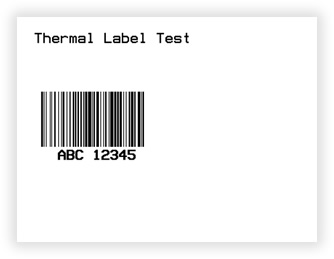
The result looks like this:
Print it for real
Once the design looks right, send it to a physical thermal printer. For a Windows app, use WindowsPrintJob and describe your printer with PrinterSettings. You need a thermal printer connected and its Windows driver installed.
C#
using (WindowsPrintJob pj = new WindowsPrintJob())
{
    // Describe the target printer
    PrinterSettings myPrinter = new PrinterSettings();
    myPrinter.Communication.CommunicationType = CommunicationType.USB;
    myPrinter.Dpi = 203;                                    // must match your printer
    myPrinter.ProgrammingLanguage = ProgrammingLanguage.ZPL; // must match your printer
    myPrinter.PrinterName = "Zebra TLP2844-Z";              // exact name shown in Windows

    // Assign the settings, then print
    pj.PrinterSettings = myPrinter;
    pj.Print(tLabel);
}
VB.NET
Using pj As New WindowsPrintJob()
    ' Describe the target printer
    Dim myPrinter As New PrinterSettings()
    myPrinter.Communication.CommunicationType = CommunicationType.USB
    myPrinter.Dpi = 203                                     ' must match your printer
    myPrinter.ProgrammingLanguage = ProgrammingLanguage.ZPL ' must match your printer
    myPrinter.PrinterName = "Zebra TLP2844-Z"               ' exact name shown in Windows

    ' Assign the settings, then print
    pj.PrinterSettings = myPrinter
    pj.Print(tLabel)
End Using
Key Concepts
- Unit of measurement. The
UnitTypeyou pass to theThermalLabelconstructor (inch, cm, mm, dots, point or pica) is used for the label size and for the location and size of every item. Don't mix units. - Coordinates.
XandYare measured from the top-left corner of the label. - Drawing order. Items are printed in the order they have in the
Itemscollection, so the last item added is drawn on top. - DPI and bar width. Printer resolution matters for barcodes.
BarWidthshould map to a whole number of dots: 0.0104 in is about 2 dots at 203 dpi. - Constructor parameters.
| Class | Constructor |
|---|---|
ThermalLabel |
(unit, width, height) |
TextItem |
(x, y, width, height, text) |
BarcodeItem |
(x, y, width, height, symbology, data) |
- Gap, mark or offset? The separation between labels depends on the media you use:
| Your media | Property to set |
|---|---|
| Die-cut labels separated by a gap | GapLength |
| Labels separated by a black mark | MarkLength |
| Labels separated by an offset | OffsetLength |
| Continuous media (no gaps, marks, notches or holes) | IsContinuous = true |
Programming Object Model
The ThermalLabel object
The ThermalLabel object represents the label's rectangular area intended for placing items like texts, barcodes, images, RFID tags, and shapes. You can create as many items as you want to print on the label. Items are simple objects which are assembled together to design and create the output thermal label. All items are printed in the order that each of them has in the stack of items (the Items collection property of the ThermalLabel object) and in the location specified for each item through their X and Y properties.
There are five main kinds of items which can be placed on the label: TextItem, BarcodeItem, ImageItem, RFIDTagItem, and ShapeItem (Lines, Rectangles, Circles, etc.).
Note
New: Label Shapes. The label itself is no longer limited to a rectangular outline. ThermalLabel now supports Label Shapes, set through its Shape property. Rectangle (default) and Ellipse are supported for now. See Label Shapes.
Which PrintJob should I use?
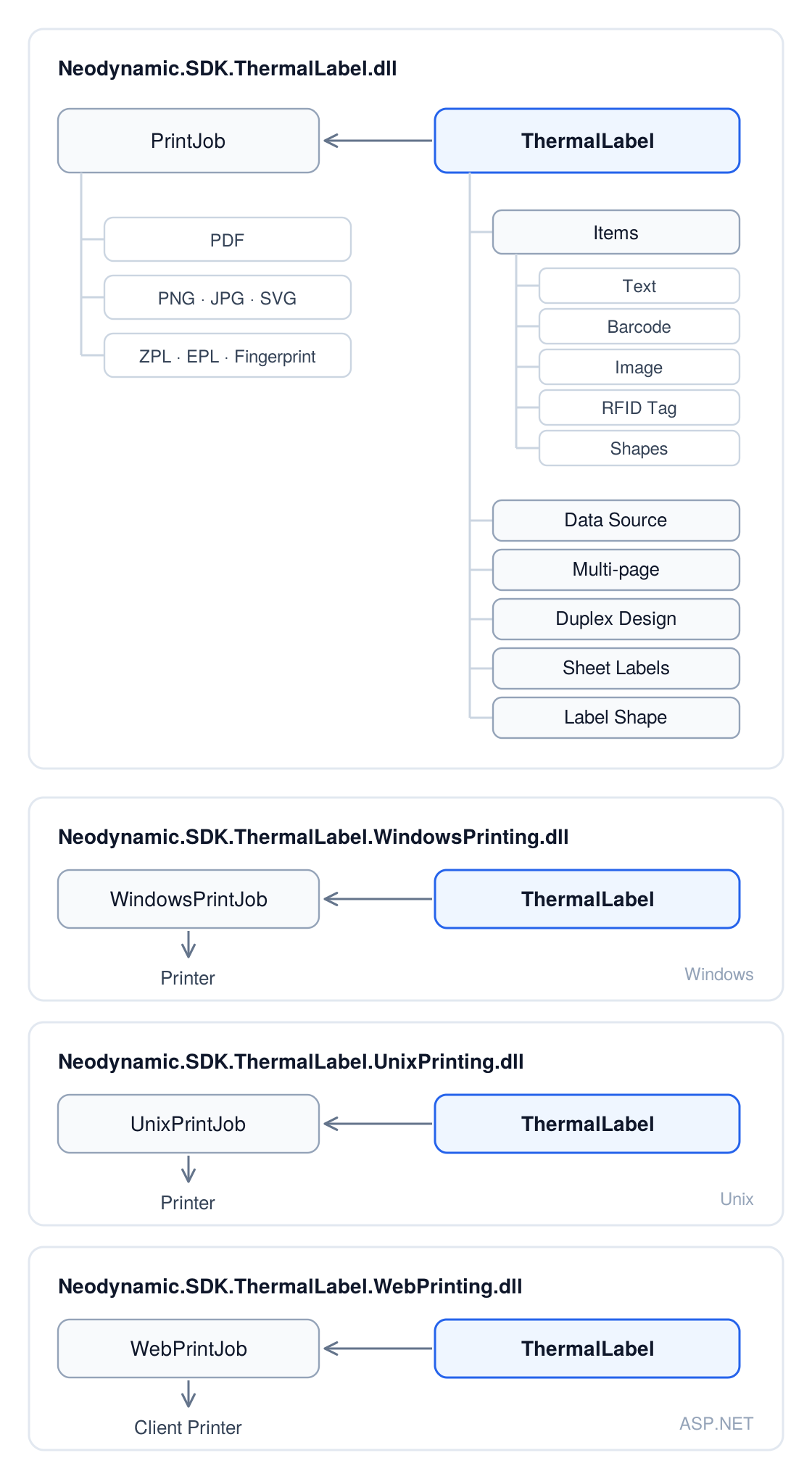
The PrintJob is the object that specifies how the ThermalLabel object is converted to raw printer commands, including settings like label orientation and number of copies. It is also used for exporting a ThermalLabel to raster image formats or Adobe PDF, which is very useful during development, or when you have no access to a physical thermal printer.
| Object | Use it for | Assembly |
|---|---|---|
PrintJob |
Exporting to PDF/images, generating printer commands | Neodynamic.SDK.ThermalLabel.dll |
WindowsPrintJob |
Printing from a Windows client app | Neodynamic.SDK.ThermalLabel.WindowsPrinting.dll |
UnixPrintJob |
Printing from a Unix client app | Neodynamic.SDK.ThermalLabel.UnixPrinting.dll |
WebPrintJob |
Printing from an ASP.NET project | Neodynamic.SDK.ThermalLabel.WebPrinting.dll |
WindowsPrintJob, UnixPrintJob and WebPrintJob also manage the printer device settings and communication, label orientation, number of copies, etc.
Label Layouts
Which layout do I have? Use this table as a starting point, and read the matching section below.
| Layout | Key properties |
|---|---|
| Single roll | Width, Height, GapLength / MarkLength / OffsetLength |
| Pre-printed | Same as single roll + DesignBackgroundImage |
| Multi-column roll | + LabelsPerRow, LabelsHorizontalGapLength |
| Multi-page | Pages collection; total Width/Height = sum of pages + gap |
| Duplex design | IsDuplexDesign = true + two pages (front and back) |
| Sheet | + SheetLabelsWidth, SheetLabelsHeight, SheetLabelsCount, SheetLabelsMargin |
| Label Shapes (new) | Shape (LabelShape.Rectangle or LabelShape.Ellipse) |
Single Roll Labels
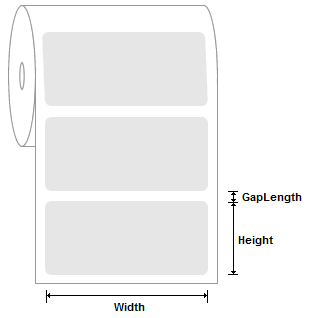
To design a label, the first thing to set up is the unit of measurement (inch, cm, mm, dots, point, or pica) through the UnitType property, which is used for sizing as well as for item locations. After the unit is set up, specify the label's size (Width and Height properties) and the separation (GapLength, MarkLength, or OffsetLength property) between labels on the same roll media.
Pre-printed Labels
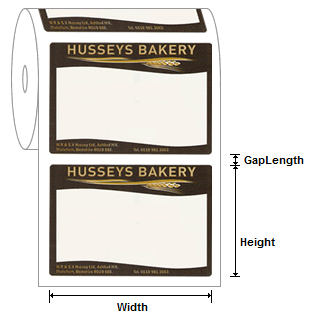
For pre-printed labels, or labels with designs that are not rectangular, the ThermalLabel object lets you specify a non-printable background image that helps your end users design the label content by filling the available blank zones when using the visual label designers. This image template is specified through the DesignBackgroundImage property and must be a PNG image in Base64 format.
Multi-column Roll Labels
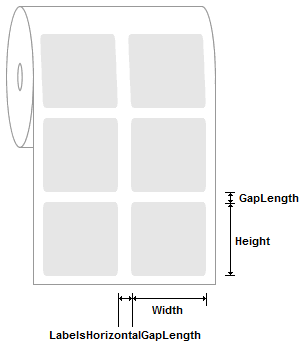
ThermalLabel also supports multi-column roll labels, i.e. the roll media contains more than one label per "row". In this case, configure the ThermalLabel object with:
- the size of each individual label (
WidthandHeightproperties), - the number of labels per row on the roll (
LabelsPerRowproperty), - the horizontal gap between labels (
LabelsHorizontalGapLengthproperty), - the vertical separation between rows of labels (
GapLength,MarkLength, orOffsetLengthproperty).
Multi-page Labels
ThermalLabel also supports the pages concept, where a set of consecutive (horizontal, vertical or both) labels is considered a single multi-page label. Each page must be added to the Pages collection property of the ThermalLabel object by specifying the page location (X and Y properties) and size (Width and Height properties). The ThermalLabel size (Width and Height properties) must be set differently depending on whether the pages are distributed horizontally and/or vertically:
Horizontal multi-page labels. The
Widthof theThermalLabelobject is the sum of both pages' width plus the horizontal gap.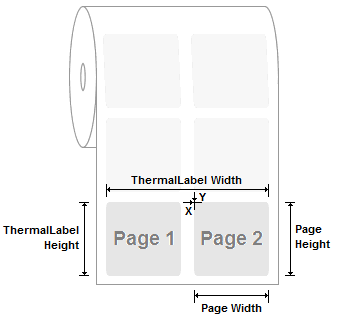
Vertical multi-page labels. The
Heightof theThermalLabelobject is the sum of both pages' height plus the vertical gap.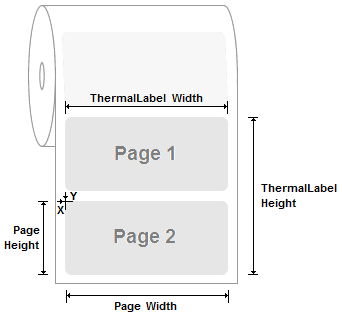
Note
Pages are only a way to show your end users where to design and add label items in the different visual label designers. They don't change how the label is printed.
Duplex-Design Labels
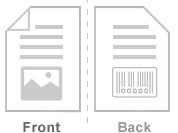
ThermalLabel also supports duplex design, which allows printing the front and back sides of a single label. It is based on the pages concept described above. To create this kind of label, set the IsDuplexDesign property of the ThermalLabel object to true and add two pages, representing the front and back sides, to its Pages collection.
Note
Duplex printing is only available when the label is printed as a graphic/image and the target printer supports duplex printing.
Sheet Labels
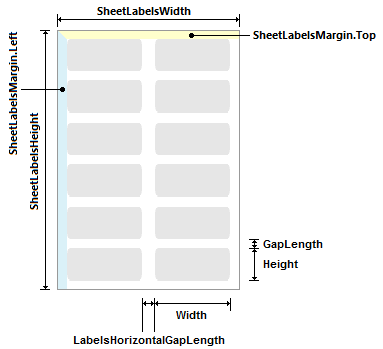
ThermalLabel also supports sheet label layouts (like Avery and other brands). In this case, configure the ThermalLabel object with:
- the size of each individual label (
WidthandHeightproperties), - the number of labels per row (
LabelsPerRowproperty), - the horizontal gap between labels (
LabelsHorizontalGapLengthproperty), - the vertical separation between labels (
GapLengthproperty), - the general sheet settings (
SheetLabelsWidth,SheetLabelsHeight,SheetLabelsCount, andSheetLabelsMarginproperties).
Label Shapes
Not every label is a plain rectangle. With Label Shapes, the label area itself can take a shape other than the default rectangle. Set it through the Shape property of the ThermalLabel object, which takes a LabelShape value. The supported shapes for now are:
LabelShape.Rectangle(default)LabelShape.Ellipse
C#
// An elliptical label, 3 x 2 inches
ThermalLabel tLabel = new ThermalLabel(UnitType.Inch, 3, 2);
tLabel.Shape = LabelShape.Ellipse;
VB.NET
' An elliptical label, 3 x 2 inches
Dim tLabel As New ThermalLabel(UnitType.Inch, 3, 2)
tLabel.Shape = LabelShape.Ellipse
Note
Width and Height still define the bounding box of the label. An ellipse is inscribed in that box.
Common Mistakes
- Wrong printer name.
PrinterNamemust match, character by character, the name shown in the Windows printers list. - Wrong DPI or language.
DpiandProgrammingLanguagemust match your printer's resolution and command language (ZPL, EPL, Fingerprint...). Otherwise the output is scaled wrongly or printed as garbage. - Missing gap or mark. Without
GapLength,MarkLengthorOffsetLength(orIsContinuous = truefor continuous media), the printer can lose track of where one label ends and the next begins and skip or misalign labels. - Mixed units. The label size and the positions and sizes of its items always use the same
UnitType. - Barcode too small to scan. Check
BarWidthagainst your printer's DPI (see Key Concepts).