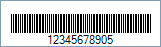
This Symbology is also known as 2 of 5 IATA, 2/5 IATA, International Air Transport Assosiation 2 of 5
This Barcode Symbology is supported by the following Neodynamic products:
IATA 2 of 5 barcode is used by International Air Transport Assosiation (IATA) for the management of air cargo. The barcode is based on Industrial 2 of 5 standard requiring a mandatory check digit.
Note: Please refer to the Class Reference documentation for more information about the properties and methods stated in this document.
In order to get a IATA 2 of 5 barcode image, please follow these steps:
- Set the Symbology property to IATA2of5
- Setting up dimensions and quiet zones:
- Set the BarWidth and BarHeight properties (Values are expressed in Inches)
- Set the QuietZoneWidth property (Value is expressed in Inches)
- Set the TopMargin and BottomMargin properties (Values are expressed in Inches)
- Set the Code property with the value to encode. Only numeric values are supported by this Symbology
- Setting up the Bearer Bars if needed:
- Set the BearerBarStyle property to Frame, or HorizontalRules
- Set the BearerBarWidth property (Value is expressed in Inches)
- Barcode Professional will automatically generate and append the checksum value
- Tip 1: You can disable this behavior by setting up to False the AddChecksum property
- Tip 2: You can leave AddChecksum property set to True but rid of the checksum value from the Human Readable text by setting up to False the DisplayChecksum property
Note: Please refer to the Class Reference documentation for more information about the properties and methods stated in this document.
In order to get a IATA 2 of 5 barcode image, please follow these steps:
- Set the Symbology property to IATA2of5
- Setting up dimensions and quiet zones:
All values for barcode dimensions are expressed in INCHES by default. However, Barcode Professional supports other unit of measurement such as Millimeter, Centimeter, and Mils. For modifying the unit of measurement for barcoding, please set up the BarcodeUnit property as needed.
- Set the BarWidth and BarHeight properties (Values are expressed in Inches)
- Set the QuietZone property (Value is expressed in Inches)
- Set the TopMargin and BottomMargin properties (Values are expressed in Inches)
- Set the Code property with the value to encode. Only numeric values are supported by this Symbology
- Setting up the Bearer Bars if needed:
- Set the BearerBarStyle property to Frame, or HorizontalRules
- Set the BearerBarWidth property (Value is expressed in Inches)
- Barcode Professional will automatically generate and append the checksum value
- Tip 1: You can disable this behavior by setting up to False the AddChecksum property
- Tip 2: You can leave AddChecksum property set to True but rid of the checksum value from the Human Readable text by setting up to False the DisplayChecksum property