
This Symbology is also known as ANSI/AIM 128, ANSI/AIM Code 128, USS Code 128, Uniform Symbology Specification Code 128, Code 128 Code Set A, Code 128 Code Set B, Code 128 Code Set C, Code 128A, Code 128B, Code 128C
This Barcode Symbology is supported by the following Neodynamic products: Code 128 is a linear bar code symbology capable of encoding the full 128-character ASCII character set and extended character sets. This Symbology includes a checksum digit for verification, and the barcode may also be verified character-by-character verifying the parity of each data byte. It has been widely implemented in many applications where a relatively large amount of data must be encoded in a relatively small amount of space.
The last seven characters of Code Sets A and B (character values 96 - 102) and the last three characters of Code Set C (character values 100 - 102) are special non-data characters with no ASCII character equivalents, which have particular significance to the bar code reading device. Four of those special chars are known as Function Symbol Character a.k.a. FNC1, FNC2, FNC3 & FNC4. You can encode these special Function Symbol Characters by using the following UTF-8 Latin Extended A chars:
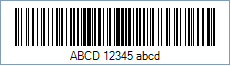
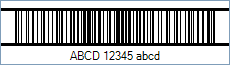
Code property = ABCD 12345 abcd and Code128CharSet property = Auto will produce the following barcode image:
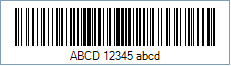
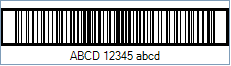
Code property = ABCD 12345 abcd and Code128CharSet property = Auto and BearerBarStyle property = Frame and HorizontalRules will produce the following barcode images:
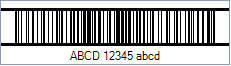
Code property = ABCD 12345 and Code128CharSet property = A will produce the following barcode image:
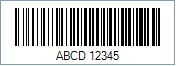
Code property = 12345 abcd and Code128CharSet property = B will produce the following barcode image:
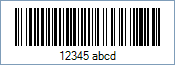
Code property = 001122334455 abcd and Code128CharSet property = C will produce the following barcode image:
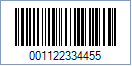
You can handle how the data must be encoded specifying some special chars that represent each Code 128 Char Set. The special chars that tell to Barcode Professional what Code Set must be used to encode the data that follows it are these:
Example of explicit switching between Code 128 Code Sets
Suppose you need to encode 3 alpha chars using Char Set A and 10 numeric digits using Char Set C. You can get it by setting up the following properties: