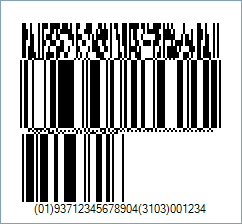
This Symbology is also known as GS1 DataBar Expanded Stacked Composite Barcode, GS1 DataBar Expanded Stacked CC-A (CCA), GS1 DataBar Expanded Stacked CC-B (CCB), GS1 DataBar Expanded Stacked Composite A, GS1 DataBar Expanded Stacked Composite B, GS1 DataBar Expanded Stacked 2D Composite, GS1 DataBar Expanded Stacked Composite Component A, GS1 DataBar Expanded Stacked Composite Component B
This Barcode Symbology is supported by the following Neodynamic products: In Barcode Composite Symbology, the linear component encodes the item's primary identification while the adjacent 2D Composite Component (abbreviated as CC) encodes supplementary data, such as a batch number and expiration date. The Composite Symbol always includes a linear component so that the primary identification is readable by all scanning technologies. The Composite Symbol always includes a multi-row 2D Composite Component that can be read with linear- and area-CCD scanners, and with linear and rastering laser scanners. The 2D Composite Component is printed above the linear component and both are separated by a separator pattern.
NOTE: The Primary Data must comply GS1-128 (UCC/EAN-128) data format i.e. application identifiers (AIs) + data fields
Code property = (01)93712345678904(3103)001234|911A2B3C4D5E (Primary Data = (01)93712345678904(3103)001234 and Secondary Data = 911A2B3C4D5E), Symbology property = GS1DataBarExpandedStackedCCA, AddChecksum property = True will produce the following barcode image:
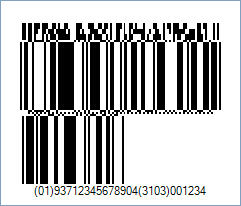
Code property = (01)93712345678904(3103)001234|911A2B3C4D5E (Primary Data = (01)93712345678904(3103)001234 and Secondary Data = 911A2B3C4D5E), Symbology property = GS1DataBarExpandedStackedCCB, AddChecksum property = True will produce the following barcode image: