This Symbology is also known as GS1 DataBar Limited Composite Barcode, GS1 DataBar Limited CC-A (CCA), GS1 DataBar Limited CC-B (CCB), GS1 DataBar Limited Composite A, GS1 DataBar Limited Composite B, GS1 DataBar Limited 2D Composite, GS1 DataBar Limited Composite Component A, GS1 DataBar Limited Composite Component B
This Barcode Symbology is supported by the following Neodynamic products: In Barcode Composite Symbology, the linear component encodes the item's primary identification while the adjacent 2D Composite Component (abbreviated as CC) encodes supplementary data, such as a batch number and expiration date. The Composite Symbol always includes a linear component so that the primary identification is readable by all scanning technologies. The Composite Symbol always includes a multi-row 2D Composite Component that can be read with linear- and area-CCD scanners, and with linear and rastering laser scanners. The 2D Composite Component is printed above the linear component and both are separated by a separator pattern.
NOTE: The Primary Data must be a 13-digit value representing a GTIN-14 code excluding AI (01) and last check digit.
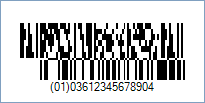
Code property = 0361234567890|11990102 (Primary Data = 0361234567890 and Secondary Data = 11990102), Symbology property = GS1DataBarLimitedCCA, AddChecksum property = True will produce the following barcode image:
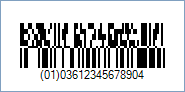
Code property = 0361234567890|11990102 (Primary Data = 0361234567890 and Secondary Data = 11990102), Symbology property = GS1DataBarLimitedCCB, AddChecksum property = True will produce the following barcode image: