EAN-Velocity Barcode
This Symbology is also known as Velocity Barcode
This Barcode Symbology is supported by the following Neodynamic products:- Barcode Professional SDK for .NET Projects
- Barcode Professional for Windows Forms
- BarcodePro Web API for Docker
- Barcode Professional for WPF
- Barcode Professional for XAML WinRT Windows Store
- Barcode Professional for ASP.NET (Web Forms, MVC Razor, AJAX)
- Barcode Professional for Silverlight LOB
- Barcode Professional for Reporting Services (CRI & DLL for SSRS (RDL))
- Barcode Professional for .NET STANDARD
- Barcode Professional for Blazor
- ThermalLabel SDK for .NET
- Barcode Professional for Windows Phone
- Barcode Professional for .NET Compact Framework
Overview
 EAN-Velocity is not a proper Symbology, but just a shorter way to specify the message data.
It is a special version of EAN-8, with the first digit is 0 (zero) which is usually used for internal article numbering.
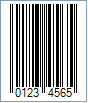
Sample of an EAN-Velocity Barcode
How to create EAN-Velocity barcodes using Barcode Professional for
Note: Please refer to the Class Reference documentation for more information about the properties and methods stated in this document.
In order to get an EAN-Velocity barcode image, please follow these steps:
- Set the Symbology property to EanVelocity
- Setting up dimensions and quiet zones:
- Set the BarWidth property to 0.013 (Value is expressed in Inches)
- Set the BarHeight property to 0.86 (Value is expressed in Inches)
- If Guard Bars are needed:
- Set the GuardBar property to True
- Set the GuardBarHeight property to 0.925 (Value is expressed in Inches)
- Set the QuietZoneWidth property to 0.091 (Value is expressed in Inches)
- Set the Code property with a value with the following structure:
- 6 digits for content
- 1 digit for Check-Sum ONLY if AddChecksum property is False, otherwise DO NOT specify the checksum digit because it will be automatically calculated by Barcode Professional products.
- Add-On Settings if needed:
- Set the EanUpcSupplement to Digits2 (Two-Digit Add-On) or Digits5 (Five-Digit Add-On)
- Set the EanUpcSupplementCode with the Add-On value which must be 2 or 5 digits only
- Drawn Light Margin Indicators if needed:
- Set the DisplayLightMarginIndicator to True
- Set the Text property to an Empty string
Note: Please refer to the Class Reference documentation for more information about the properties and methods stated in this document.
In order to get an EAN-Velocity barcode image, please follow these steps:
- Set the Symbology property to EanVelocity
- Setting up dimensions and quiet zones:
All values for barcode dimensions are expressed in INCHES by default. However, Barcode Professional supports other unit of measurement such as Millimeter, Centimeter, and Mils. For modifying the unit of measurement for barcoding, please set up the BarcodeUnit property as needed.
- Set the BarWidth property to 0.013 (Value is expressed in Inches)
- Set the BarHeight property to 0.86 (Value is expressed in Inches)
- If Guard Bars are needed:
- Set the GuardBar property to True
- Set the GuardBarHeight property to 0.925 (Value is expressed in Inches)
- Set the QuietZone property to 0.091, 0, 0.091, 0 - Left, Top, Right, Bottom (Value is expressed in Inches)
- Set the Code property with a value with the following structure:
- 6 digits for content
- 1 digit for Check-Sum ONLY if AddChecksum property is False, otherwise DO NOT specify the checksum digit because it will be automatically calculated by Barcode Professional products.
- Add-On Settings if needed:
- Set the EanUpcSupplement to Digits2 (Two-Digit Add-On) or Digits5 (Five-Digit Add-On)
- Set the EanUpcSupplementCode with the Add-On value which must be 2 or 5 digits only
- Drawn Light Margin Indicators if needed:
- Set the DisplayLightMarginIndicator to True
- Set the Text property to an Empty string
EAN-Velocity barcode images examples
Code property = 123456 and AddChecksum property = True will produce the following barcode image: